Solutions
worksection
beta
help
What does the tray contain and how to use it?
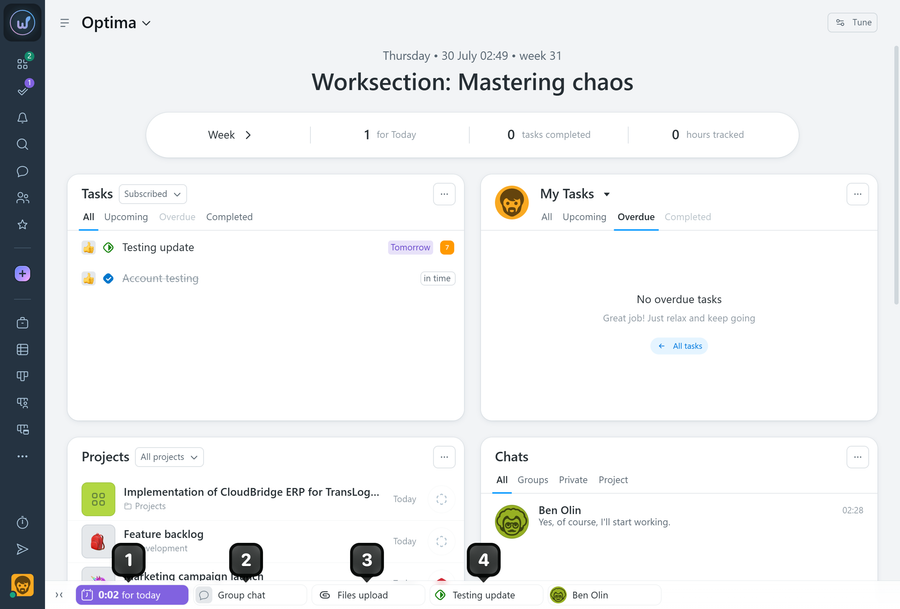
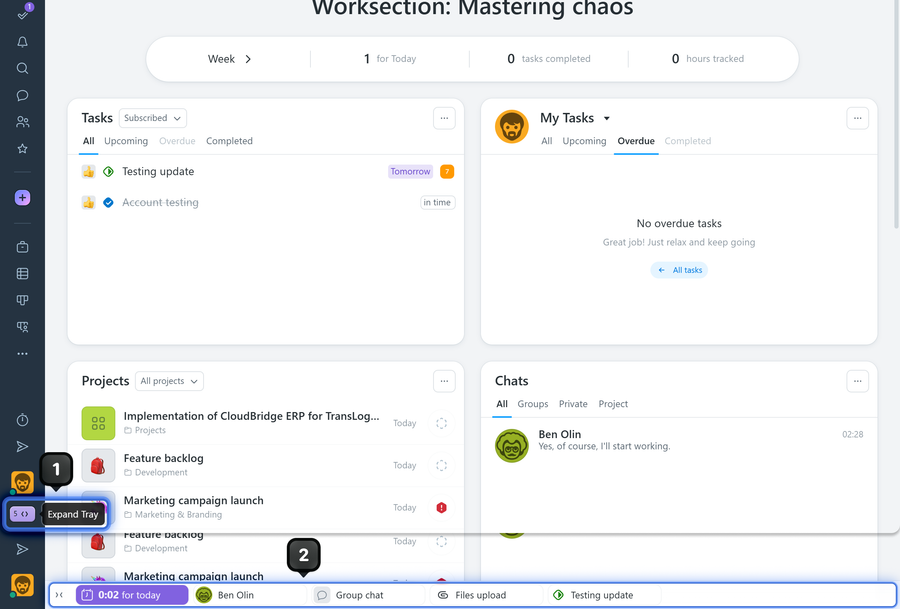
The tray in Worksection is displayed on all pages and appears at the bottom of each page as a bar. It is a convenient tool for quick access to certain information.
Main tray functions
The tray allows quick access to:
- The Time & Costs / day planning window
- Chats — minimized chats to continue conversations
- Files — minimized file upload window
- Tasks — minimized tasks for quick access
How to minimize elements to the tray
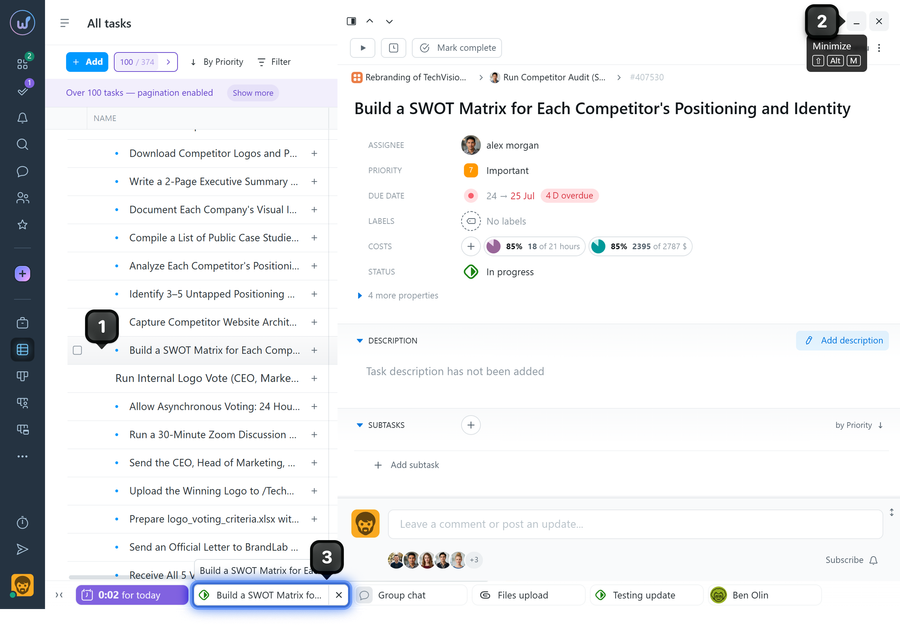
For tasks:
- Open a task in any project
- Find the "Minimize" button in the top right corner of the task window
- Click the button — the task will go to the tray
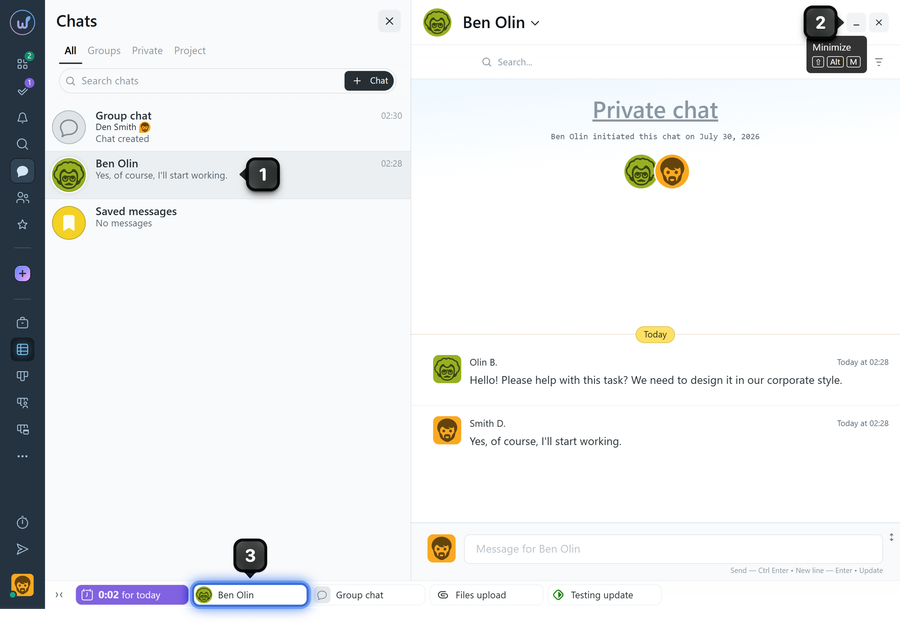
For chats:
- Open any chat in the system
- Find the "Minimize" button next to the close button (X)
- Click the button — the chat will go to the tray
Managing the tray
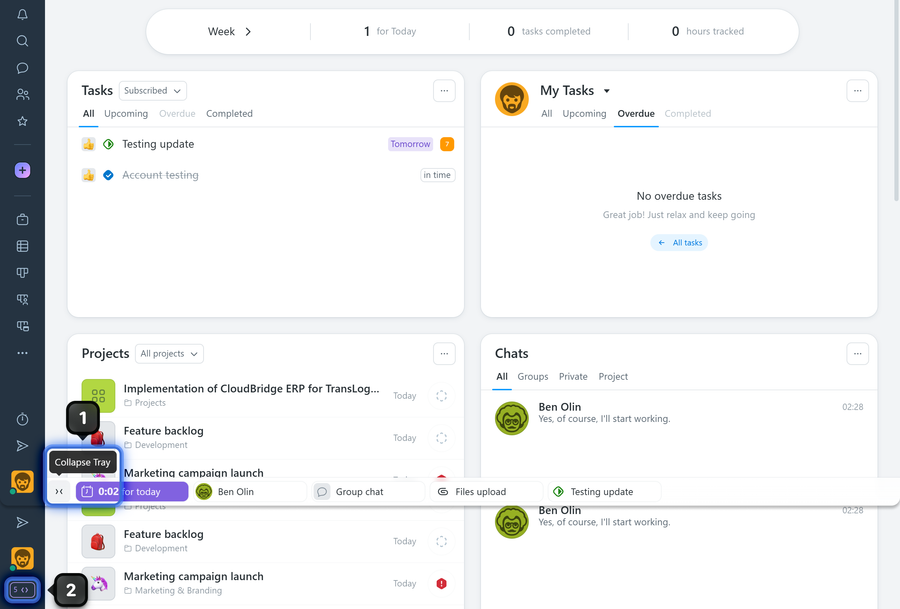
Hiding the tray:
- Click the "Collapse" button at the far left of the tray
- The tray will collapse below your avatar in the left sidebar
Restoring the tray:
- Click the collapsed tray below the avatar
- The tray will expand at the bottom of the page
Benefits of using the tray
- Quick access — to important tasks and chats
- Space saving — ability to hide the tray
- Multitasking — work with multiple elements at the same time
- Convenience — minimize without losing context
Useful tips
- Organize the tray — keep only the most important tasks and chats in it
- Clear it regularly — remove completed tasks from the tray
- Use the hide feature — when you need maximum screen space
- Quick access — the tray is always available on any page of the system
Leave your review
Did this article help you?
Glad we could help! What was helpful?
Sorry this didn't help. What went wrong?

