Solutions
worksection
beta
help
Member profile and personal settings
The profile page is where a member’s personal data is stored and their work in the system is configured. Members can change most settings themselves; some can be changed only by an admin.
How do I open a profile?
You can open your own profile from the personal menu: click your avatar1 in the bottom-left corner of the sidebar and select “Profile”2.
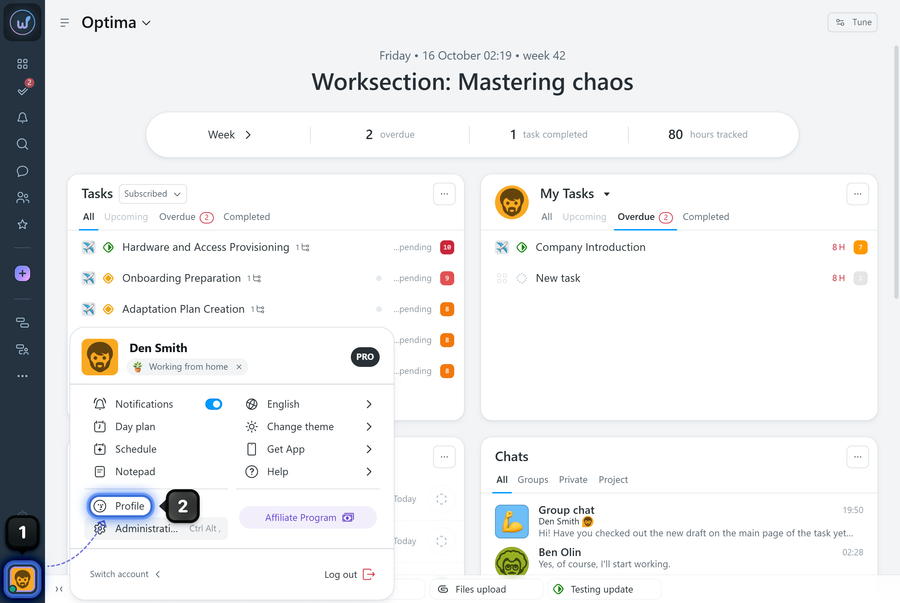
Another member’s profile opens from their member card: right-click the member’s avatar, then select “Profile”.
Who can edit a profile?
Every member can open and edit their own profile.
Permissions The profiles of other members can be edited by:
- The owner
- An account admin with the “Allow admin to manage people” permission
- A department or team admin with the “Allow admin to manage people” permission — for members of their own department or team.
What tabs does a profile have?
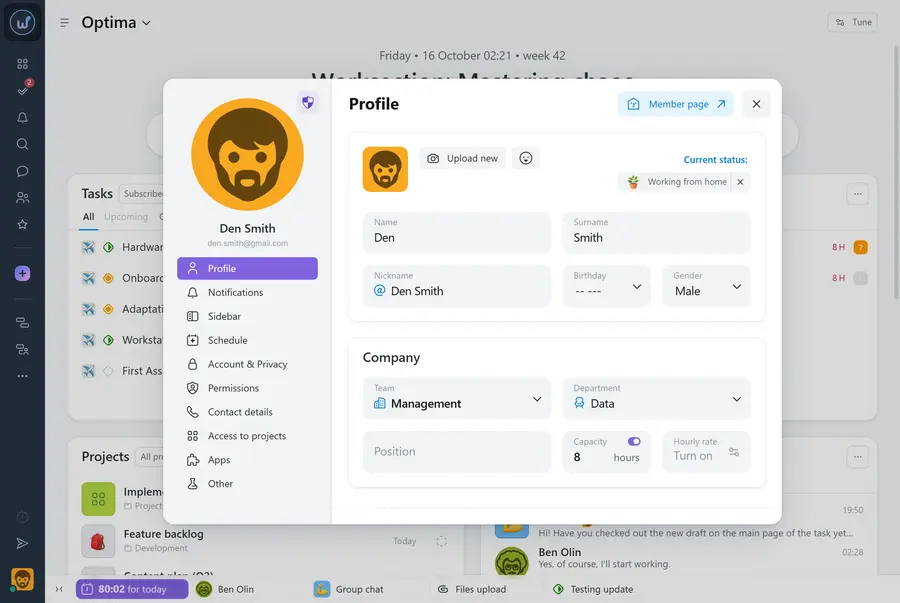
The tabs are located on the left side of the window:
- Profile — the member’s basic details;
- Notifications — notification types and channels;
- Sidebar — turning left sidebar items on and off (see How does the left sidebar work and how to customize it? for details);
- Schedule — days off and working days;
- Account & Privacy — security, sign-in, and visibility settings;
- Permissions — the member’s role in the system;
- Contact details — phone, messengers, and other contact information;
- Access to projects — viewing and managing project access;
- Apps — connected integrations;
- Other — personal settings for reminders, delays, and more.
Profile tab
This tab stores the member’s basic details. You can fill in or change:
- avatar;
- name and surname;
- nickname;
- birthday;
- gender;
- team and department — editable by admins only;
- position;
- capacity (working hours) — editable by admins only;
- hourly rate — editable by admins only.
There is also a toggle for capacity reporting — if it is off, tracked hours are not compared with the capacity.
How do I change the email?
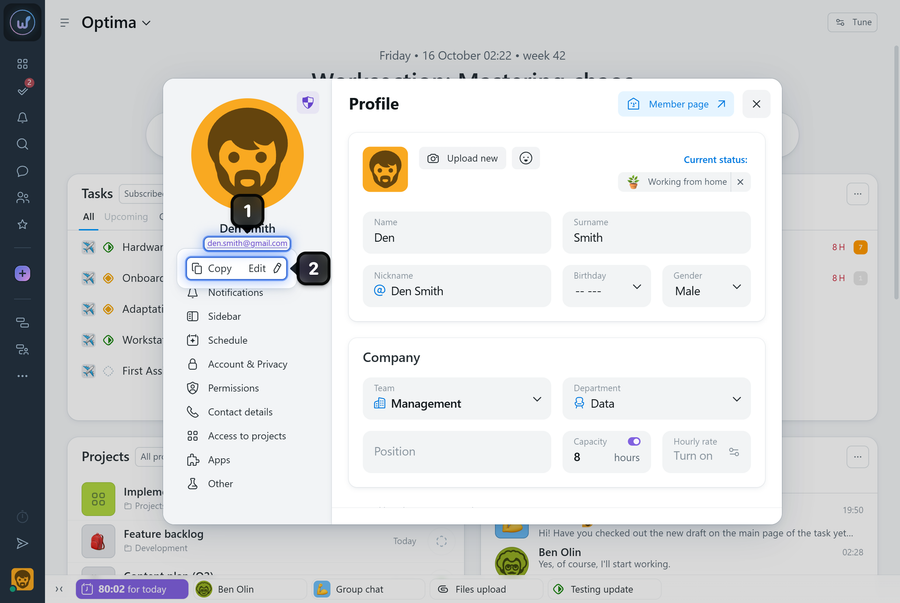
The member’s email is shown under their name in the profile1. Clicking it opens a menu with two options: Copy or Edit2.
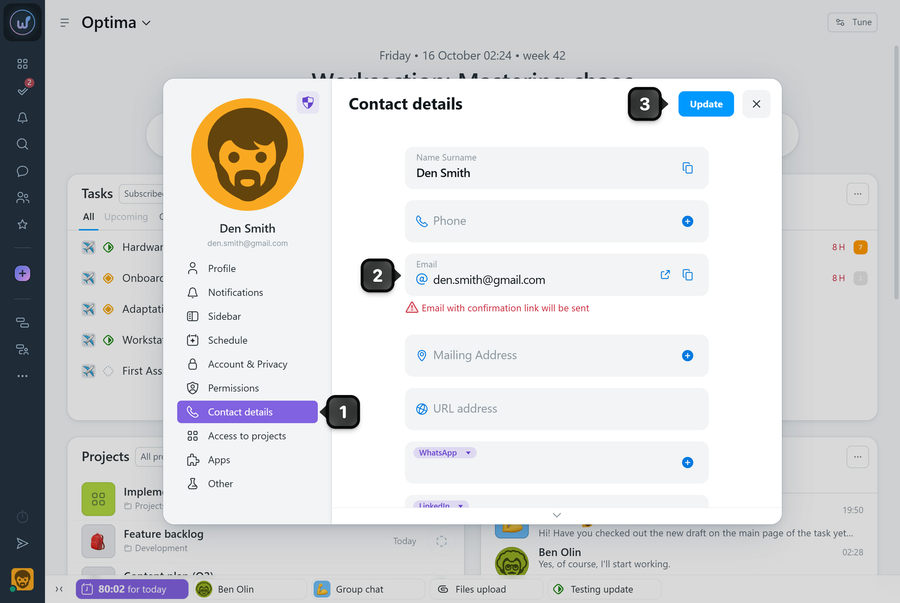
When you select “Edit”, the “Contact details” tab opens1, where you need to enter the new address2. After you click “Update”3, an email with a confirmation link will be sent to the new address — the change takes effect once you follow the link.
Please note! The email can be changed either by the member themselves or by an admin who has opened that member’s profile.
Notifications tab
Here you configure which notifications the member receives and through which channels.
Three channels are available:
- Email — messages to your inbox;
- Push — notifications in the mobile app;
- Desktop — notifications on your desktop.
Below is a table where you can choose one or more delivery channels for each event type. Grey checkboxes are set by default and cannot be turned off.
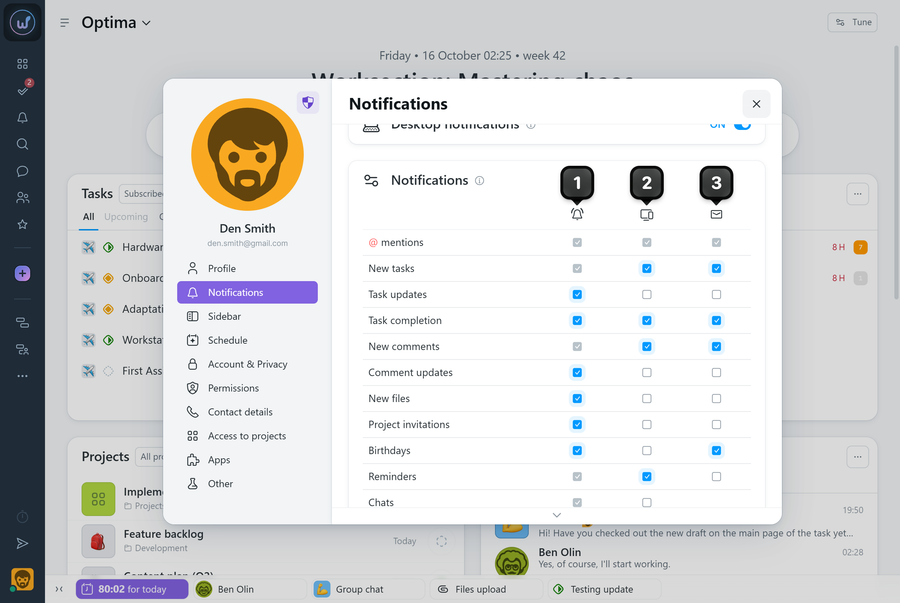
1 in-app notifications directly in the account
2 desktop, mobile app, and messenger notifications
3 email notifications
Please note! Push and messenger notifications are not sent while you have an open and active browser tab with the account — in that case, all updates are shown directly in the interface.
Additional settings:
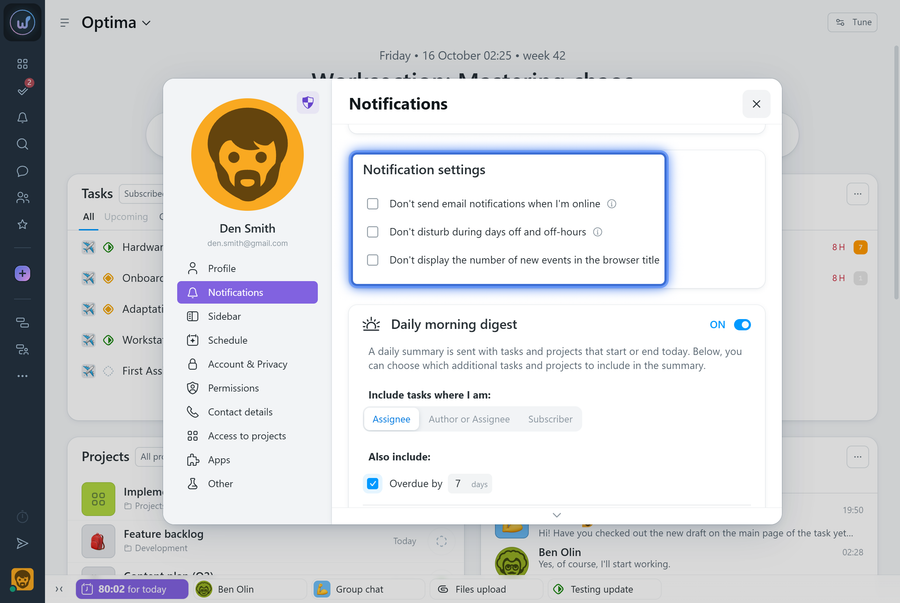
- Don’t send email notifications when I’m online — reduces the number of emails if you are already following events in the browser;
- Don’t disturb during days off and off-hours — notifications arrive only within working hours (available if working hours are set for the account);
- Don’t display the number of new events in the browser title — removes the counter from the browser tab.
Daily morning digest
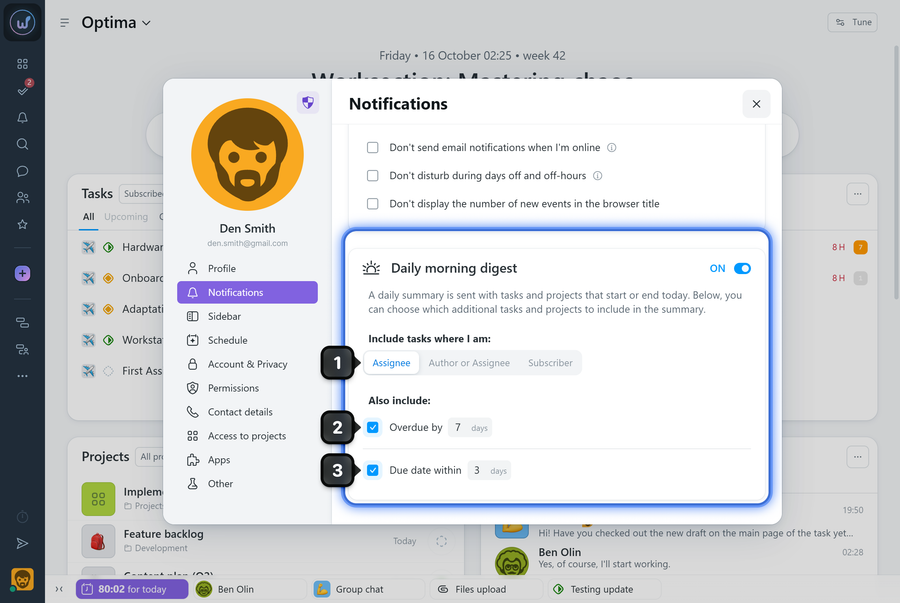
The digest is a daily email summary of tasks that start or end today. It arrives at the beginning of the working day.
You can configure:
1 which tasks to include — where you are the assignee, the author or assignee, or a subscriber;
2 overdue tasks — the maximum number of overdue days after which a task is no longer included in the digest;
3 due date within — how many days in advance a task should appear in the digest.
Schedule tab
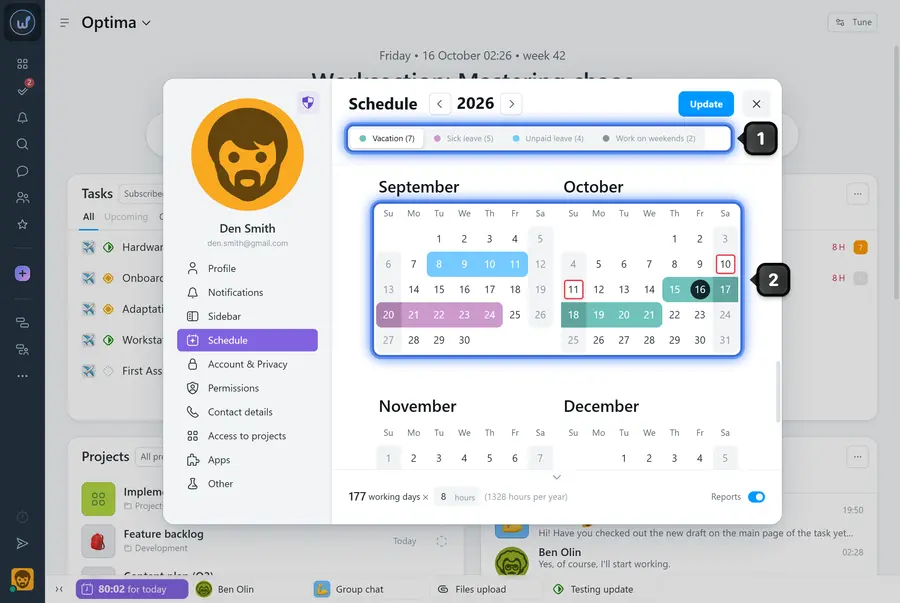
Here you set the member’s days off and special days. Choose the type of mark you need1 — vacation, sick leave, unpaid leave, or work on weekends — and mark the dates2 on the calendar:
By default, only the owner and admins with permission to manage people can change the schedule.
If the “Allow members to modify their work schedule” option is turned on in the account settings, every member can edit their schedule themselves.
Account & Privacy tab
This section contains security and profile visibility settings.
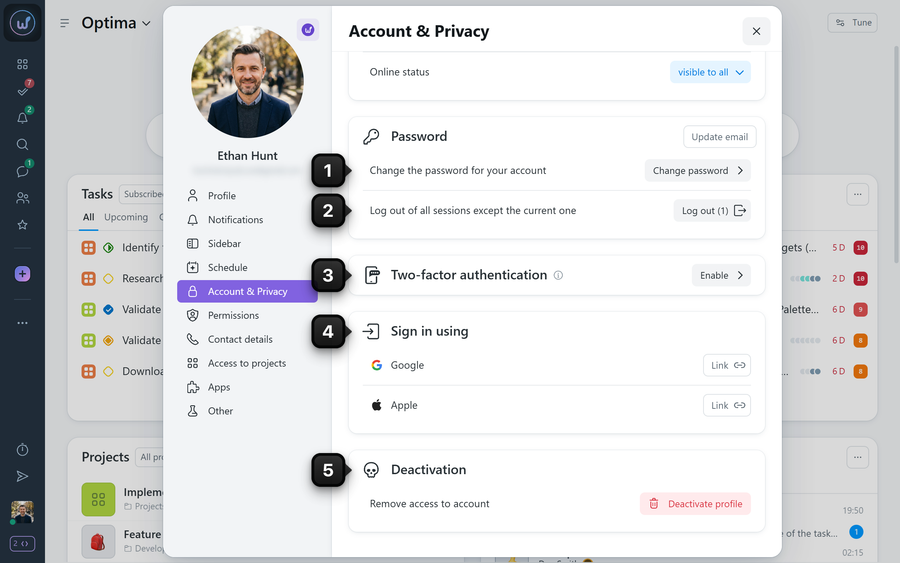
Every member can:
1 change the password — enter the current and the new password;
2 log out of all devices and browsers, staying signed in only in the current one;
3 enable two-factor authentication;
4 connect sign-in with Google or Apple;
5 deactivate their profile in the account.
Permissions A member’s privacy can be configured by:
- The owner
- An account admin with the “Allow admin to manage people” permission
- A department or team admin with the “Allow admin to manage people” permission
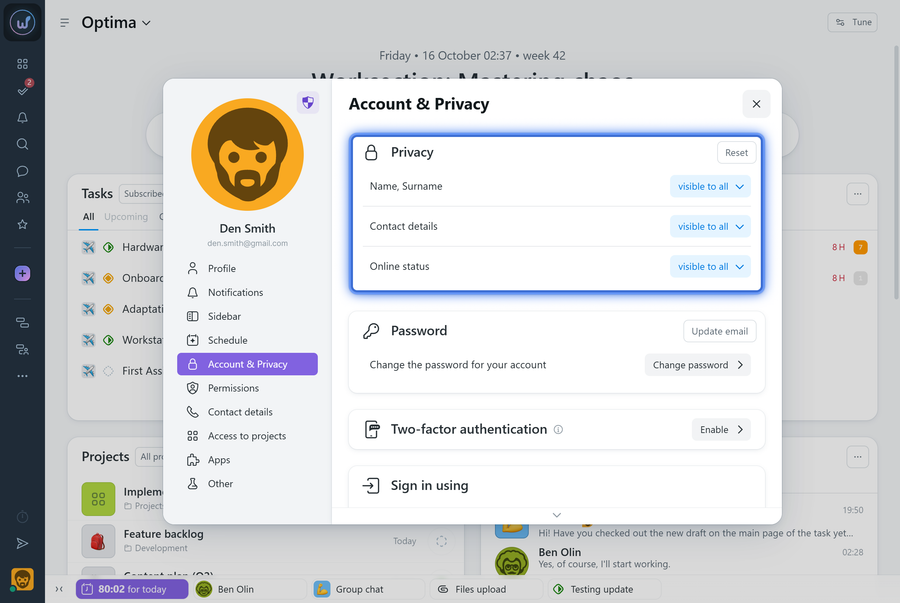
Privacy settings define who can see the member’s name and surname, contact details, and online status. Each setting has three options:
- Visible to all;
- Hidden from clients;
- Hidden from all.
Permissions tab
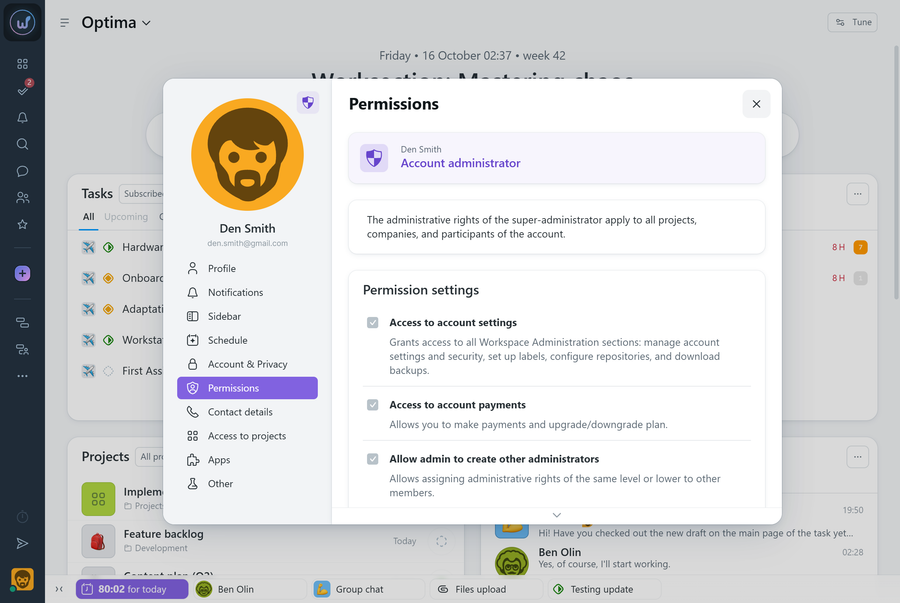
This tab shows the member’s role and the list of their permissions in the system.
A member without management permissions can only view their own role and permissions.
Permissions The role and permissions can be changed by:
- The owner
- An account admin with the “Allow admin to manage people” permission
- A department or team admin with the “Allow admin to manage people” permission
Contact details tab
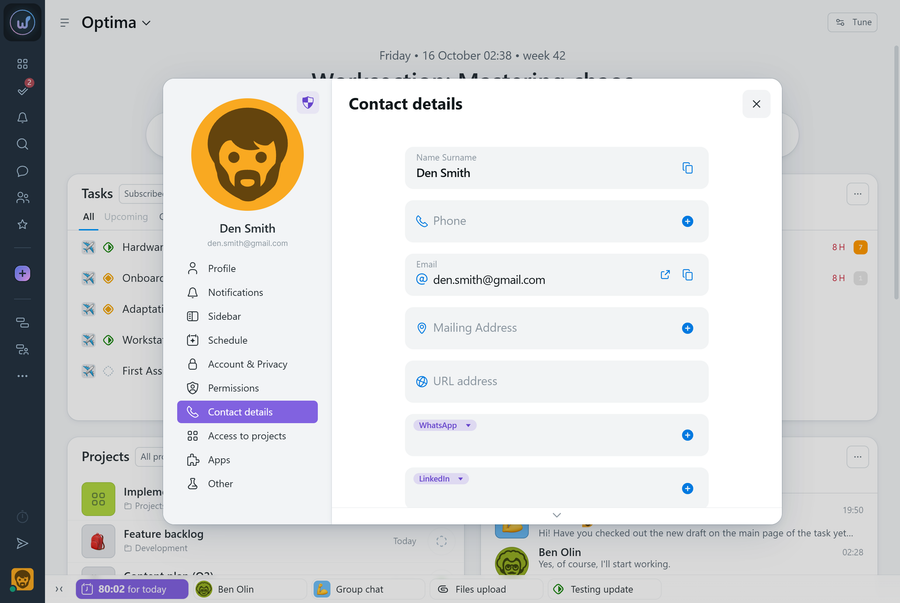
Fields for the member’s contact information: phone, messengers, and other details. This information is shown in the member card when you click “Contacts”.
Access to projects tab
This tab shows the list of projects the member takes part in.
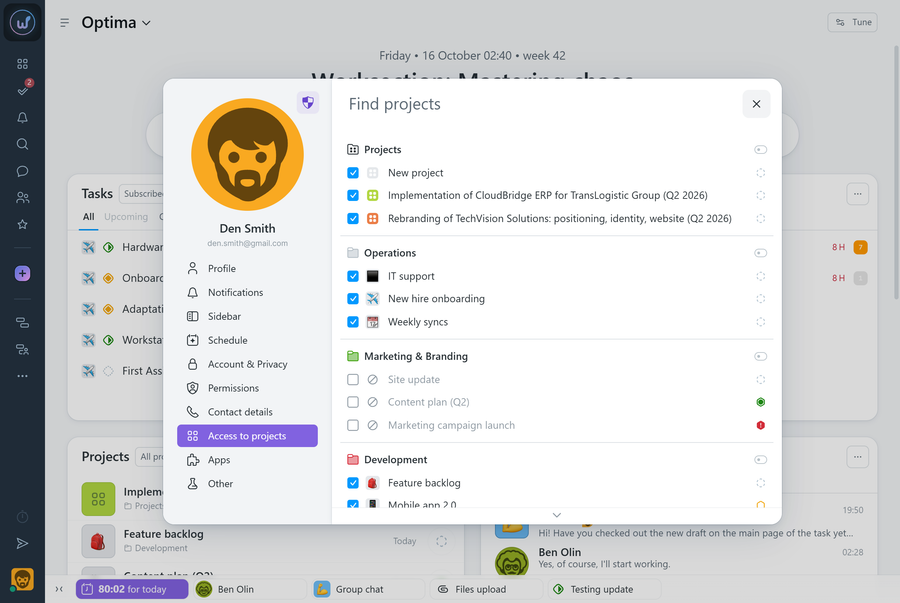
Permissions Project access can be granted or revoked by:
- The owner
- An account admin with the “Allow admin to manage people” permission
- A department or team admin with the “Allow admin to manage people” permission
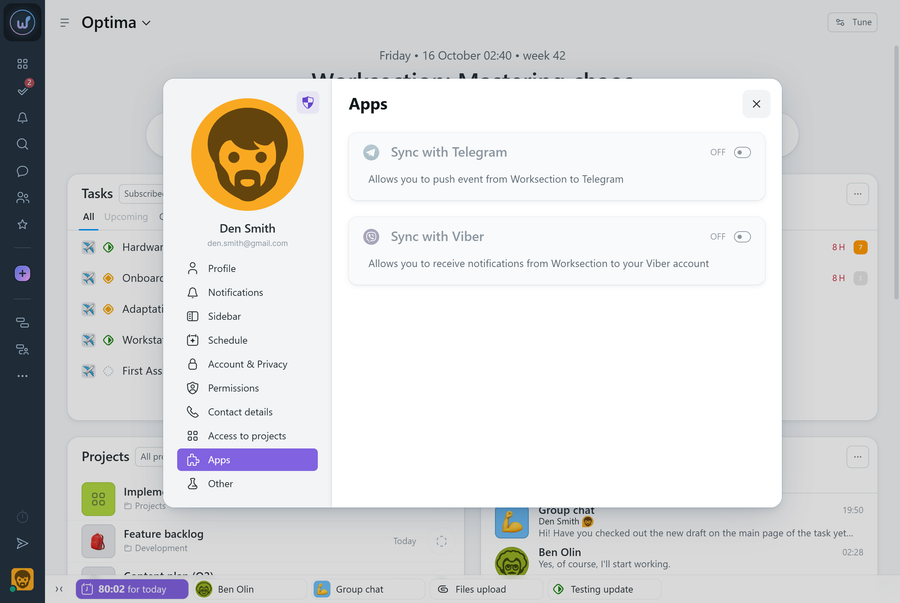
Apps tab
Here you can turn the Telegram or Viber bot integration on or off.
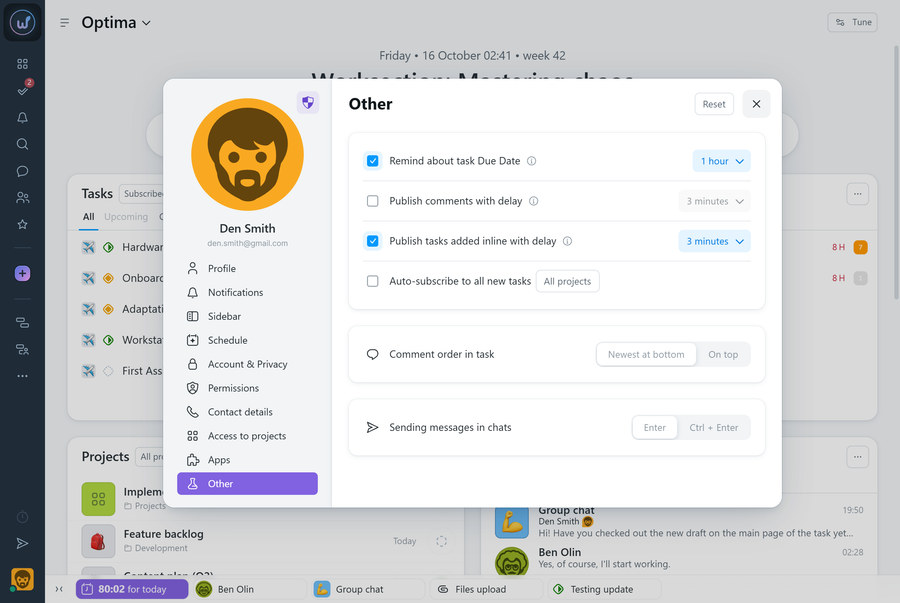
Other tab
Personal interface settings that each member sets for themselves:
- comment order in a task;
- the key for sending chat messages — Enter or Ctrl + Enter;
- task due date reminders;
- publishing comments with a delay;
- publishing tasks added inline with a delay.
Permissions Additional settings for a member can be configured by:
- The owner
- An account admin with the “Allow admin to manage people” permission
- A department or team admin with the “Allow admin to manage people” permission
Additional settings available to admins:
- automatically add the member to all new projects;
- auto-subscribe to new tasks in selected projects.
Leave your review
Did this article help you?
Glad we could help! What was helpful?
Sorry this didn't help. What went wrong?

