Solutions
worksection
beta
help
How do I connect Worksection MCP to ChatGPT?
How to turn on MCP in your Worksection account
MCP can be turned on by the account Owner or by an account Admin who has access to the Worksection account settings. To do this, go to Administration > Integrations1 and turn on the toggle in the MCP block2.
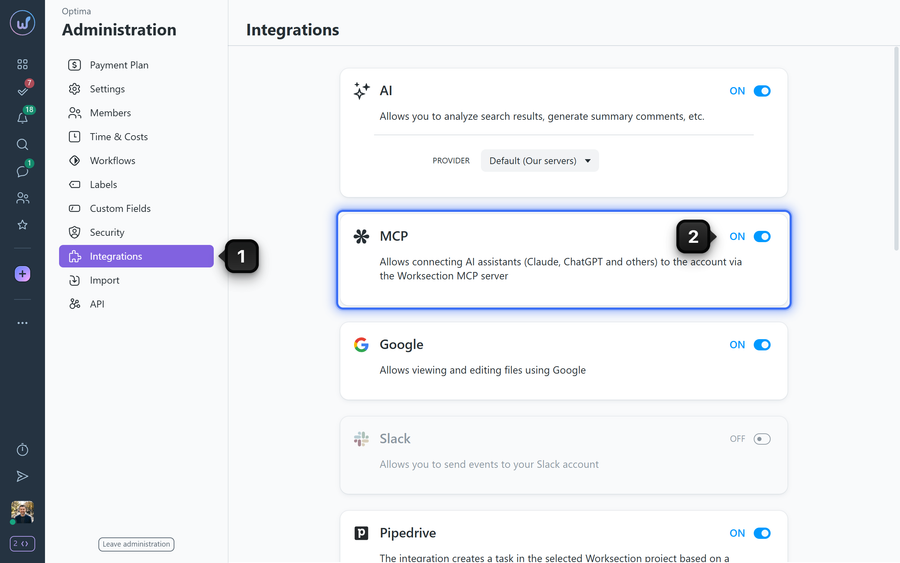
Please note! MCP is available on the Business and Premium plans.
How to add the plugin in ChatGPT
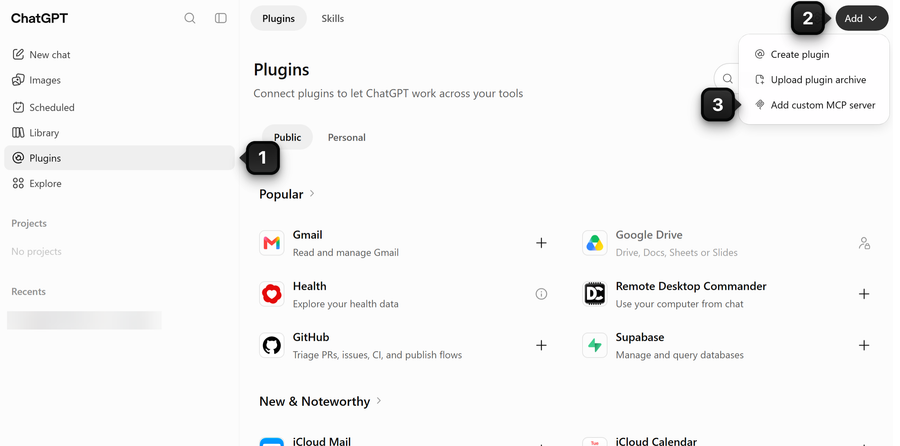
In the ChatGPT sidebar, open "Plugins"1. Click "Add"2 and choose "Add custom MCP server"3.
In the "Add custom MCP server" window, enter a name in the "Name" field1, for example Worksection. In the "Connection" field2, on the "Server URL" tab, paste the address
https://worksection.com/mcp. The "OAuth" authentication is already selected, do not change anything. Select the "I understand and want to continue" checkbox3 and click "Create as a plugin"4.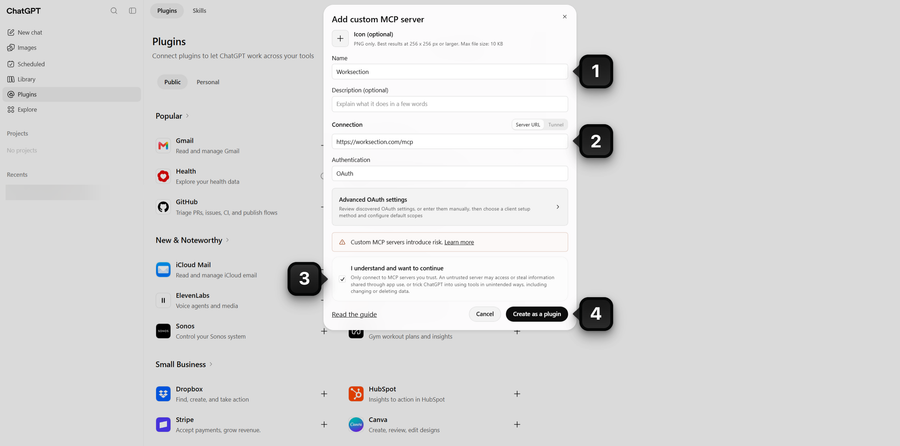
How to connect your Worksection account
In the Worksection plugin window, click "Continue to Worksection"1.
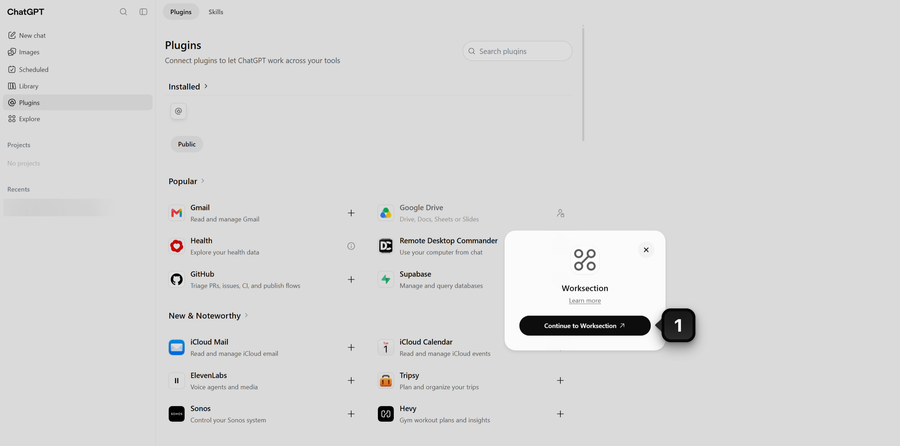
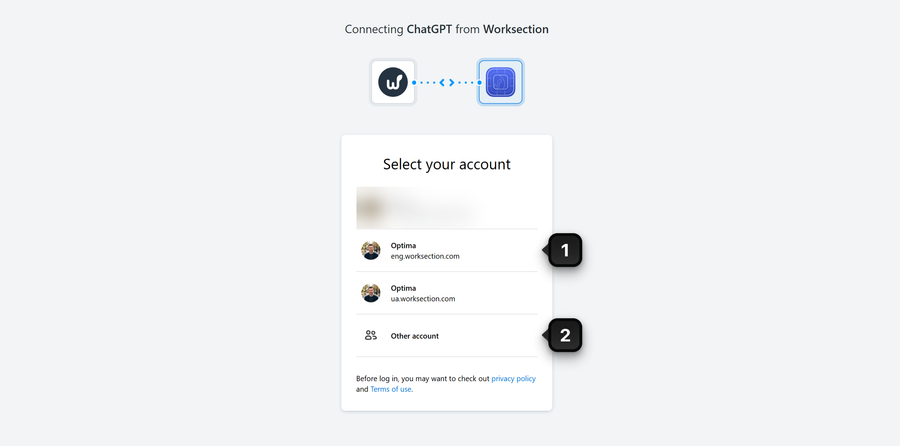
The "Select your account" window of Worksection opens. Choose the account you need1. If it is not in the list, click "Other account"2 and sign in to it. The list only shows accounts you are already signed in to in this browser.
Worksection shows which account ChatGPT will access and with what permissions. Click "Connect"1.
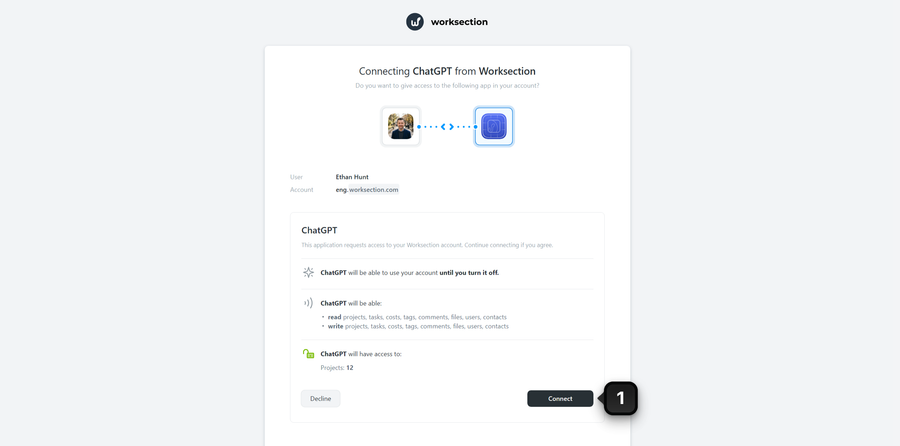
What ChatGPT can do in Worksection
ChatGPT performs over 50 actions, which is most of what the Worksection API methods allow:
- Tasks and comments: create, edit, close and reopen tasks and subtasks; assign an assignee, set a deadline, priority and labels; search tasks and list them by parameters; read comments and add new ones, including comments with checklists.
- Projects: create and edit projects, close and activate them; show project data and its budget.
- Time and costs tracking: start and stop a timer; add, edit and delete time and cost entries; show entries and totals by projects and tasks, as well as running timers of members.
- Members and contacts: show members, teams, groups and contacts; create teams, contacts and contact folders; add members to a project and remove them; subscribe members to tasks and unsubscribe them.
- Files: attach files to comments and download attached ones.
- Work overview: activity over a period and the team work schedule.
ChatGPT acts on your behalf and sees exactly what you see. If you do not have access to a project, ChatGPT will not have it either. All of its actions are visible in the Worksection history under your name.
Please note! Some things ChatGPT does not do:
- delete projects, tasks, comments, members, contacts, labels and files, the same as in the API. Only a time entry and an unsaved timer can be deleted;
- edit comments that are already published, it can only add new ones;
- change roles, user permissions, permission groups, IP restrictions and account settings;
- create labels, statuses and custom fields, it only uses existing ones;
- manage the plan, invoices, integrations, notifications and SSO, write to chats, send emails and push notifications;
- work with other accounts, only the one it is connected to.
How to check that it works
In a new chat, type
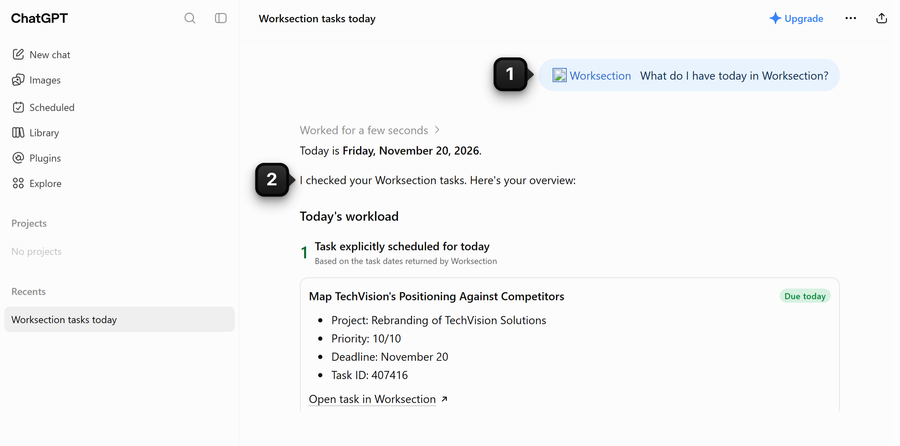
@Worksection, choose the plugin from the list and add a request in plain language. For example:- "@Worksection What do I have today in Worksection?"
- "@Worksection Show me all overdue tasks in the project "Website" and who is responsible for them"
- "@Worksection Create a task "Update price" in the project "Marketing", assignee Andriy, deadline October 20"
- "@Worksection How much time has the team recorded on the project "Mobile Application" in the last month?"
- "@Worksection Start a timer on the task I'm currently working on"
ChatGPT answers the request1 using data from Worksection2.
How to manage permissions and disconnect ChatGPT
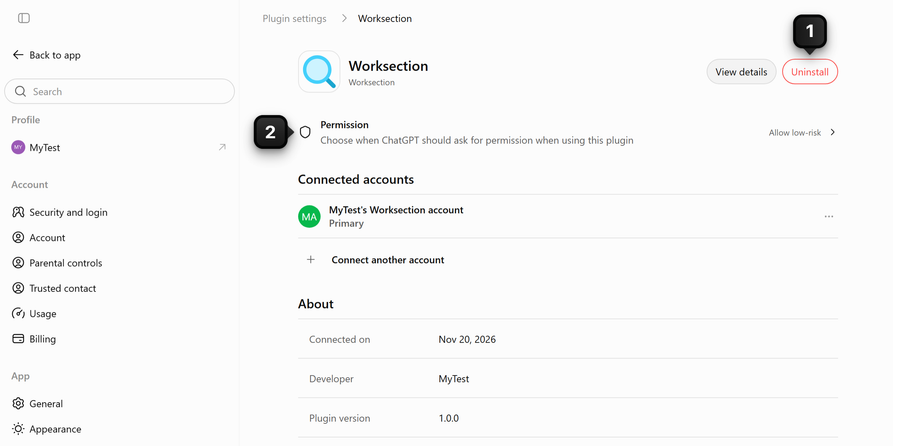
Open "Plugins", choose the Worksection plugin and click "Settings". On the "Plugin settings" page:
- "Uninstall"1 disconnects Worksection from ChatGPT: ChatGPT can no longer access the account data.
- "Permission"2 sets when ChatGPT should ask for permission when using the plugin.
How to disconnect ChatGPT in Worksection
Connected assistants are also visible in Worksection itself. Open your profile: click the avatar at the bottom of the sidebar and choose "Profile". Go to the "Other" tab1. In the "Authorized applications" block, click "Deauthorize"2 next to ChatGPT.
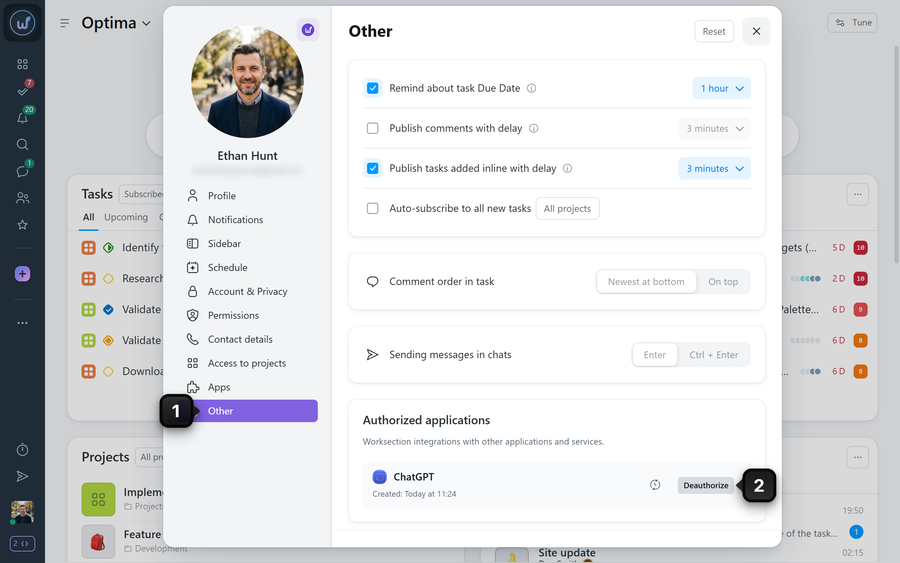
To disconnect all assistants at once, an account administrator turns off the "MCP" switch in "Integrations".
Leave your review
Did this article help you?
Glad we could help! What was helpful?
Sorry this didn't help. What went wrong?

