Solutions
worksection
beta
help
What commands can the Worksection bot in Slack respond to?
/ws help — reminds you of the available commands and shows links to the Q&A and support.
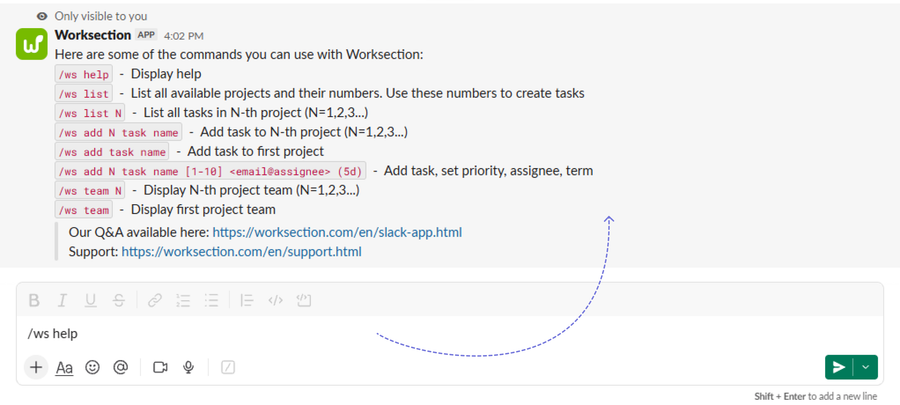
/ws list — returns the current list of projects with their serial numbers. You need these numbers to create tasks in a particular project.
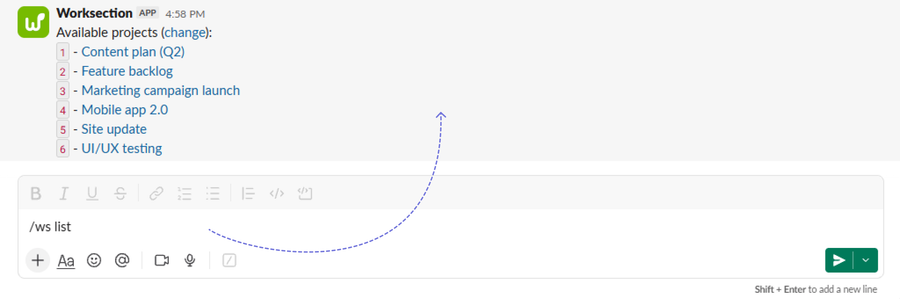
Please note! This is a list not of all your Worksection projects, but only of those whose members include the Slack bot. The Slack > Worksection integration works only with such projects.
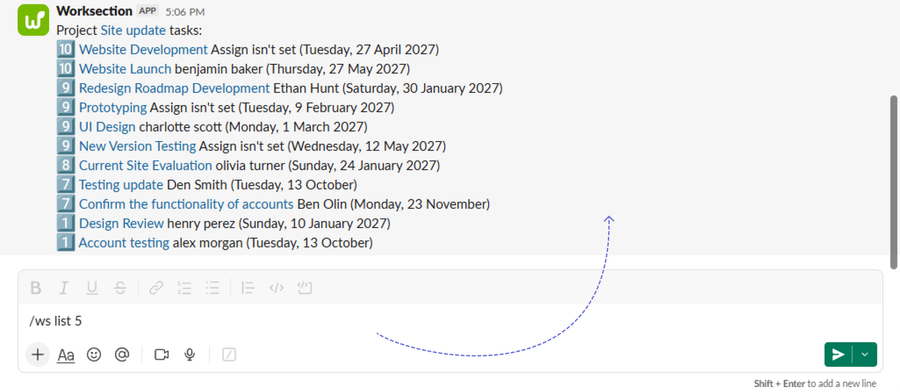
/ws list N — a list of all open tasks in project number N. The /ws list command will help you find out N.
/ws team N — displays the list of members of project number N. If you do not specify a number, the members of the first available project are shown.
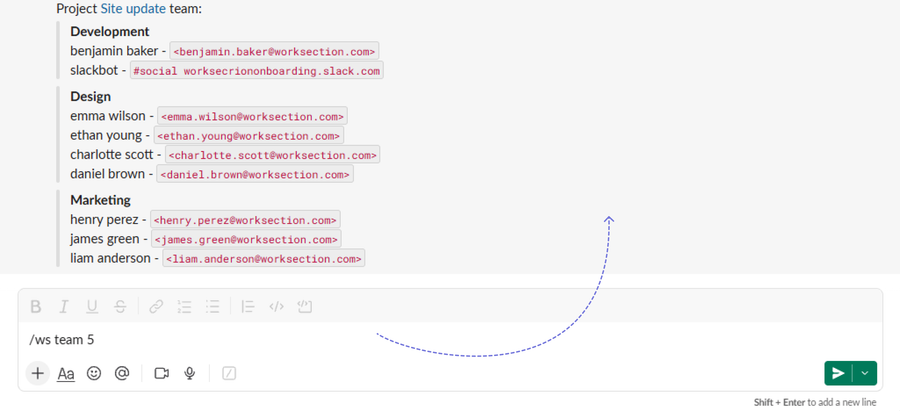
Please note! This command is useful if you want to create a task and assign an assignee right from Slack. To do this, you need to specify the email of one of the project members — the /ws team N command will help you find it.
/ws add N task_title — creates a task in your Worksection account, in the project with serial number N. Of course, you don’t have to remember all the serial numbers: before creating a task from Slack, get the current list of projects with the /ws list command.
For example:
The /ws add 3 Urgent to do it command creates the task “Urgent to do it” in project number 3. The same command without the number at the beginning adds the task to the first project in the list. If you connected Slack to only one project, you don’t need to type the number.
After a while, Slack receives a message from Worksection saying that the task has been created.

This happens automatically: Worksection knows the task was created from Slack and sets the Slack robot member as its author. As the author, it automatically subscribes to notifications about the task and passes the message that the task was created to the channel of your Slack account.
Please note! You can create a task from Slack in Worksection only in projects whose members already include the Slack bot. And messages are passed back to Slack only from such projects.
Additional options of the /ws add command
By default, a task is created for “Anyone”, with no deadline or description, and with priority 1. But there are options… When creating a task from Slack, you can specify not only the title but also all the parameters you need.
For example, a command like this:
/ws add 3 Urgent task [10] <benjamin.baker@worksection.com> (5d)
Add some description here, after Shift+Enter
Add some description here, after Shift+Enter
creates the task Urgent task in project No. 3 with priority 10, assigns the project member with the email address benjamin.baker@worksection.com as the assignee, and sets the due date to 5 days from now. In addition, the whole text of the second line becomes the task description.
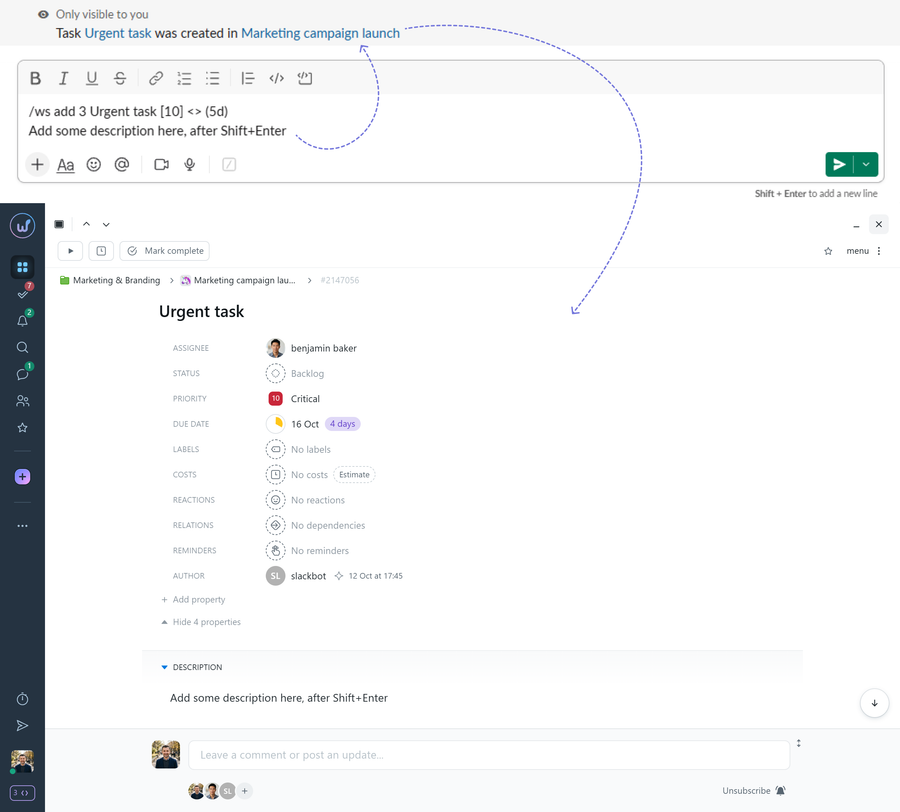
So, if you need to add:
- Task priority — type a number from 1 to 10 in square brackets;
- Assignee — put the assignee’s email in angle brackets < >;
- Due date — specify the number of days until completion in parentheses (a number followed by the letter d);
- Description — start a new line with Shift+Enter. Everything written on the new line becomes the task description.
Note If you don’t remember the email address of the member you want to assign the task to, use the /ws team N command. If you don’t remember N, use the /ws list command.
Leave your review
Did this article help you?
Glad we could help! What was helpful?
Sorry this didn't help. What went wrong?

