Solutions
worksection
beta
help
How do I use the Gantt chart?
How do I change the scale?
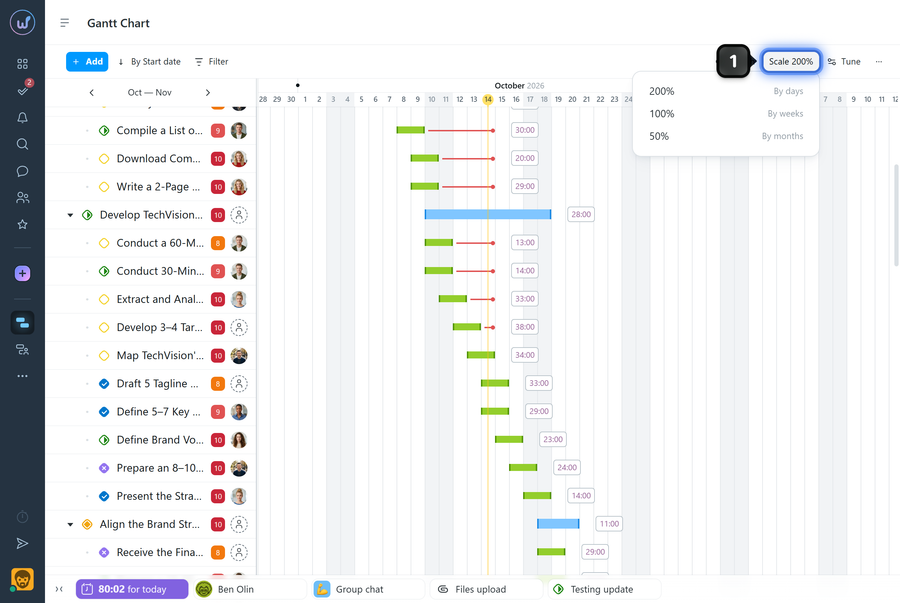
Change the timeline scale with the button1 at the top of the page.
The following options are available:
- 200% — by days;
- 100% — by weeks;
- 50% — by months.
How do I move along the timeline?
To change the visible date range, scroll the chart horizontally while holding down the left mouse button, or use the mouse wheel while holding Shift.
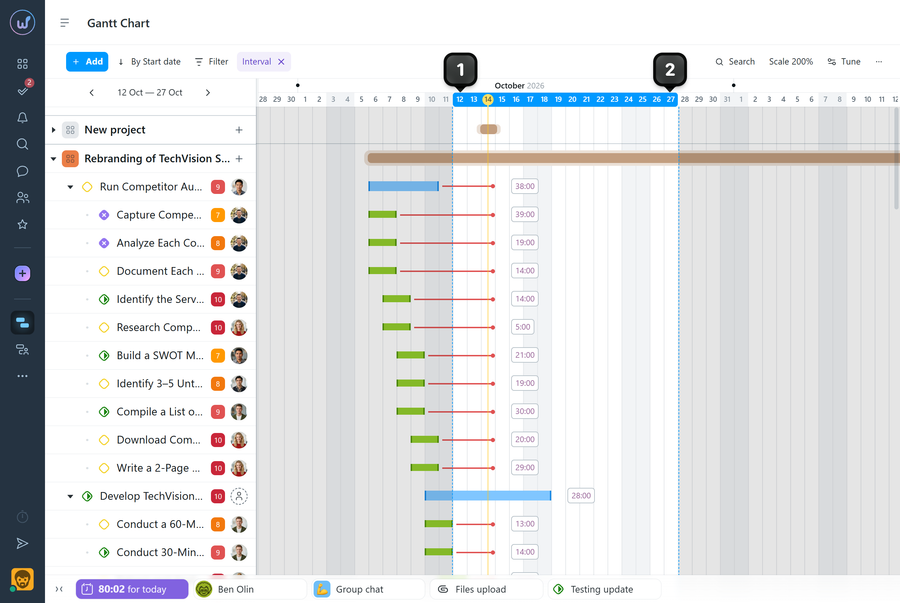
To focus on a specific time range, click the start1 and end2 dates on the timeline. The selected dates are highlighted, and only tasks that fall at least partly within the selected range remain in the list.
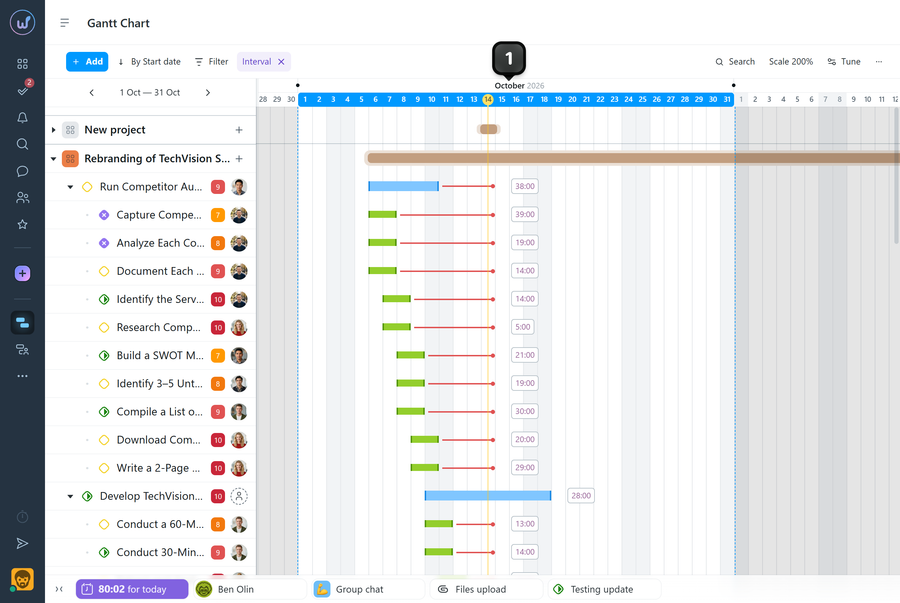
To select a whole month, click its name1.
How do I search, filter, and sort tasks?

1 Sorting — changes the order of tasks in the list;
2 Filter — keeps only the tasks that match the selected conditions on the chart;
3 Search — finds tasks by name.
How do I expand and collapse tasks?
Click the icon1 next to a task name to expand its subtasks. Click it again to collapse them.
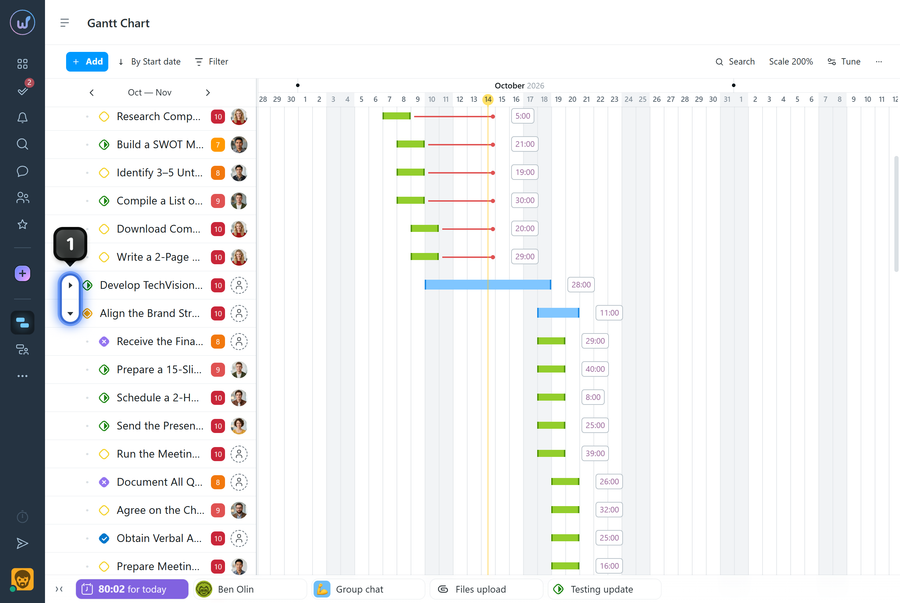
Please note! The expand state is synced with the task list — the setting is kept in all project views.
How do I customize the view?
Click the “Tune” button1 to open additional display options.
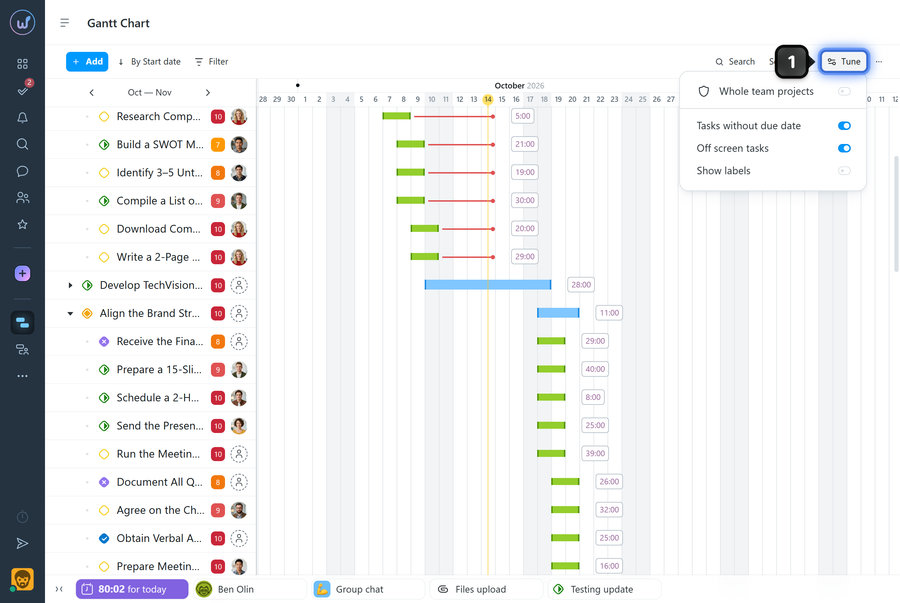
- Off screen tasks — shows all tasks regardless of the currently visible date range;
- Show labels — shows colored dots next to task names; hover over them to see a tooltip with the assigned labels;
- Tasks without due date — shows tasks with no dates set.
How do I change project and task dates on the chart?
You can change the dates of a task, a subtask, or a whole project right on the chart, without opening the task window.
To change the dates, drag the task bar or its edges (the start date1 and end date2 handles) to the period you need.
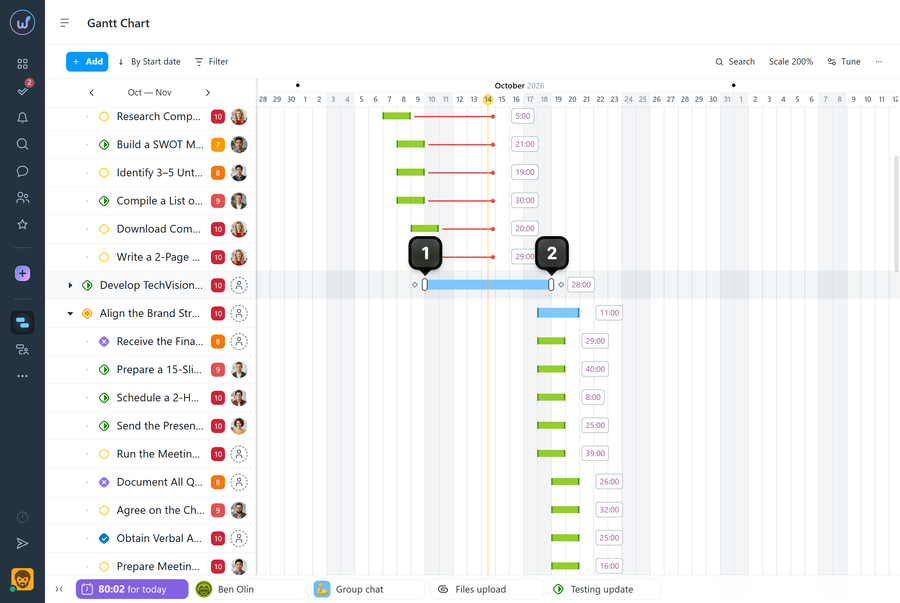
Note While you work with the chart, the system remembers all your changes and keeps them until you close the browser. You can safely go to another page and, when you come back, continue planning and changing dates.
When you finish editing, click “Save the dates”1 or “Cancel”2.
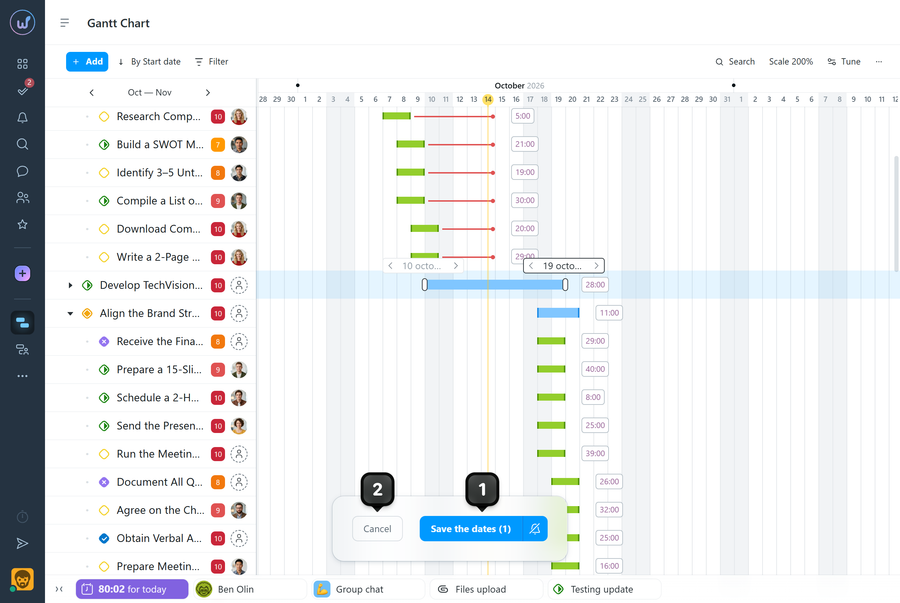
Please note! Only people who can edit the task or project can move its deadline.
What else can I do on the chart?
Click the three-dots button1 at the top of the page to open additional actions.
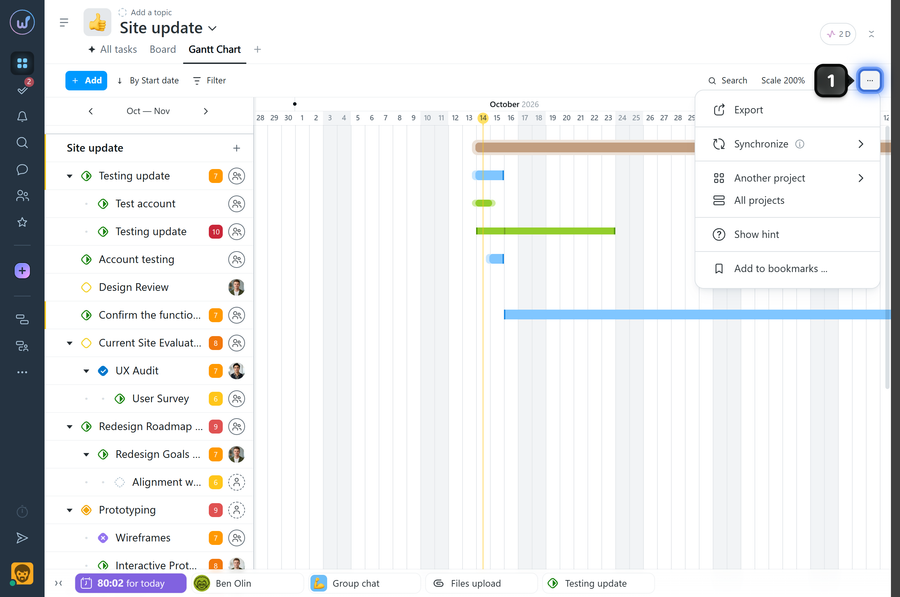
- Export — exports the chart to XLSX;
- Synchronize — sets up sync with an external calendar. Learn more in the article “How do I sync the Gantt chart with my personal calendar?”;
- Another project — quickly go to the Gantt chart of another project;
- All projects — go to the account-wide Gantt chart;
- Show hint — opens the legend of colors and shapes (also available with F1);
- Add to bookmarks — saves the current page to your bookmarks.
Leave your review
Did this article help you?
Glad we could help! What was helpful?
Sorry this didn't help. What went wrong?

