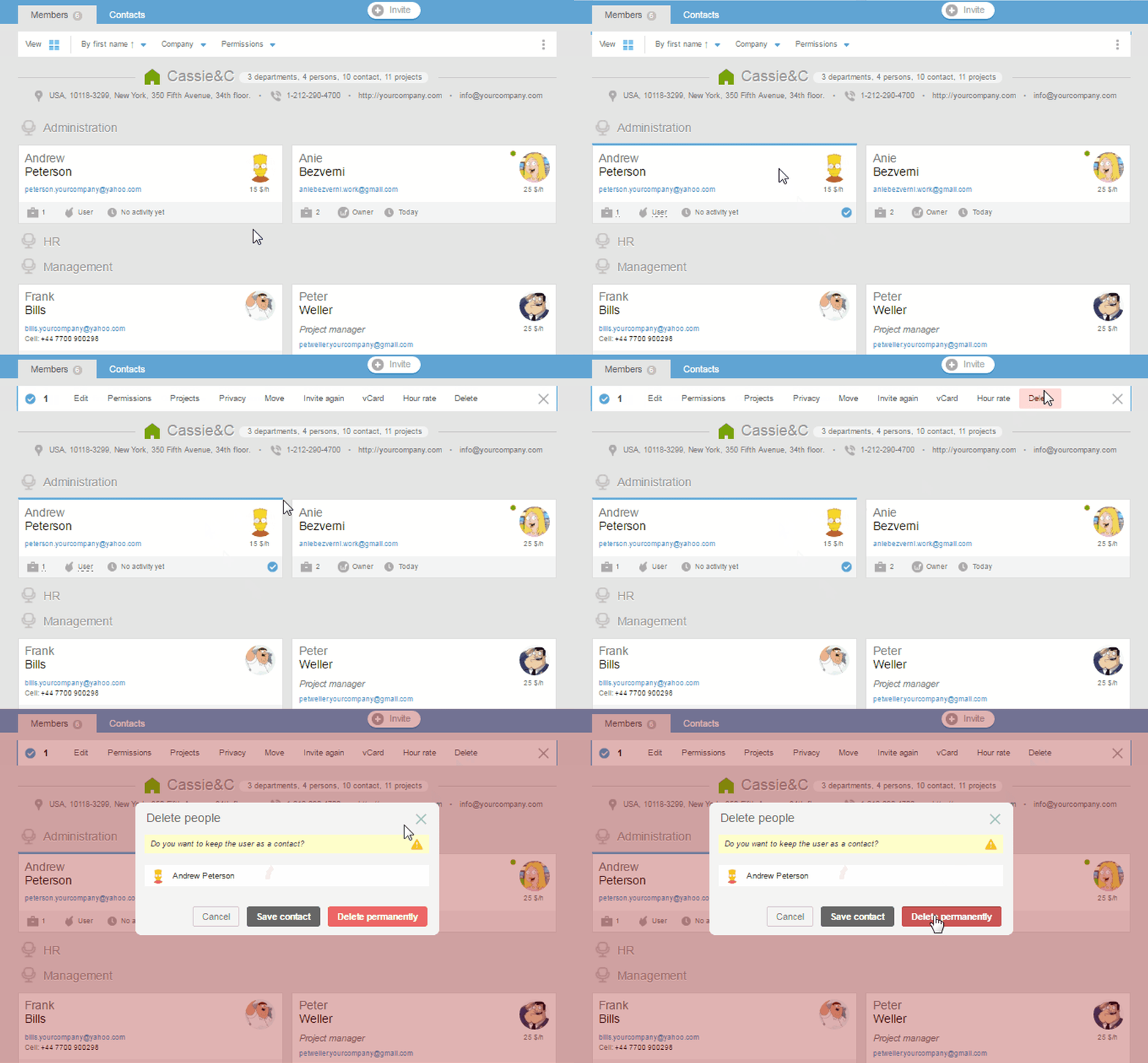
Only the administrator with the «People» permission can remove a user.
Jump to People.
In the People section, select the card of the user (-s) you want to remove, and in the menu that appears, select «Remove», then click «Permanently remove». The user will be deleted and will no longer be able to log in.
How to remove a section
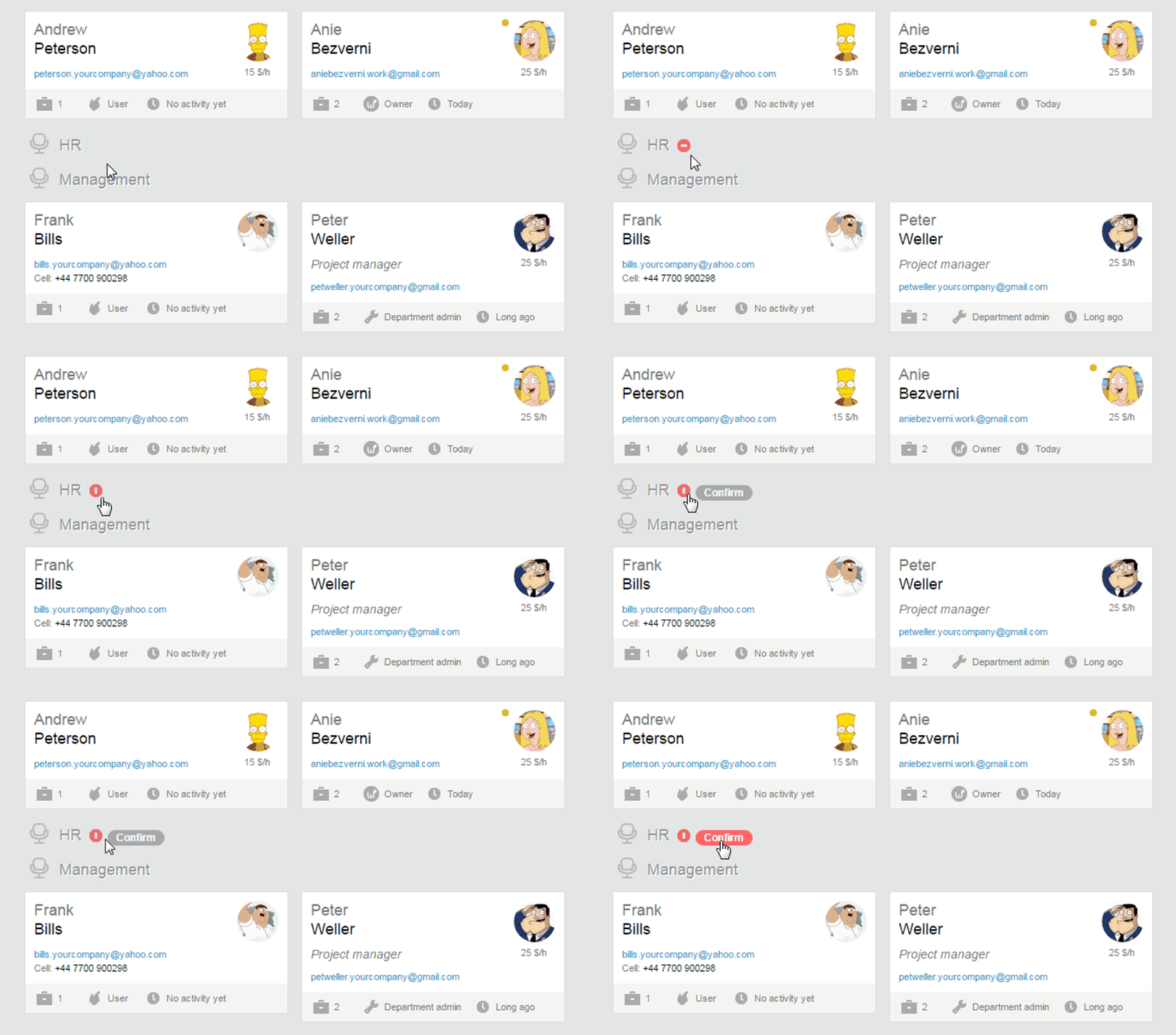
You can only delete an empty section (that has no employees). If the section is not empty, you must first remove or transfer all of the employees to other sections. Then, in order to remove a section, jump to People and hover your mouse over the name of the section in the list. The button to remove a section will appear: (it will appear only if the section does not have employees). Click on it, then click «Confirm», and the section will be deleted.
How to remove a company?
In order to remove a company, first, all of its employees need to be deleted or transferred to other companies, and only then delete the company.
When deleting, first jump to People and hover your mouse over the necessary company in the list. The button to remove a company will appear: (it will appear only if the company does not have employees). Click on it, then click «Confirm», and the company will be deleted.