Solutions
worksection
beta
help
Report types and how to set them up
Reports show how much time and money was spent on projects, tasks and people, and how many tasks were closed in a period. Each report opens in its own tab.
Permissions Reports can be viewed by:
- members of your teams — for the projects they have access to;
- guests — only their own costs, without financial data.
Client team members cannot see reports.
Account reports and project reports
There are two types of reports:
- account reports — in the "Reports" section of the sidebar, with data for all projects you have access to;
- project reports — tabs inside the project itself, with data for that project only.
Which account reports exist
Open "Reports"1 in the sidebar. To add a report, click "+"2 to the right of the tabs and choose a report type3.
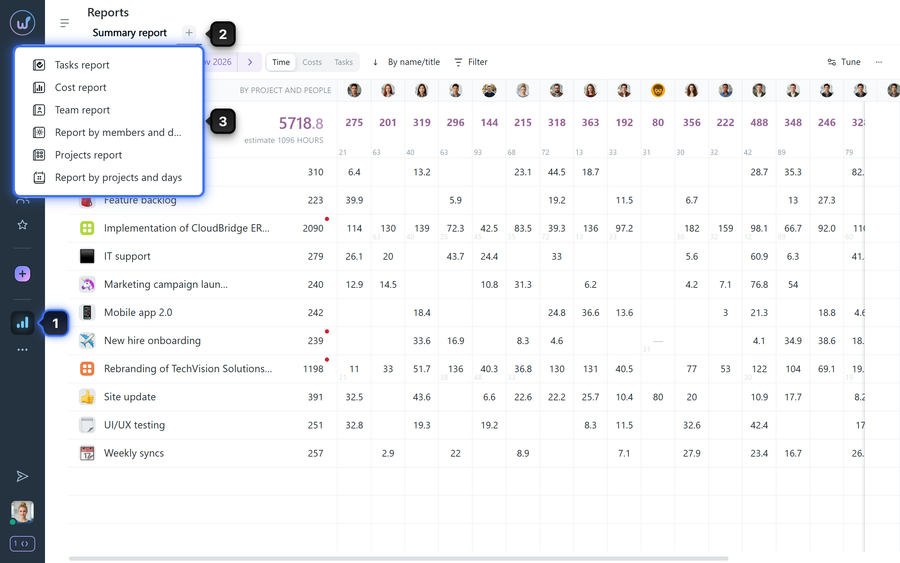
The "+" menu lists only the reports that are not in your tabs yet. When all of them are added, there is nothing left to choose from.
- Summary report — a "projects × people" table: how much time, money or how many tasks fall on each member in each project.
- Tasks report — a list of tasks for a period: closed, with costs, planned or new.
- Cost report — each cost entry separately: who logged it, when, how much, in which task and with what comment.
- Projects report — for each project: time, money and closed tasks.
- Team report — for each member: the norm from their work schedule, time, money and closed tasks.
- Report by members and days — members and the days of the period, with the norm for each day.
- Report by projects and days — projects and the days of the period.
- Day plan report — what is planned for members today, tomorrow and the following days.
Please note! The "Day plan report" is not available to members with the "User" role.
A new report appears as a tab right away, and you can rename it. Report tabs are personal: reports you add or customize are not visible to other members.
Which project reports exist
Open a project and click "+"1 to the right of the project tabs. Choose a report in the list2.
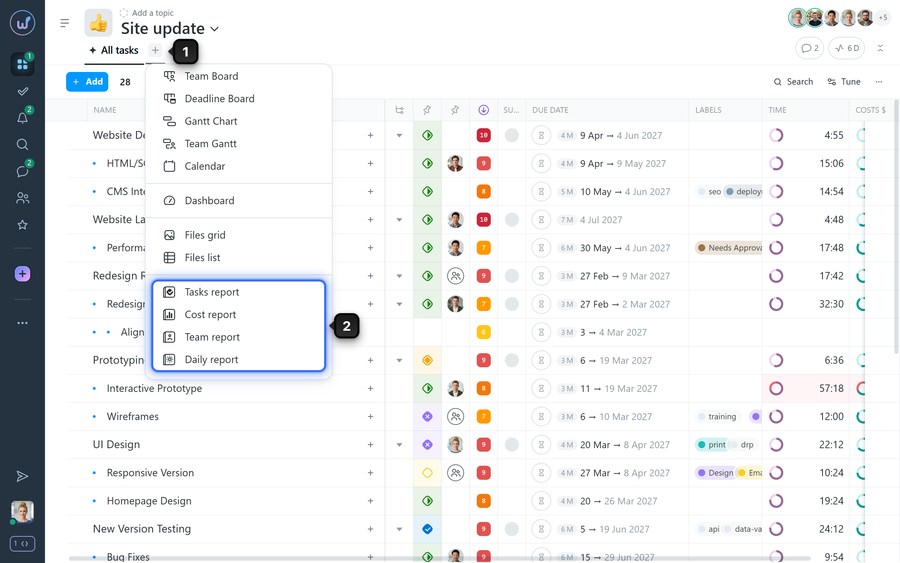
- Tasks report — tasks of this project.
- Cost report — cost entries of this project.
- Team report — project members grouped by team: time, money and closed tasks.
- Daily report — project members and the days of the period.
A new report appears as a project tab right away. As in "Reports", the "+" menu offers only the types that are not among the project tabs yet.
How to rename, move or delete a report
Click the name of the open tab in the "Reports" section. In the menu choose "Rename"1, "Move"2 — to the left or to the right, or "Delete"3.
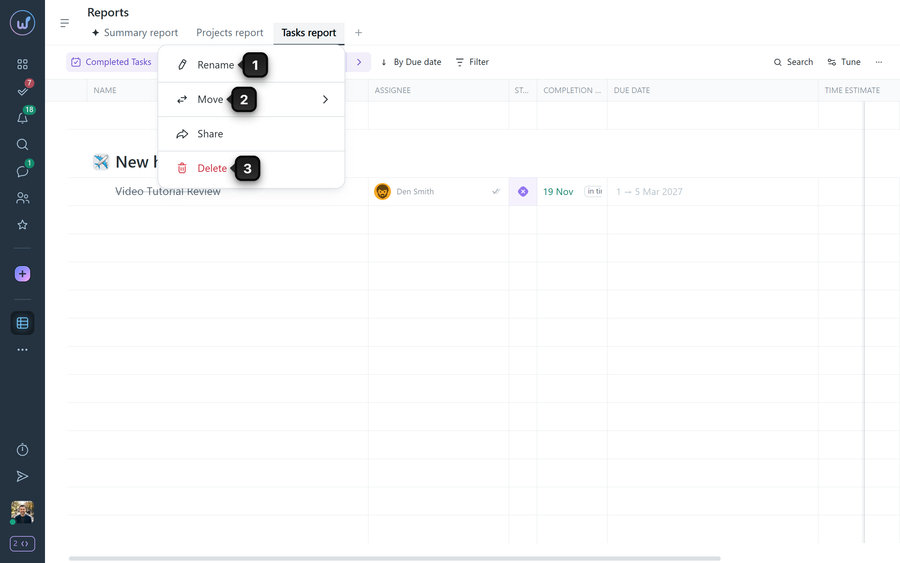
The "Summary report" is there for every member and cannot be renamed or deleted.
What is on the report toolbar
- Period1 — the arrows switch to the previous or next period. Click the dates to open the calendar and quick picks: today, yesterday, 7 or 14 days, week, month, quarter, year.
- Sorting2.
- "Filter"3 — by project, member ("Tracked by"), status, labels and more. Under "... More" you can leave only costs "Tracked from timer" or "Logged manually".
- "Tune"4 — the look of the report, details below.
- "⋯"5 — extra actions for the report:
- "Export ..." — download the report as CSV or XLS (Excel);
- "Send via email ..." — send the report as CSV or XLS;
- "Add to bookmarks ..." — save a link to this report tab to your bookmarks.
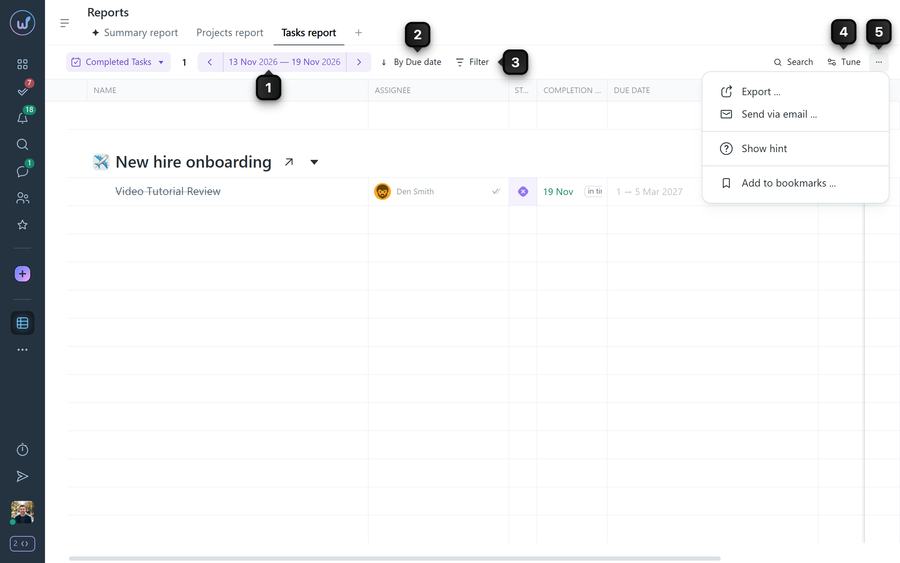
Please note! The set of toolbar buttons and "⋯" menu items depends on the report type.
How to tune the look of a report
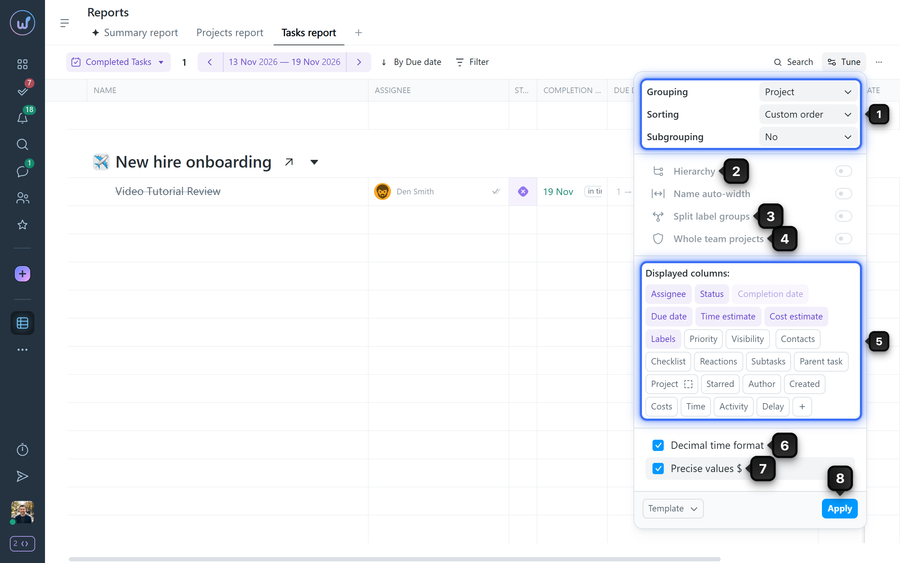
We will use the "Tasks report" as an example — it has the most settings. Click "Tune":
- Grouping, sorting and subgrouping1 — how to combine tasks into groups (for example, by project or team) and in what order to show them.
- "Hierarchy"2 — subtasks are shown under their parent tasks, indented.
- "Split label groups"3 — instead of one "Labels" column, each label group gets its own column.
- "Whole team projects"4 — adds projects of members of your account, team or department that you are not a member of. This option can be turned on by:
- the account owner;
- an account admin with the "Can see all projects in the account" permission;
- a team admin with the "View team members’ projects" permission;
- a department admin with the "View department members’ projects" permission.
- Columns5 — click a column name to show or hide it. Enabled columns are highlighted. Some columns are the same as in the task list of a project — see How to configure columns on the "All tasks" page? But reports also have their own columns, for example "Period time" and "Period costs".
- "Decimal time format"6 — time is shown as a decimal fraction of an hour, for example 6.5 instead of 6:30.
- "Precise values $"7 — money is shown without abbreviations, for example 7540 instead of 7.5 K.
Changes in this window do not apply right away. As soon as you change something, an "Apply" button8 appears at the bottom of the window. Click it — the report is rebuilt and the settings are saved in this tab. If you close the window without clicking "Apply", the report stays as it was.
Please note! Other reports have fewer settings, and they differ. For example, in the "Summary report" and the "Projects report" the "Tune" menu has only the "Estimates" toggle, while the "Cost report" has grouping, sorting and columns.
Leave your review
Did this article help you?
Glad we could help! What was helpful?
Sorry this didn't help. What went wrong?

