Solutions
worksection
beta
help
How to Connect Pipedrive CRM?
Please note! The Pipedrive integration is available on the Business and Premium plans. The owner and account admins with the “Access to account settings” permission can connect the integration and set up automations.
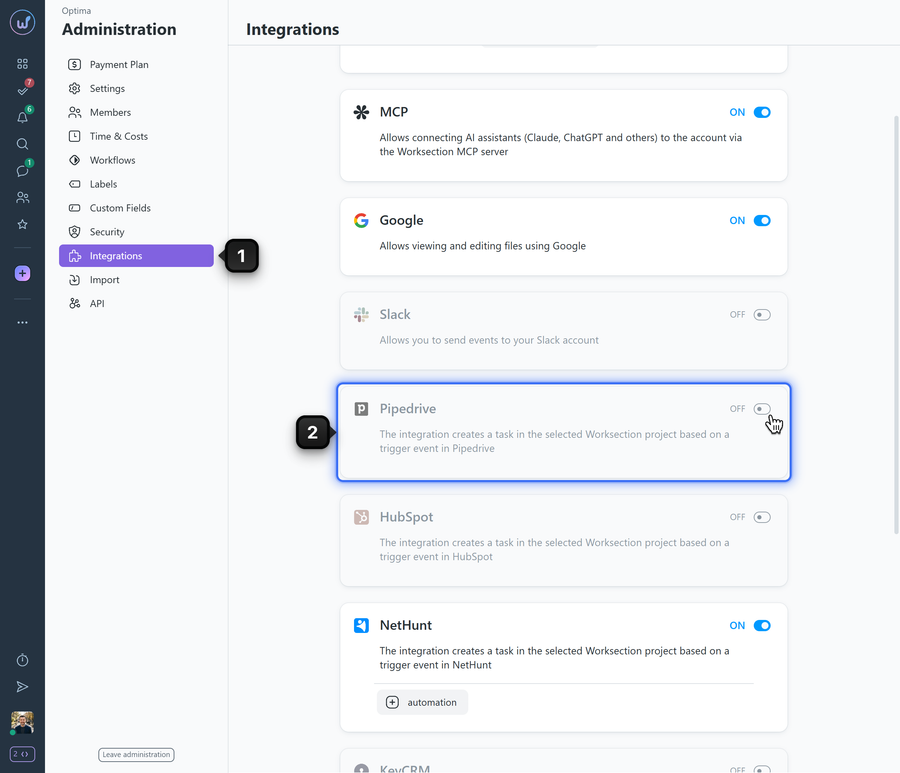
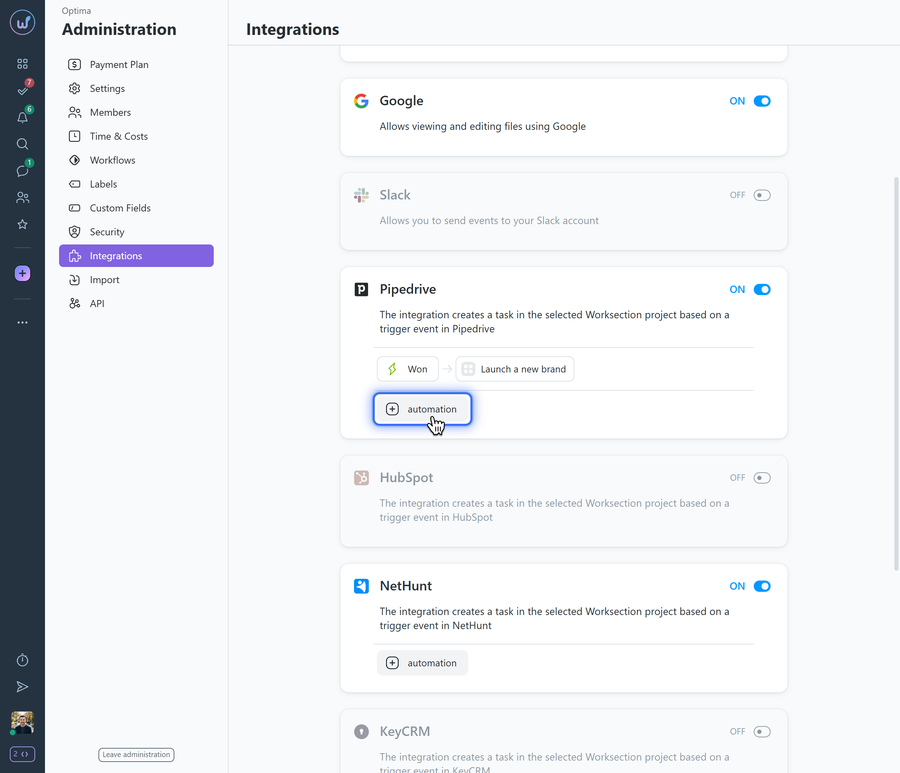
Step 1️⃣ — open the Administration of your Worksection account and go to the “Integrations” section1.
Step 2️⃣ — activate the Pipedrive integration2.
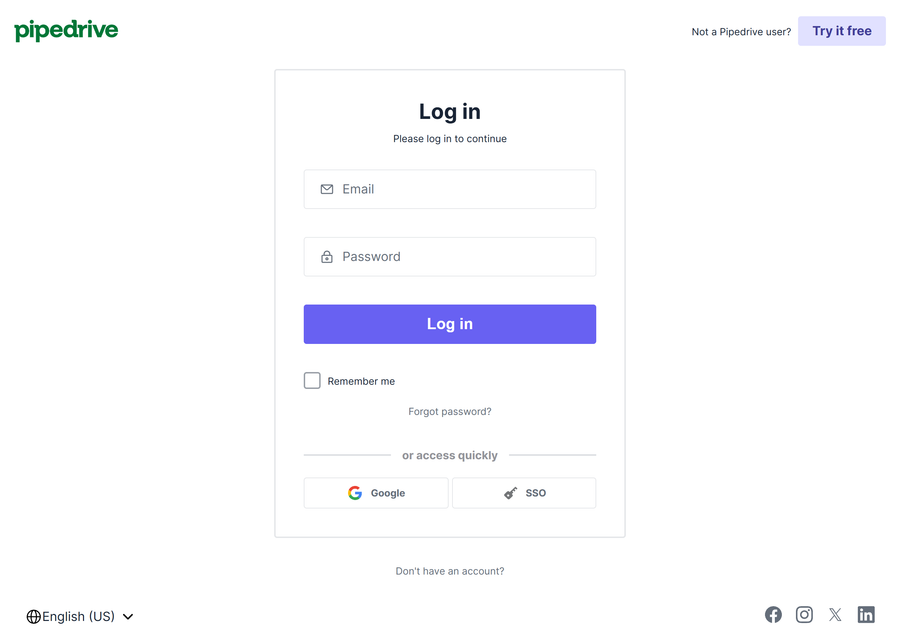
Step 3️⃣ — make sure you are logged in to Pipedrive, or sign in by entering your details in the window that opens automatically.
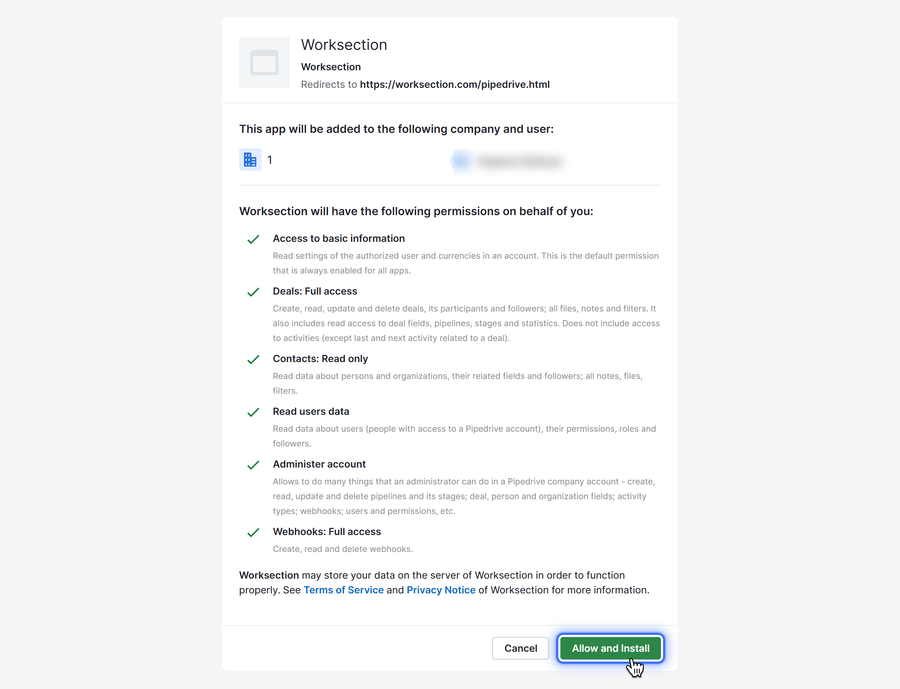
Step 4️⃣ — allow Worksection to access your data in Pipedrive by clicking “Allow and Install”.
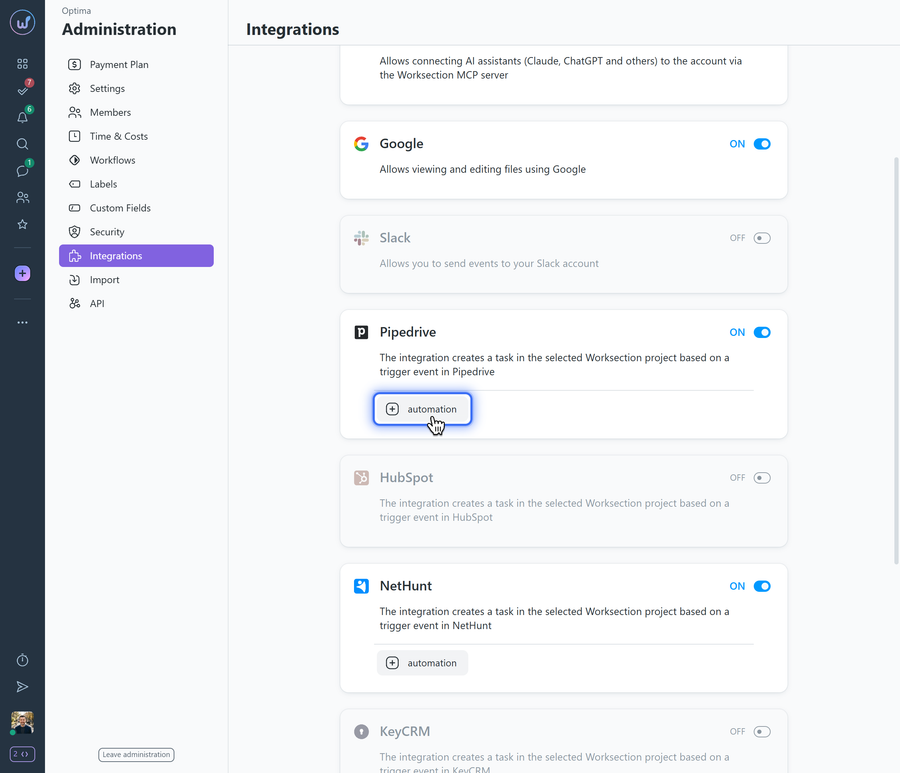
Step 5️⃣ — create a new automation: click the “+ automation” button.
Fill in the following fields:
1 Select the deal status (“Won”, “Lost”) or the Pipedrive pipeline stage on which the task should be created;
2 Select the project in Worksection where the task will be created;
3 Enter the task name, priority, and assignee;
4 Optionally, choose the information that will be imported from the CRM.
When contacts are imported from Pipedrive, the system checks whether the contact already exists in Worksection: first by “Name + Email”, and if it is not found, by “Name + Phone”. If there are no matches, a new contact is created.
Please note! If a phone number was changed in the CRM (modified, deleted, or added to a contact), the contact’s phone number in Worksection is not updated when there is a match by “Name + Email”.
5 Specify how the deal in the CRM will change when the task is closed in Worksection.
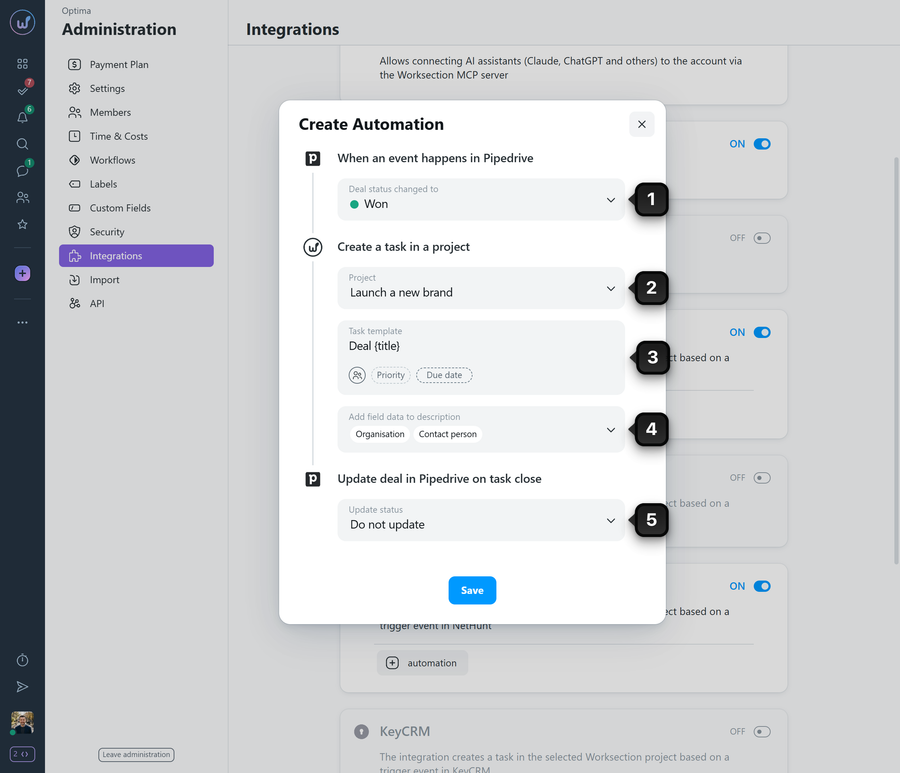
Please note! You can automatically add the CRM fields you need to the task name. For example, the name “New task for deal {title}{ID}” consists of the text “New task for deal” and the variable parameters {title}{ID} imported from the CRM.
Step 6️⃣ — if needed, add other automations.
Leave your review
Did this article help you?
Glad we could help! What was helpful?
Sorry this didn't help. What went wrong?

