Alternative ways of adding participants to a project
Alternative ways of adding participants to a project
1st option
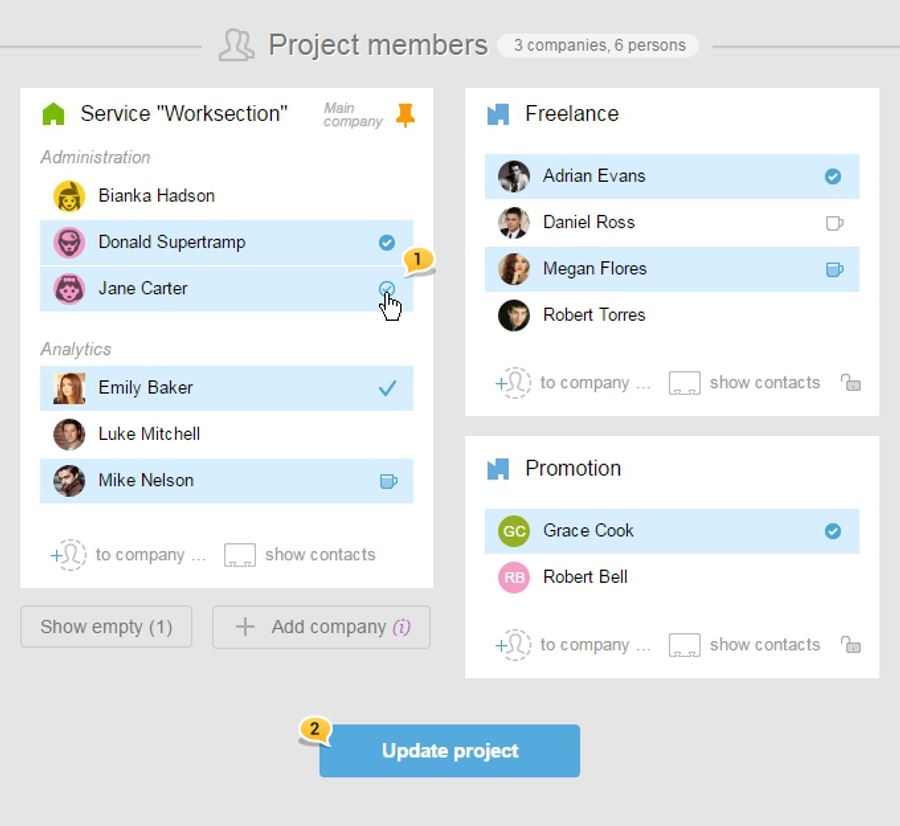
Using the project's settings (add several users to the project at once).
Go to the project's settings.
In the settings window, there is a "Project's participants" section where you can select those participants that you would like to add1 and then click on «Update project»2.
2nd option
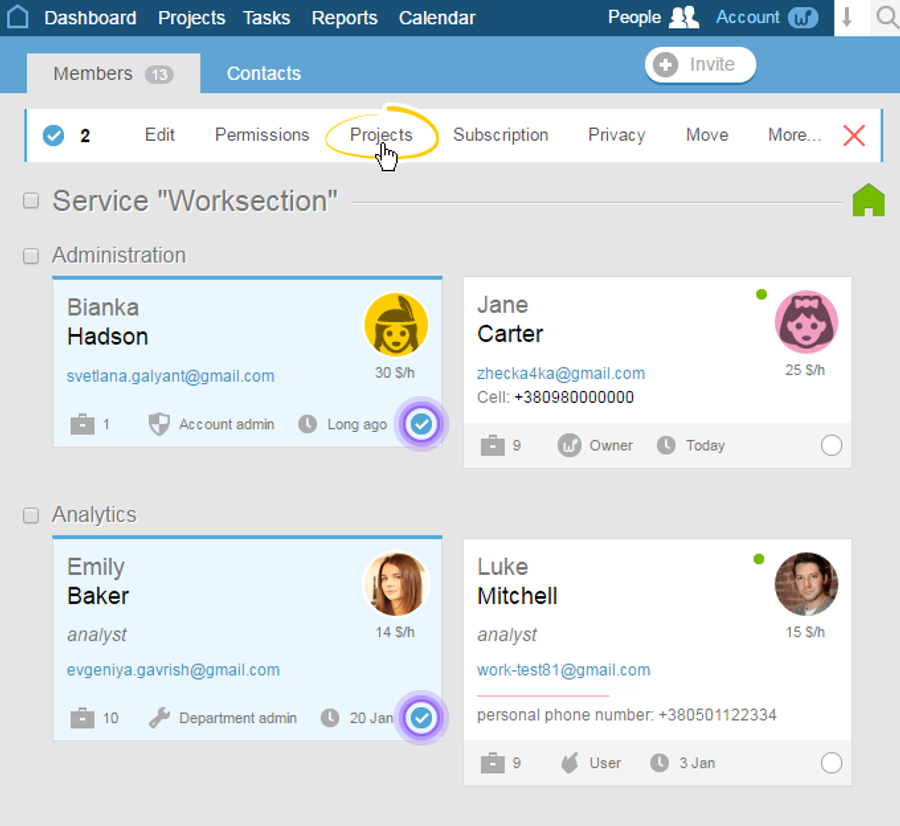
Using the "Access" option in the bulk operations section (adding several users in several projects).
From the account's homepage, go to the People section. Click on those participants' cards for whom you would like to open access to the project, and then choose "Projects".
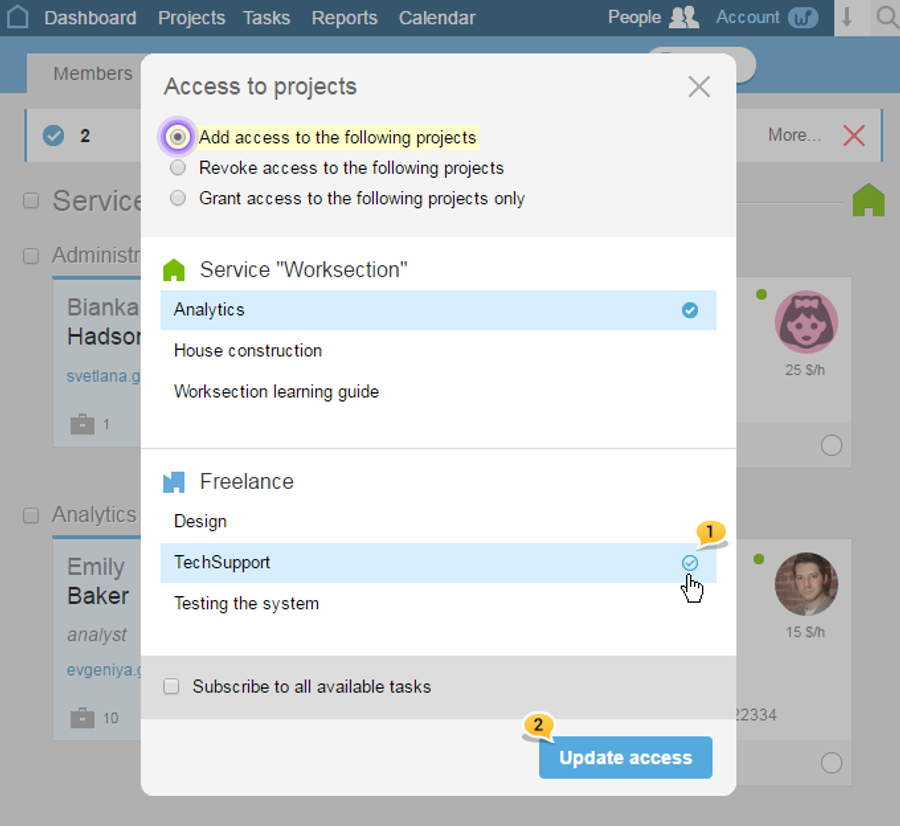
In the window that appears, mark those projects in which you wish to include the selected participants1, and then click "Update access"2
3rd option
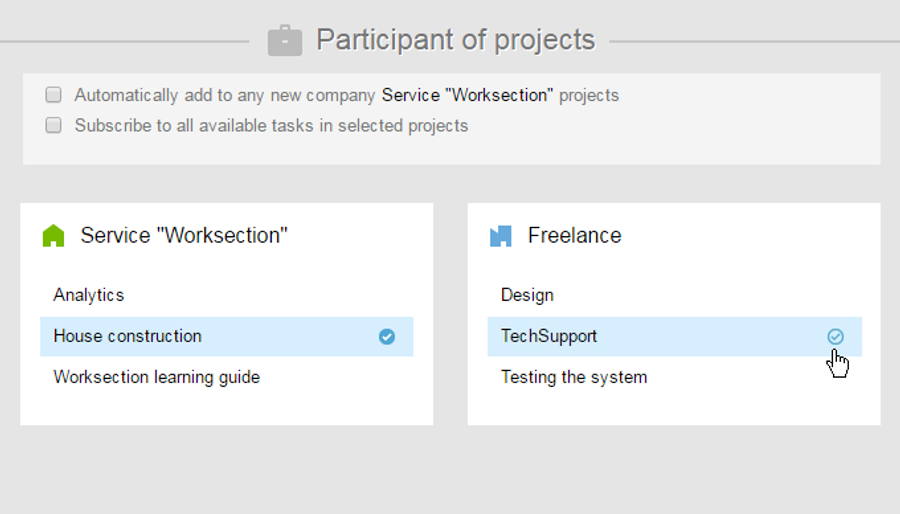
Using the particpant's profile (if a certain particpant is added to different projects).
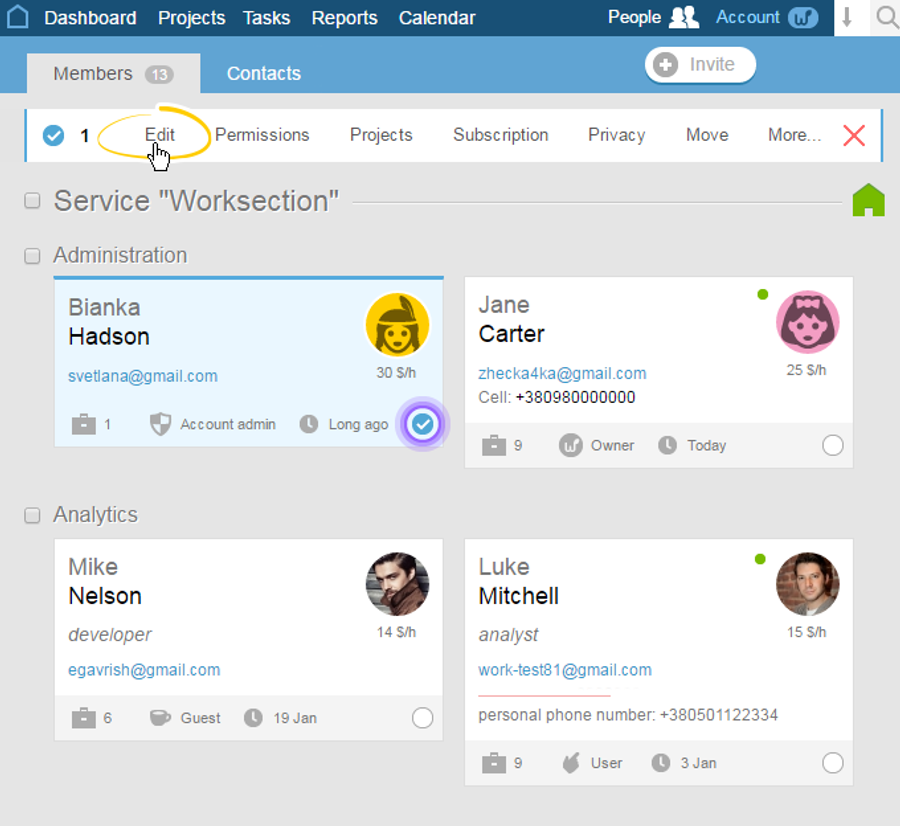
Go to the People section. Click on a particpant's card and select "Edit" in the window that appears:
Select those projects in the "Projects' participant" field to which this participant will be added.
Then, click on "Update access":
Please note!The option of adding a participant to a project can only be done by the project's manager or an administrator with the permissions of managing participants or projects.