Solutions
worksection
beta
help
How to Connect Microsoft Teams to Worksection?
The connection is available on the Premium plan.
To set up the integration, you need to create an application in your Microsoft Entra.
Note If you already have an application created in Microsoft Entra, you can use its credentials, provided that the required Redirect URL is added to it.
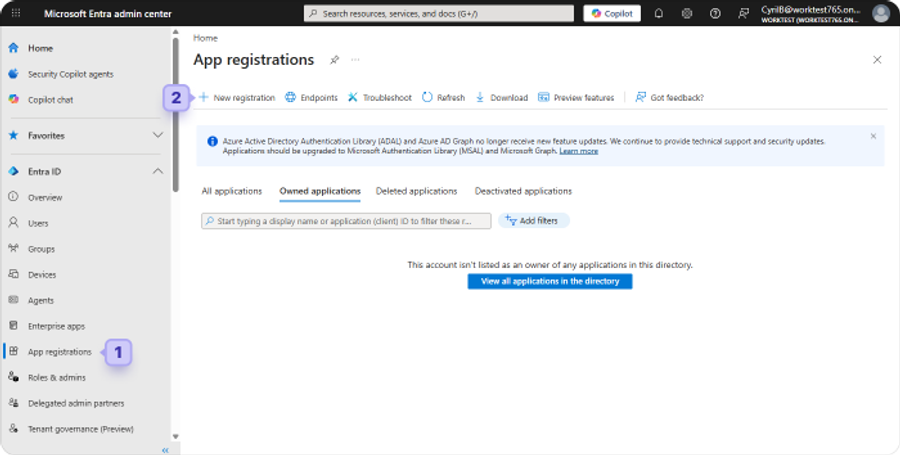
To create a new application, click "App registrations"1 and then "New registration"2.
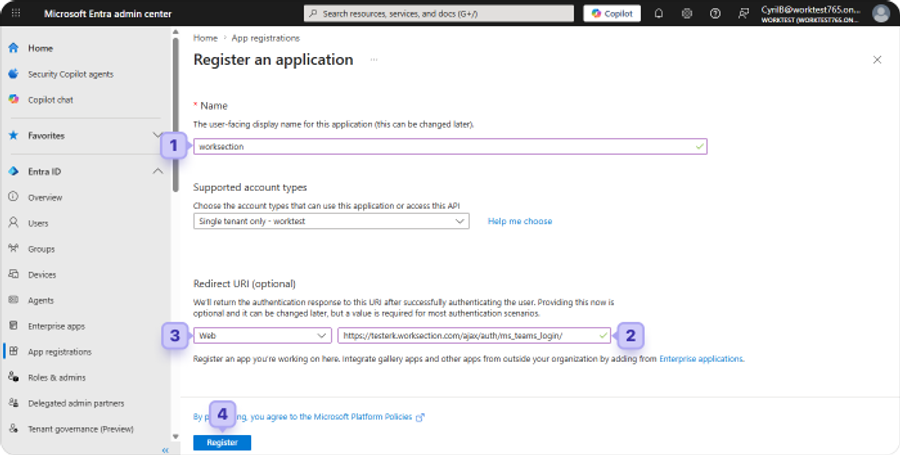
When creating the application, enter its name1, for example Worksection, the Redirect URL2 — https://youraccount.worksection.com/ajax/auth/ms_teams_login/ with the type "Web"3, and click "Register"4.
Note youraccount — replace with the value that corresponds to your account.
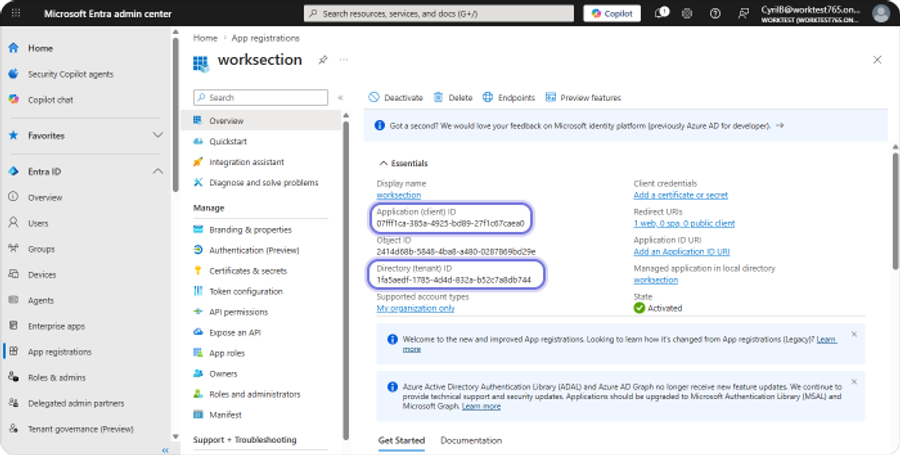
Copy and save the "Application (client) ID" and "Directory (tenant) ID" from the application overview page (you will need to enter these values in the Worksection settings):
Go to "Certificates & secrets"1 and click "New client secret"2. Create a new client secret by entering a description3 and an expiration period4, then click "Add"5.
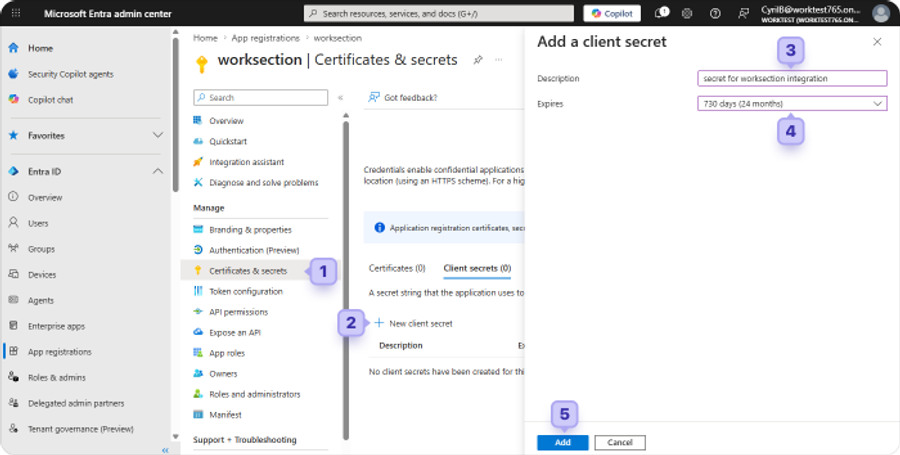
Note The integration will stop working once the client secret expires. To restore it, you will need to generate a new one.
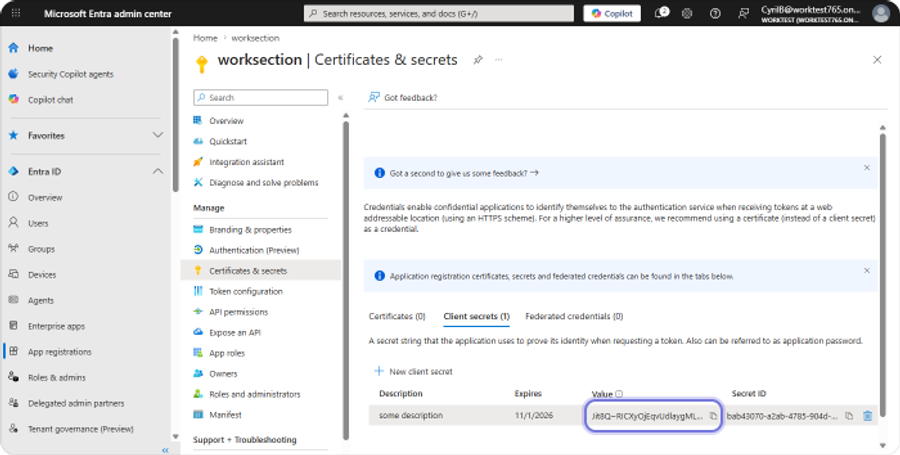
Once the secret is created, copy and save its "Value":
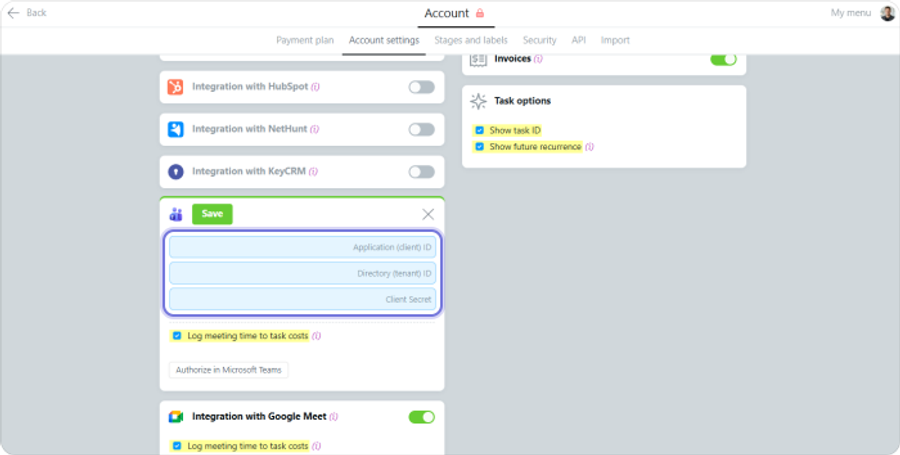
To connect Microsoft Teams, go to Account > Account Settings, enter the copied values into the form, and save the settings:
Leave your review
Did this article help you?
Glad we could help! What was helpful?
Sorry this didn't help. What went wrong?

