Solutions
worksection
beta
help
How does the notification bell work?
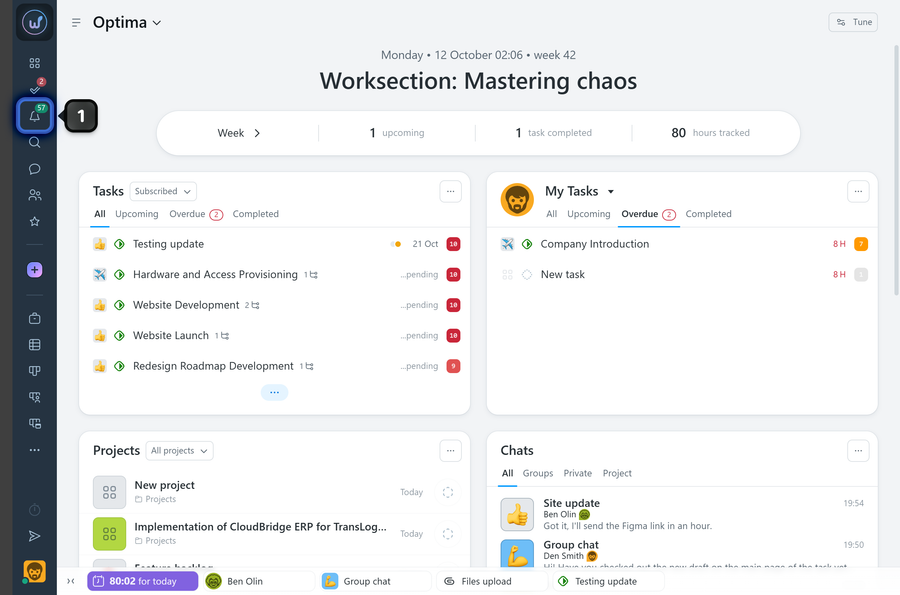
All notifications in Worksection are available in the notifications window. To open it, click the bell button1 in the left sidebar.
What tabs does the bell have?
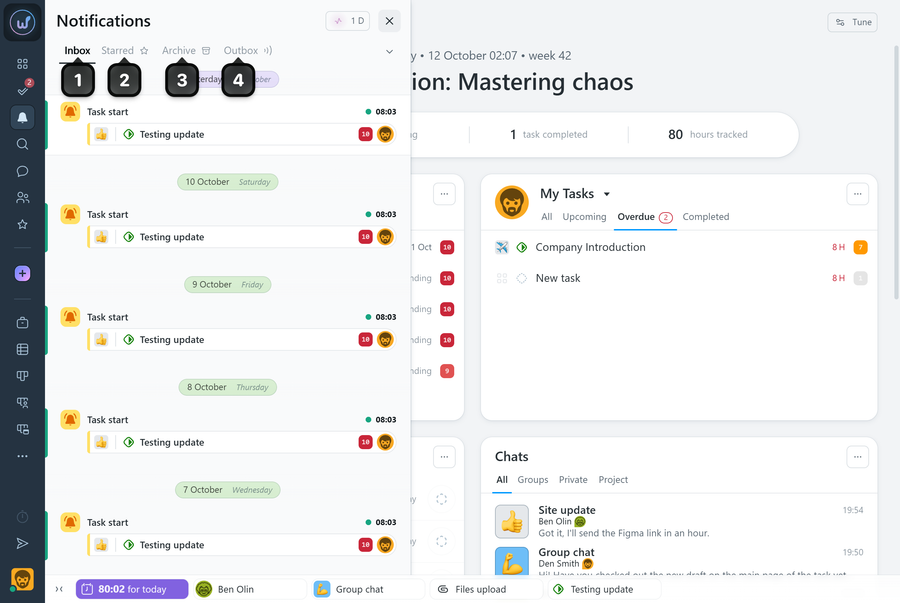
1 Inbox — all received notifications;
2 Starred — notifications marked with a star;
3 Archive — archived notifications;
4 Outbox — notifications you initiated.
Clicking any notification opens the related task.
Please note! Notifications are kept for 60 days in Inbox, Starred, and Archive, and for 30 days in Outbox.
What can I do with a notification?
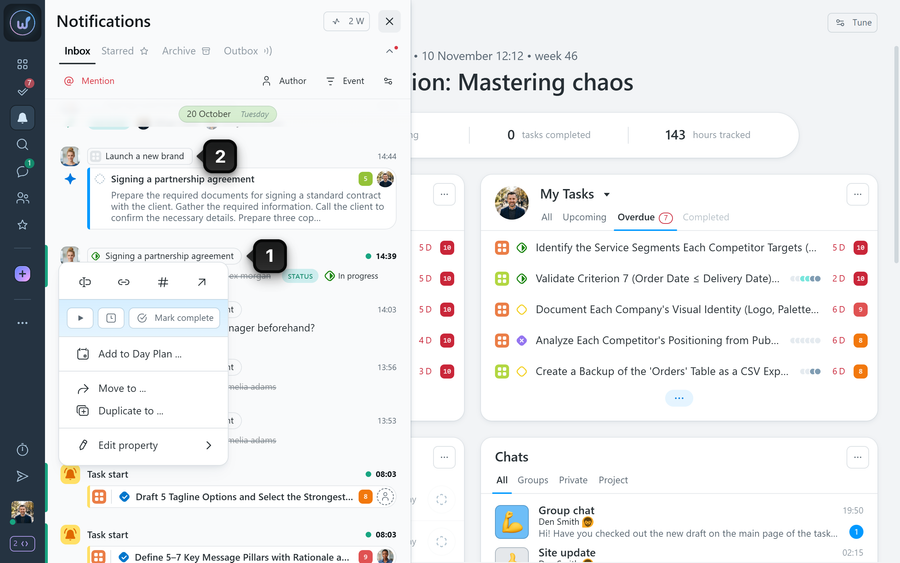
Each event shows the author’s avatar, the time, and a description of the action. Clicking an event opens the corresponding task or project. Right-clicking a task element1 or a project element2 opens its context menu.
Hover over a notification in the “Inbox” or “Starred” tab to bring up the actions menu.
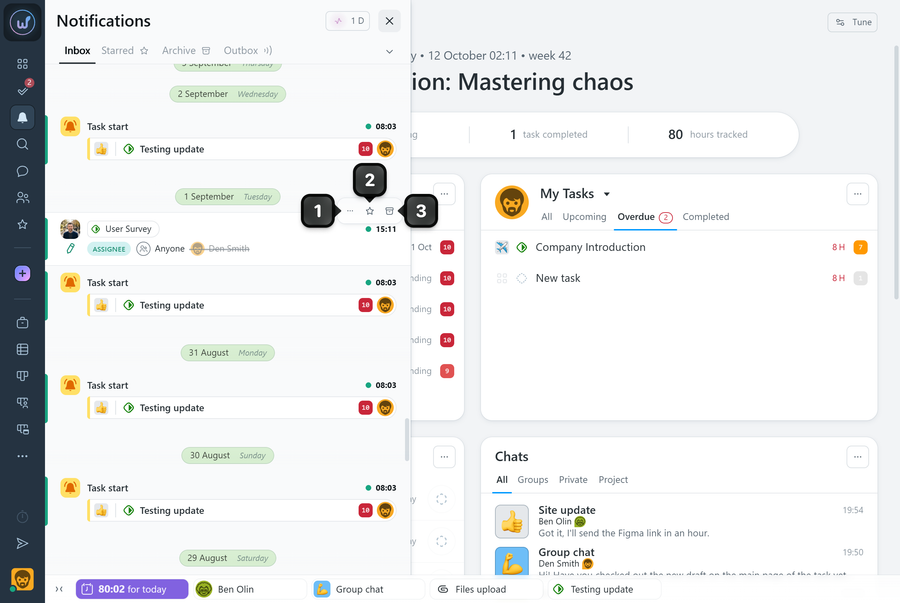
1 Three dots — additional actions:
- archive all notifications for this task;
- archive the selected notification and unsubscribe from the task.
2 Star — adds the notification to “Starred” or removes the star;
3 Archive — moves the notification to the “Archive” tab.
Notes
- Right-clicking a notification opens the three-dots menu right away.
- In the “Archive” tab, hovering over a notification shows the unarchive button, which moves the notification back to “Inbox”.
How do I filter notifications?
Click the additional options button1. The following filters become available:
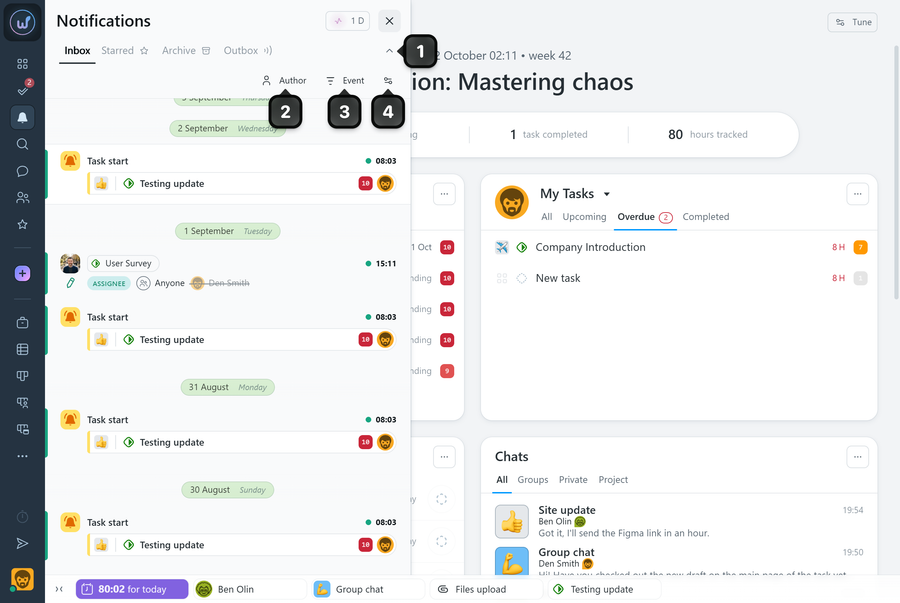
2 Author — keeps only notifications from the selected member;
3 Event — keeps only events of the selected category: mentions, replies, task creation, task completion, comments, files.
4 Tune — the menu of this button lets you go to notification settings, archive notifications, and turn the notification sound on or off.
How do I send a notification about an action you performed without notifying anyone?
The “Outbox” tab contains a list of your actions in the system. If an action was performed without a notification — on purpose or by accident — you can send it to members afterwards.
Hover over such an event — a bell icon will appear. Click it to send a notification to all task subscribers.
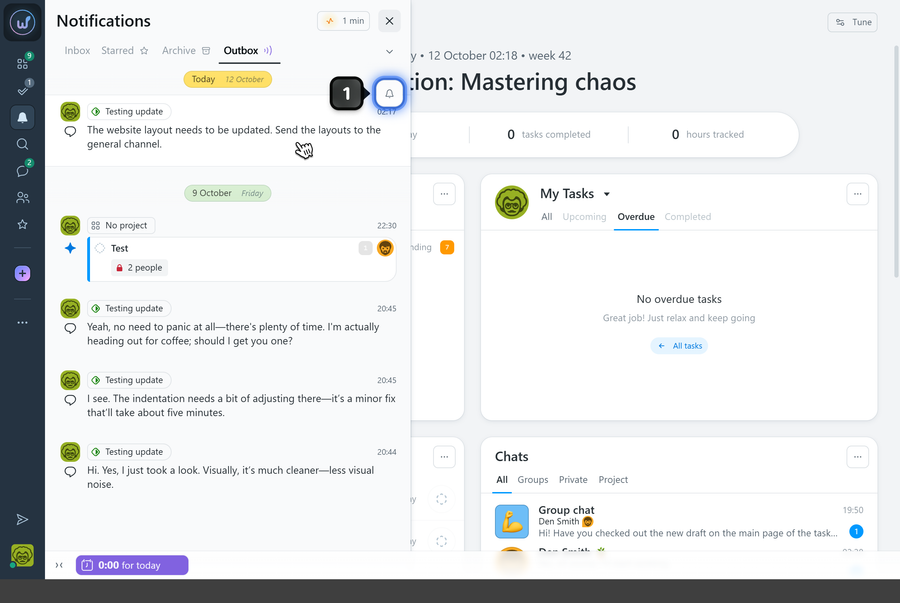
Please note! This option is available only within 24 hours after the action. After that, you can no longer send a notification about the event.
Leave your review
Did this article help you?
Glad we could help! What was helpful?
Sorry this didn't help. What went wrong?
Next
Activity feeds

