Solutions
worksection
beta
help
Editing and Deleting KeyCRM Automations
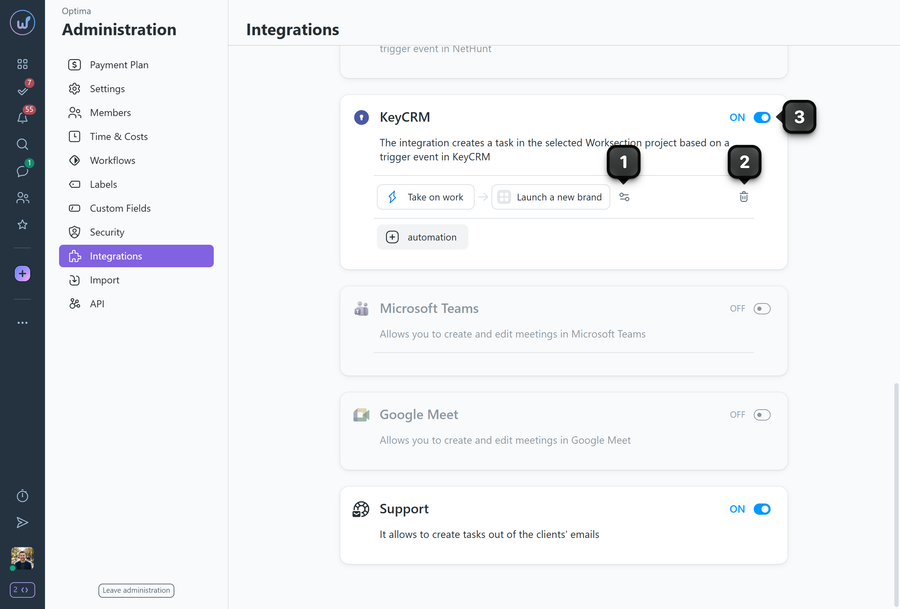
To edit an automation, hover over it and click the settings icon1. Make your changes and click “Save”.
To delete an automation, hover over it — a delete icon2 appears. The system shows a warning, after which you can delete the automation.
Please note! The “ON” toggle3 deletes all automations at once and disconnects the KeyCRM integration.
Please note! Tasks will not be created in an archived project. If a project was moved to the archive or deleted, a mark with an explanation appears in the integration block next to the corresponding automation.
Please note! Synchronization runs once every 5 minutes, so there may be a short delay in automations.
Leave your review
Did this article help you?
Glad we could help! What was helpful?
Sorry this didn't help. What went wrong?
Previous
How to Connect KeyCRM?

