Solutions
worksection
beta
help
Telegram commands
General command buttons
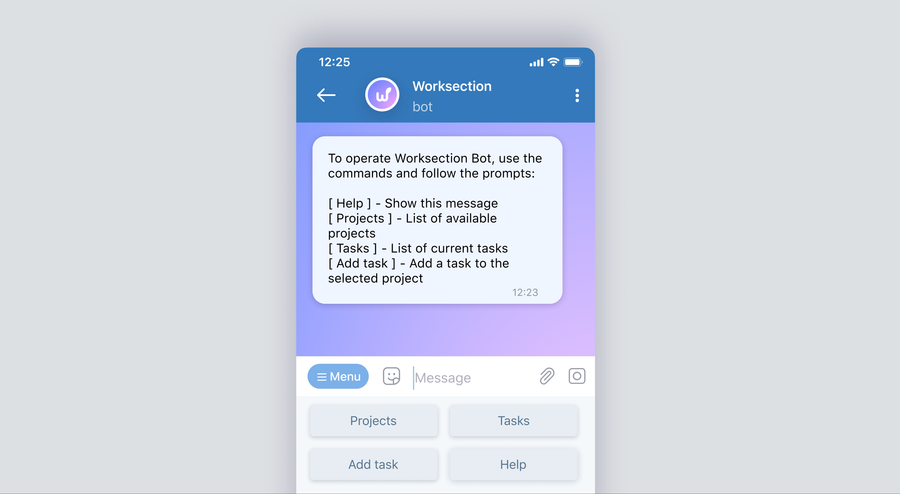
“Help” — shows the list of all buttons with their descriptions.
“Projects” — shows the first 16 projects. To see the next ones, use the “Forward” button. After you tap a project name, additional command buttons for working with the selected project appear (described below).
“Add task” — starts the task creation process: first, you need to choose the project where the task will be created. After that, you can enter a name, priority, assignee, due dates, and description, or attach a file.
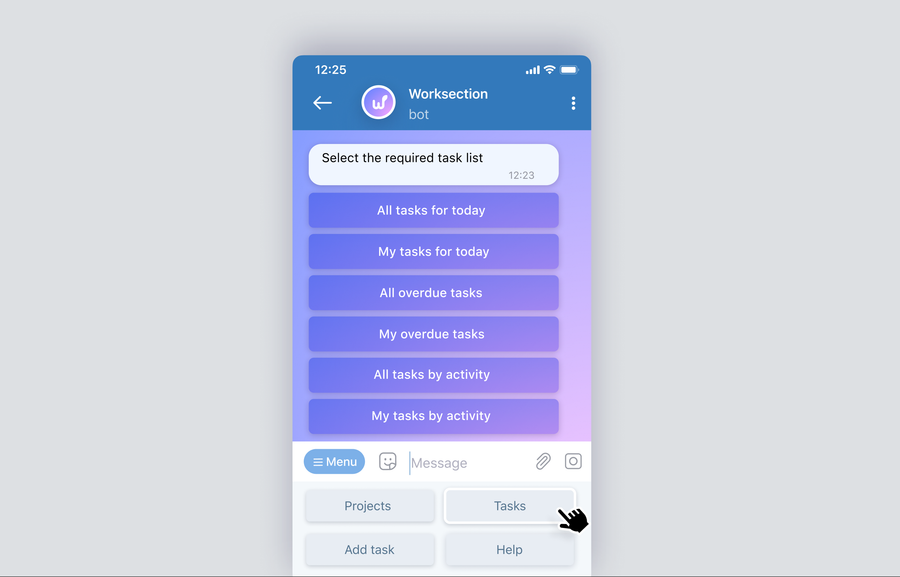
“Tasks” — shows a list of filters; after you tap a filter, the matching tasks are displayed:
Project commands
Available after using the “Projects” command and choosing a project from the list:
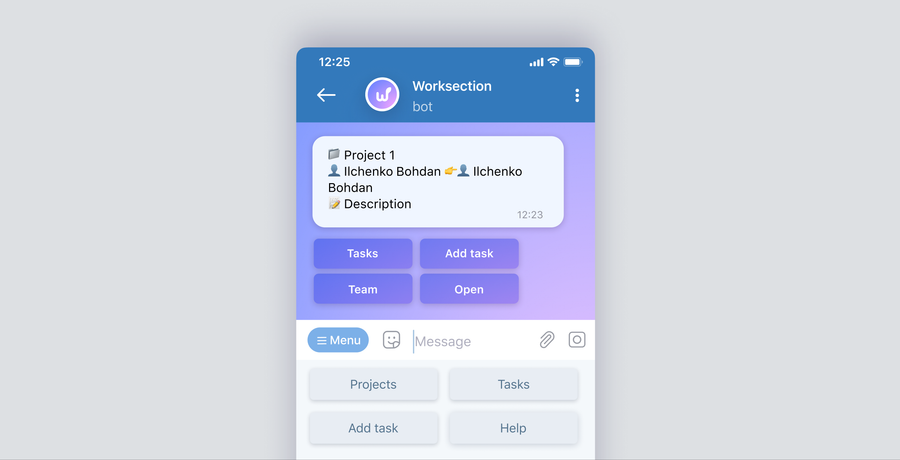
“Team” — shows the list of all project members.
“Add task” — creates a task in the selected project. You can enter a name, priority, assignee, due dates, and description, or attach a file.
“Open” — opens the project in the browser.
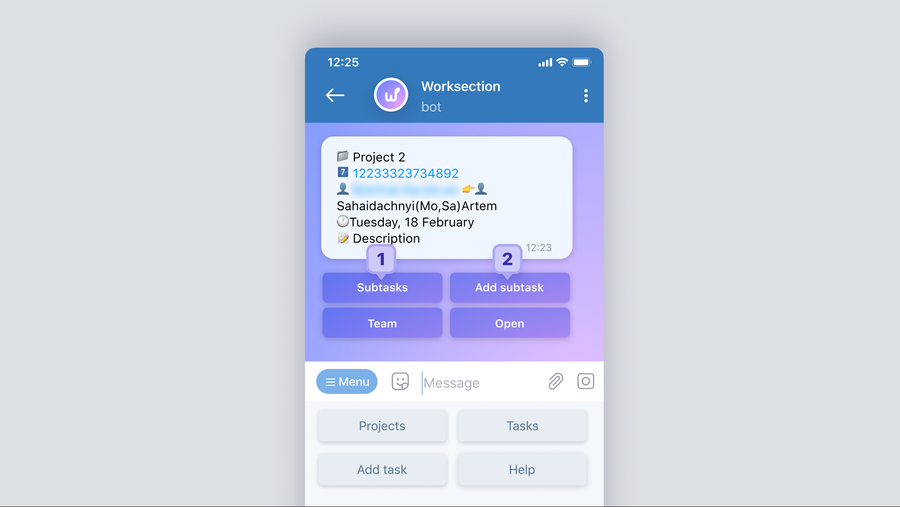
“Tasks” — shows the list of tasks in the selected project. After you tap a task name, a message with brief information about the task appears, with the option to view the task’s subtasks1 and create a new subtask2:
Notification format
Most notifications in the Telegram bot look like this:
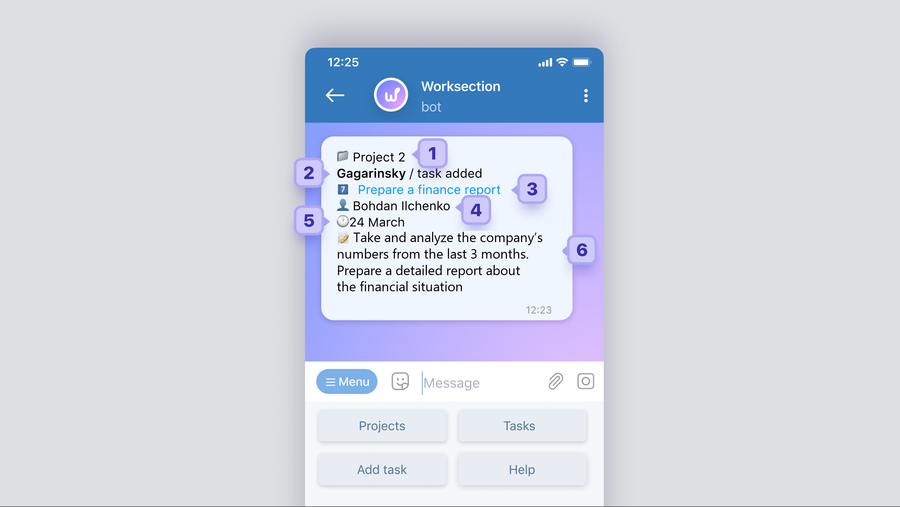
1 – The project in which the task was created.
2 – The last name, first name, or nickname of the member who performed the action.
3 – The name of the task related to the action, as well as its priority, current status, and labels (if added).
4 – The last name, first name, or nickname of the assignee.
5 – The task due date.
6 – The task description: a detailed explanation of what needs to be done.
Leave your review
Did this article help you?
Glad we could help! What was helpful?
Sorry this didn't help. What went wrong?

