Solutions
worksection
beta
help
How do I work with Google Drive?
To add a file from your Google Drive to a task description or comment, click the paperclip icon1, open the “Google Drive” menu2, and choose how to attach the file.
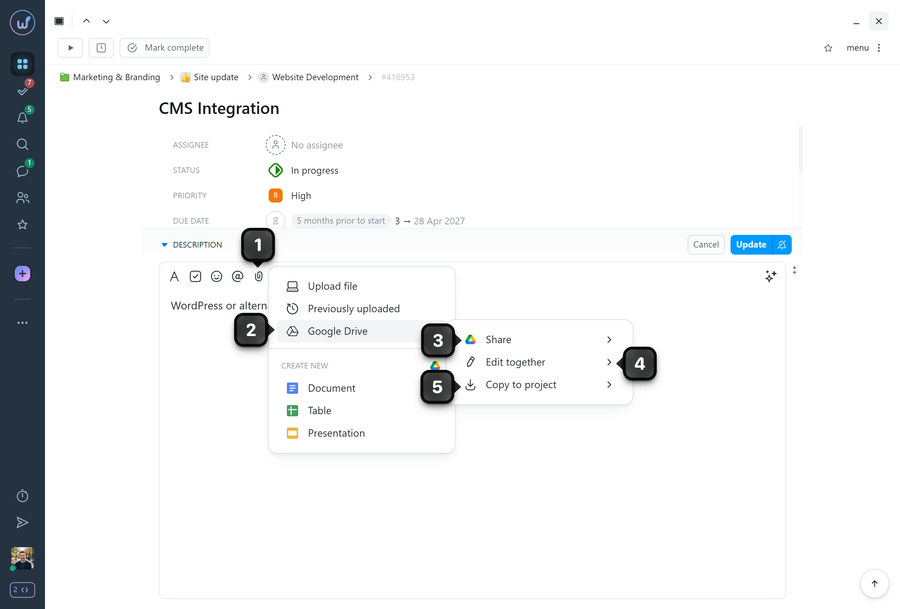
When creating a task or comment, you can add files from Google Drive in three ways:
3 “Share” — to share the file for viewing without permission to edit.
4 “Edit together” — for collaborating on a document. Changes are saved automatically in the file on Google Drive.
5 “Copy to project” — to upload the file to Worksection and keep a separate version.
After you click one of these buttons, a window opens where you can select a file from Google Drive and add it to a comment, task, or project.
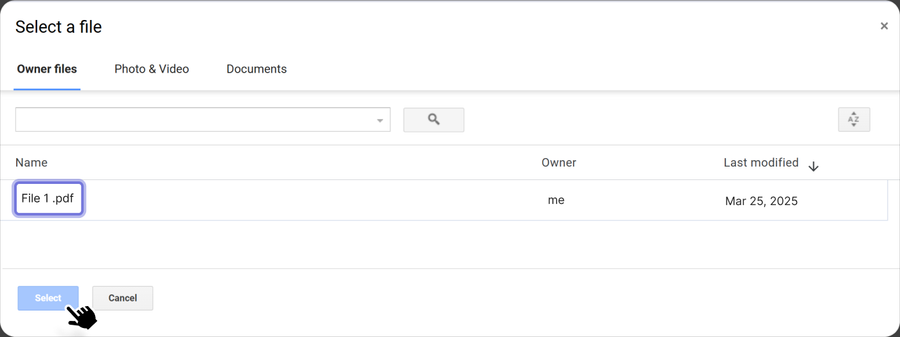
The files physically stay in your Google Drive under your full control, and users see the latest, up-to-date version. If you attach documents, spreadsheets, or presentations from your Google Drive, only you can allow or forbid editing them.
Please note! If you delete the file or change its access level on your Google Drive, it automatically becomes unavailable in Worksection.
The first time you connect Google Drive to Worksection, you need to activate access.
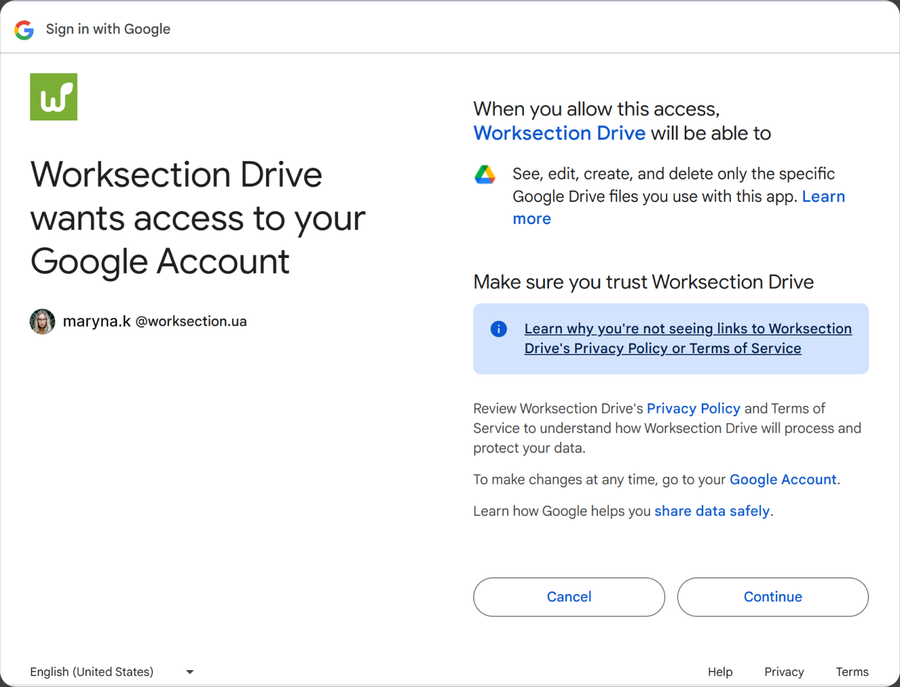
Google limits the session time. After a certain period, the system may ask for permission again.
Leave your review
Did this article help you?
Glad we could help! What was helpful?
Sorry this didn't help. What went wrong?

