Solutions
worksection
beta
help
Home page overview (Account dashboard)
The account home page is your personal dashboard: a summary of tasks, projects, team activity, and other metrics in one place. It is made up of widgets — separate blocks you can turn on and off, rearrange, and adapt to your needs. Dashboard data updates in real time, and dashboard settings are individual for each account member.
How to open the dashboard
After you log in, you land on the account home page. From any other page of the account, you can return to the dashboard by clicking the button1 with your company logo in the left sidebar.
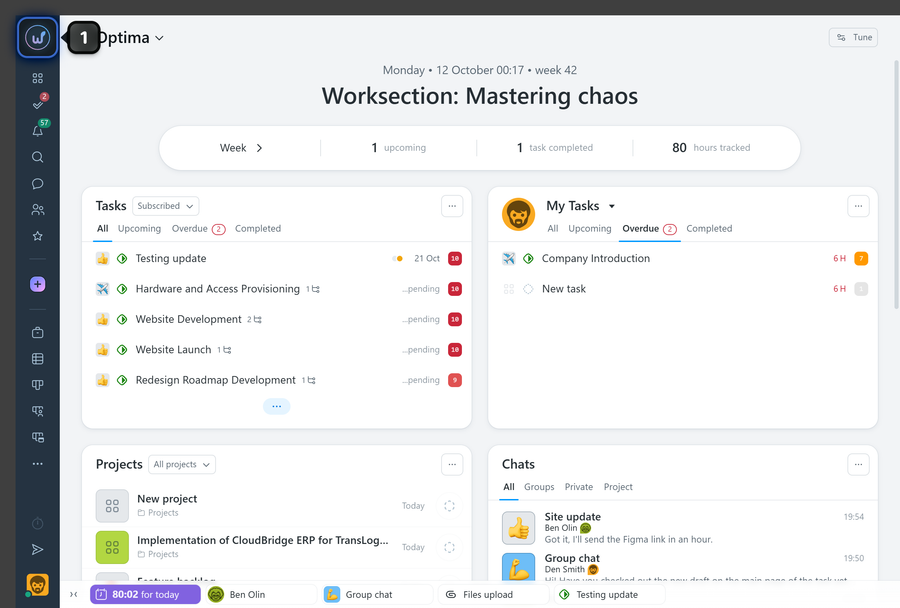
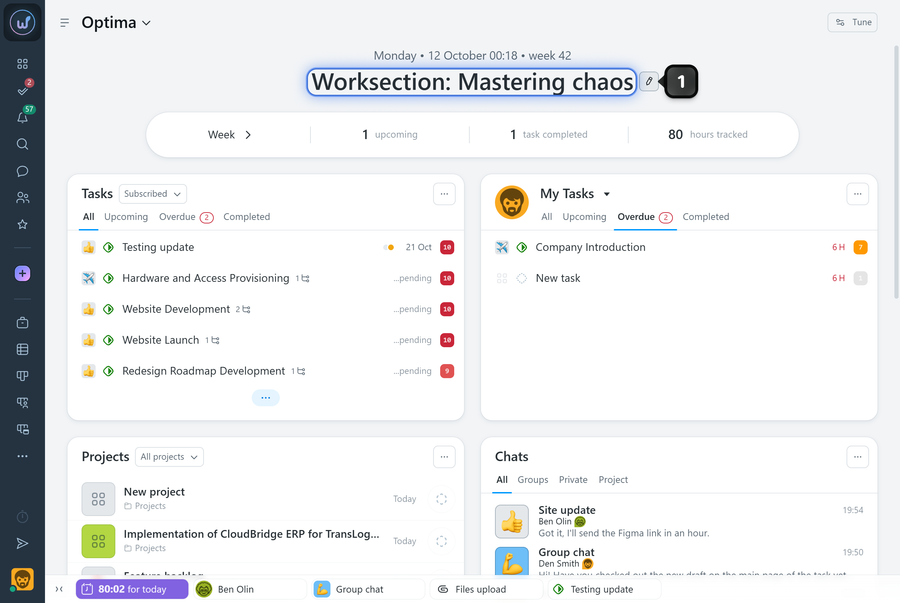
The current date and time are shown at the top of the dashboard. Below them is the slogan — a text that all account members see.
Who can change the slogan
- The account owner;
- An account administrator with access to account settings.
How to change the slogan
Hover over the slogan text — the edit button1 will appear. Click it and enter the new text. To apply the changes, click outside the field or press Enter.
Summary statistics for a period
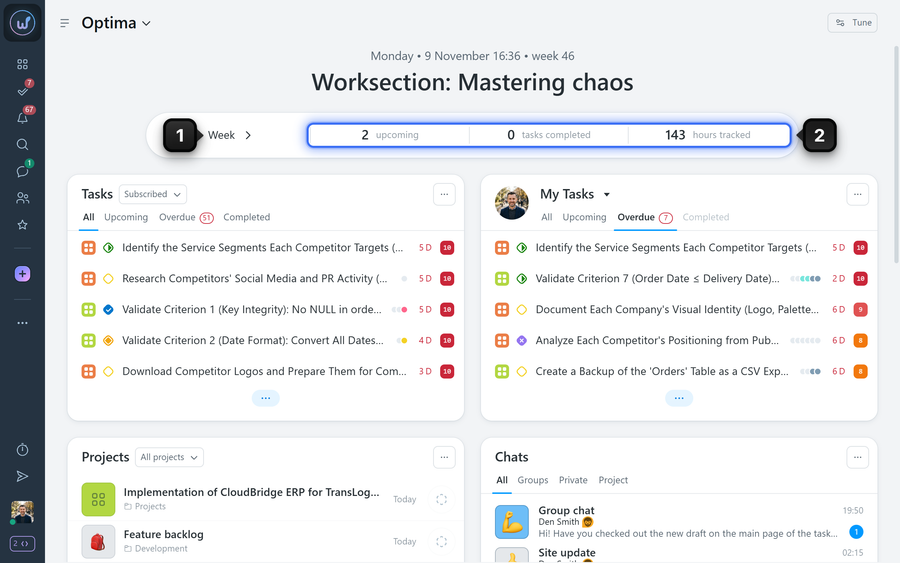
Below the slogan, there is a block with brief statistics for the selected period. Click the button1 to switch the period between a week and a month. The block shows the number of:
- overdue tasks (or upcoming tasks, depending on which tasks are in the account);
- completed tasks;
- hours tracked.
Click a metric2 to open its details (for example, the list of “Upcoming” tasks or a breakdown of hours, depending on the item).
Customizing the dashboard and widgets
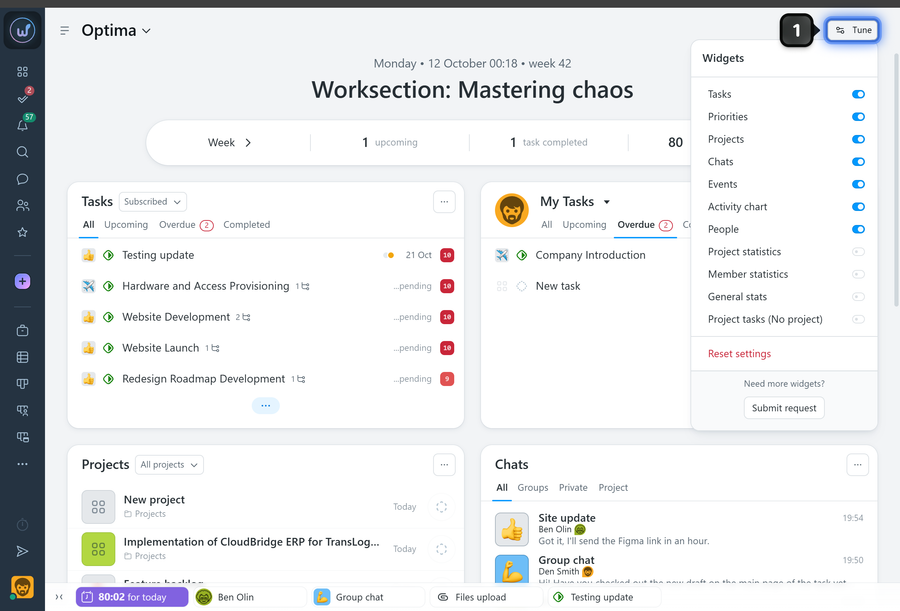
In the upper-right corner of the dashboard, click “Tune”1.
A list of widgets with toggles will appear — turn on the ones you need and turn off the rest.
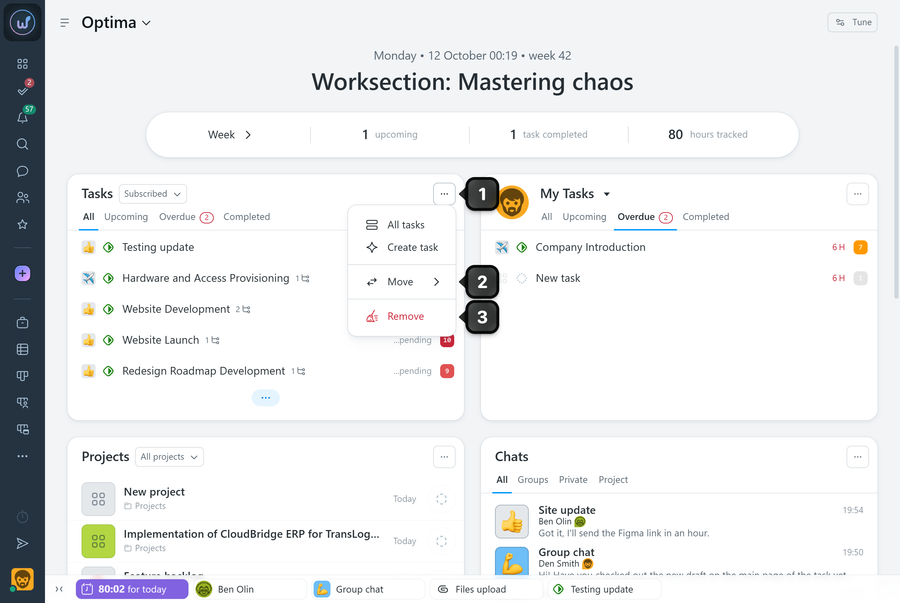
Each widget has a “three dots” menu1. In this menu, you can:
2 move the widget relative to the others;
3 remove the widget from the page;
The menu also contains additional actions depending on the widget type and your role in the system (for example, open the full list, duplicate the widget, create a task, and so on).
Please note! Widget visibility and layout settings are personal — different members may see different sets of blocks on their home page.
Which widgets can be on the dashboard
Depending on the configuration, the home page may include widgets such as:
- Tasks — a task list with filters and sorting (roles, department, “whole team”, all available tasks, and so on);
- Priorities — a focus on the most important tasks from different projects;
- Projects — quick access to projects with filters (favorites, your own, all);
- Chats — active discussions in teams and projects;
- Events — task changes in a summarized view, with the option to keep only what’s relevant to you;
- Activity chart — workload and activity trends in the account;
- Project statistics — summary metrics for projects (progress, tasks, time, and so on);
- Member statistics — summary metrics for members;
- General stats — overall account metrics;
- People — a list of account member cards with search and easy access to contacts and actions.
Why it all comes together
The main idea of the account dashboard is that you choose what to see on your start screen: tasks, priorities, projects, events, chats, statistics, or activity. There’s no need to gather information from different sections every time — just set up the widgets once to match your role and working style.
Leave your review
Did this article help you?
Glad we could help! What was helpful?
Sorry this didn't help. What went wrong?

