Solutions
worksection
beta
help
How do I sync the calendar with my personal calendar?
You can sync tasks with external calendar services using the standard iCalendar format. Once connected, task dates will automatically appear in your personal calendar.
Sync is one-way: tasks from Worksection are sent to the external calendar, but events from the external calendar are not transferred to Worksection.
The iCalendar format is supported by Google Calendar, Microsoft Outlook, Apple Calendar, Mozilla Calendar, and other services.
How do I get the sync link?
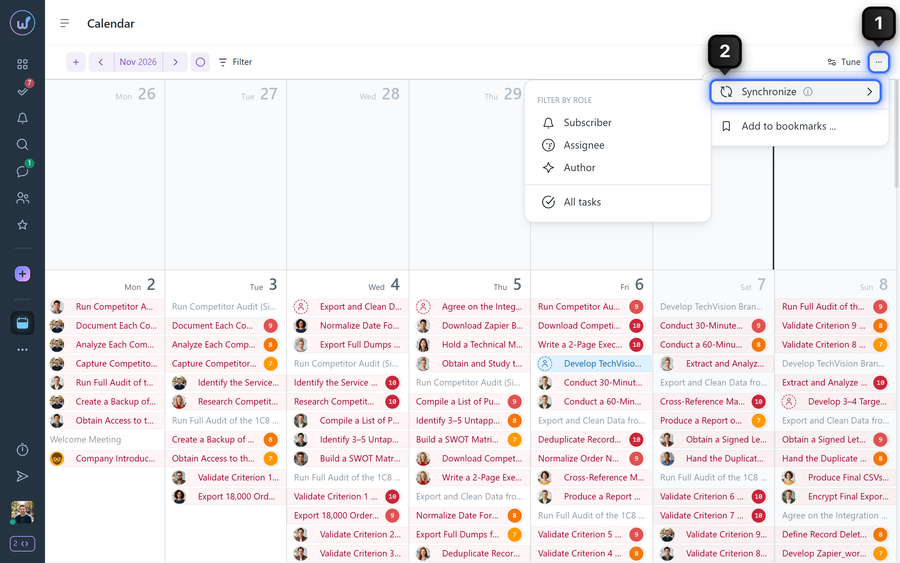
Open the calendar, click the three-dots button1 → “Synchronize”2, and choose which tasks to include in the calendar based on your role in them:
- tasks you are subscribed to;
- tasks you created;
- tasks you are assigned to;
- all tasks.
Once you make a choice, the link is automatically copied to the clipboard.
Please note! If your calendar doesn’t accept the “webcal://” link, replace “webcal://” with “http://” and try again.
How do I connect Google Calendar?
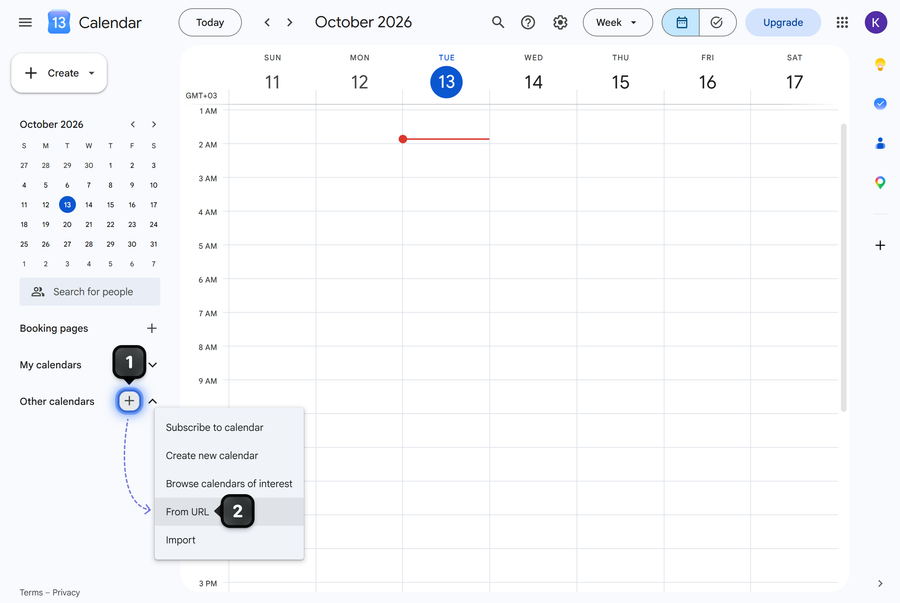
Open Google Calendar. In the left menu, click “+”1 next to “Other calendars”. In the menu that appears, choose “From URL”2.
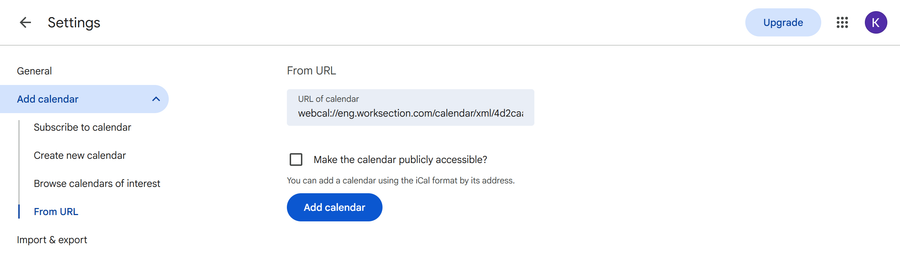
Paste the link copied from Worksection and click “Add calendar”.
Please note! Google Calendar doesn’t show changes right away — updates to tasks appear with a delay. This is how Google Calendar itself works.
How do I connect Apple Calendar?
On iPhone:
- Open the Calendar app.
- Tap “Calendars” at the bottom of the screen.
- Choose “Add Calendar” → “Add Subscription Calendar”.
- Paste the copied “webcal://” link and confirm.
On Mac:
- Open the Calendar app.
- In the menu bar, click “File” → “New Calendar Subscription…”.
- Paste the copied “webcal://” link and confirm.
Leave your review
Did this article help you?
Glad we could help! What was helpful?
Sorry this didn't help. What went wrong?
Previous
How does the calendar work?

