Solutions
worksection
beta
help
How does the calendar work?
The calendar is a shared tool for viewing key dates across tasks, projects, and team members. Each member sees only the events they have access to.
Calendar modes
There are two ways to work with the calendar.
| Account-wide calendar | Project calendar |
|---|---|
| All projects and tasks you can access | A single project |
| Opens from the left sidebar | Opens from the project tabs |
| Best for overall planning | Best for work within one project |
How do I open the calendar?
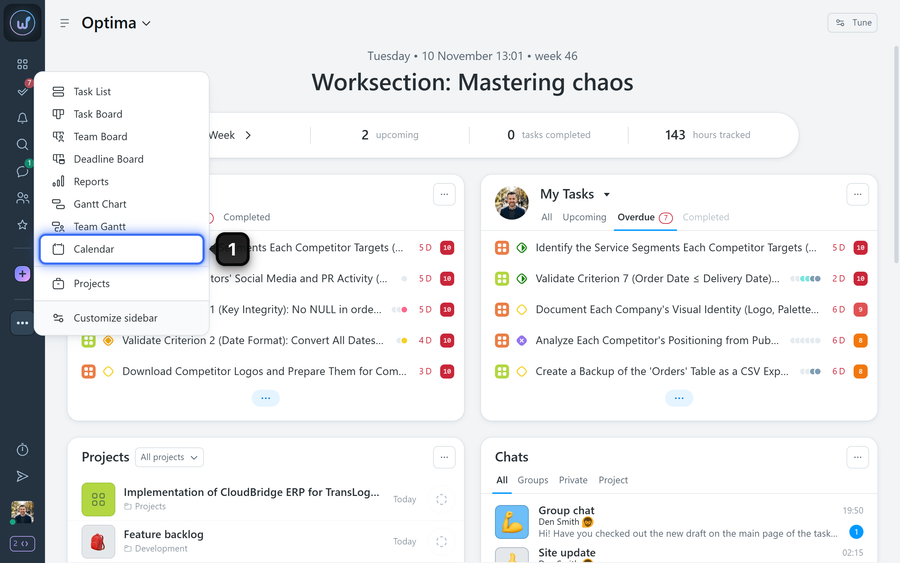
Click the “Calendar” button1 in the left sidebar to open the account-wide calendar.
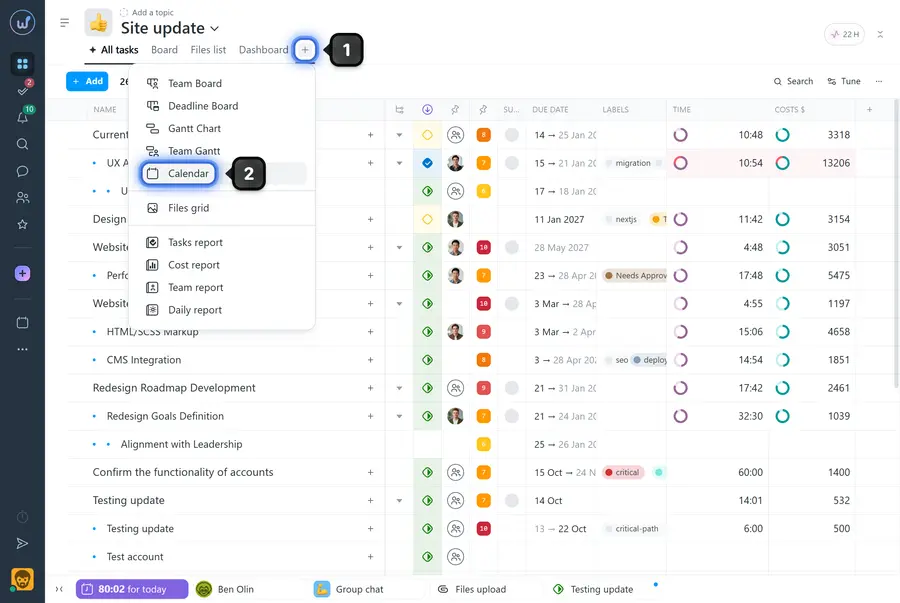
To open a project calendar, click the “+” button1 on the project page and choose “Calendar”2.
What does the calendar show?
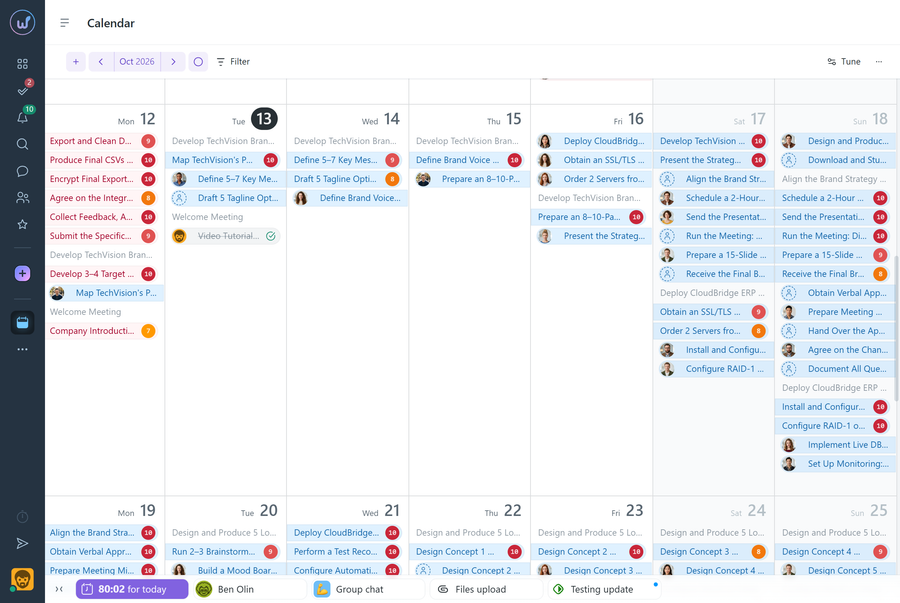
- Tasks and projects:
- tasks and subtasks;
- completed tasks;
- upcoming task recurrences;
- projects (in the account-wide calendar).
- Absences:
- vacations;
- sick leave;
- days off.
- Personal dates:
- birthdays;
- work anniversaries.
Only tasks and projects with a deadline appear on the calendar. If a project is archived, its events disappear from the calendar. Members’ personal dates are shown according to the team visibility settings in your account.
How do I use the calendar?
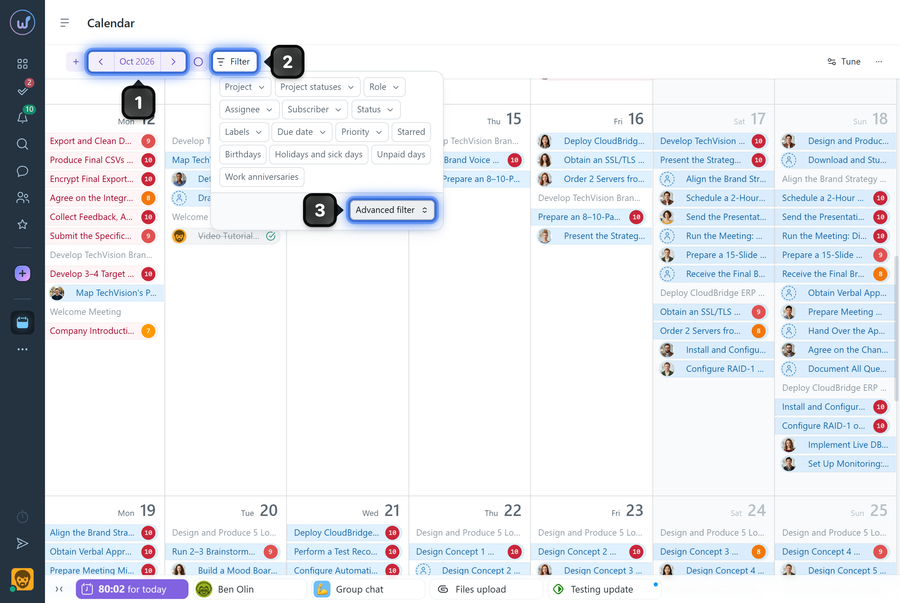
Use the navigation buttons1 to switch months. The “Filter” button2 lets you keep only the event types you need on the calendar. For more complex conditions, use the advanced filter3.
Click the “Tune” button1 to open the display options.
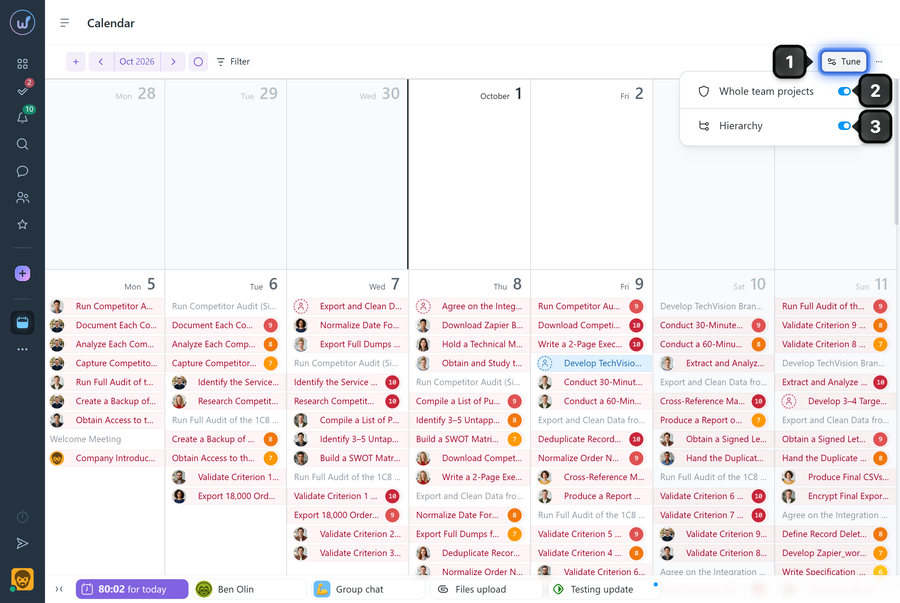
2 Whole team projects — on the account-wide calendar, adds tasks and projects you are not a member of.
3 Hierarchy — if a parent task has no deadline but its subtask does, the parent task isn’t shown on the calendar unless this option is on. With hierarchy on, it appears on the day of the subtask’s deadline.
Permissions The “Whole team projects” option can be turned on by:
- The owner
- An account admin with the “Can see all projects in the account” permission
- A team admin with the “View team members’ projects” permission
- A department admin with the “View department members’ projects” permission
Working with events
Hover over any item to see a tooltip with the event details. For multi-day events (a vacation, a project, or a task with a start and a finish), every day the event covers is highlighted.
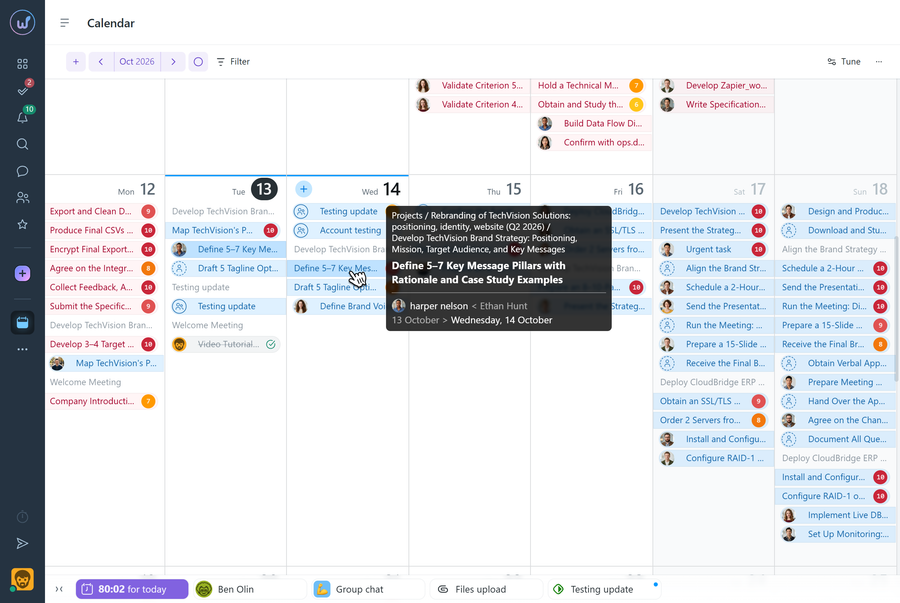
Click an item to open the related object:
- task → opens the task window;
- project → opens the project window;
- member (birthday, vacation, anniversary) → opens the member’s card.
Changing a task deadline
You can move a task’s deadline right in the calendar without opening the task. Hover over the task, press and hold the left mouse button, and drag it to the new date.
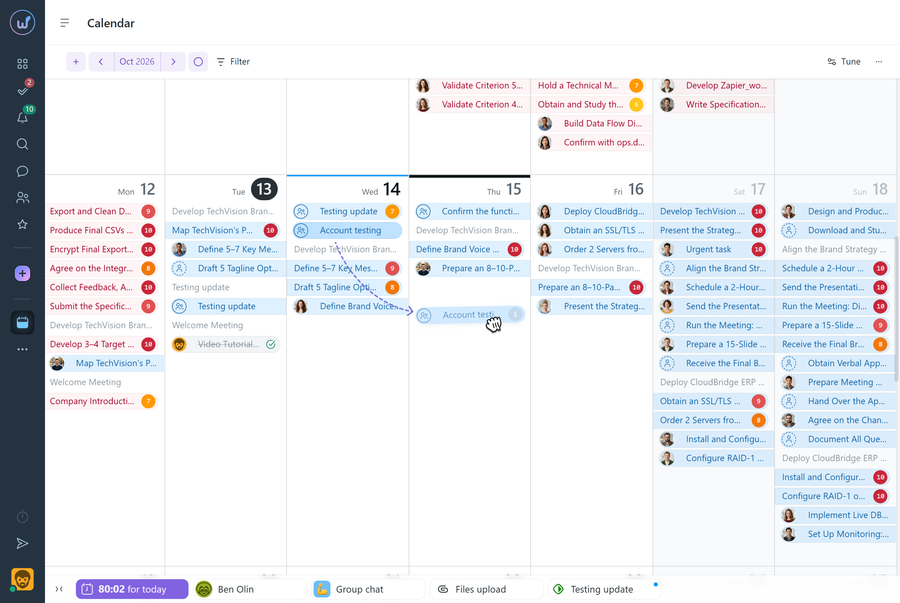
Release the mouse button and choose “Save the dates”1.
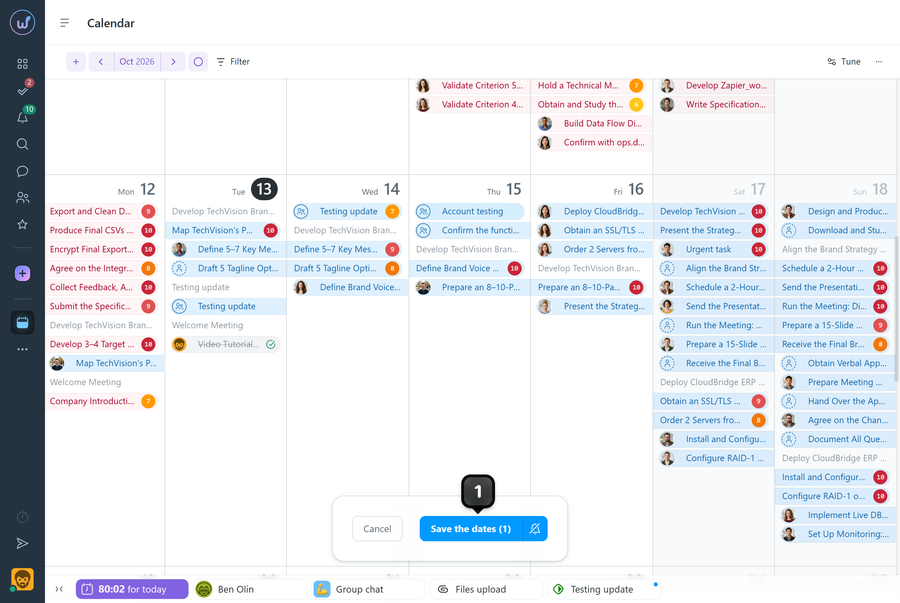
Please note! Only people who can edit the task can move its deadline.
Leave your review
Did this article help you?
Glad we could help! What was helpful?
Sorry this didn't help. What went wrong?

