Solutions
worksection
beta
help
Connecting NetHunt CRM
Step 1️⃣ — Get the API key in CRM.
Go to the Settings panel - Integrations section - API Key field.
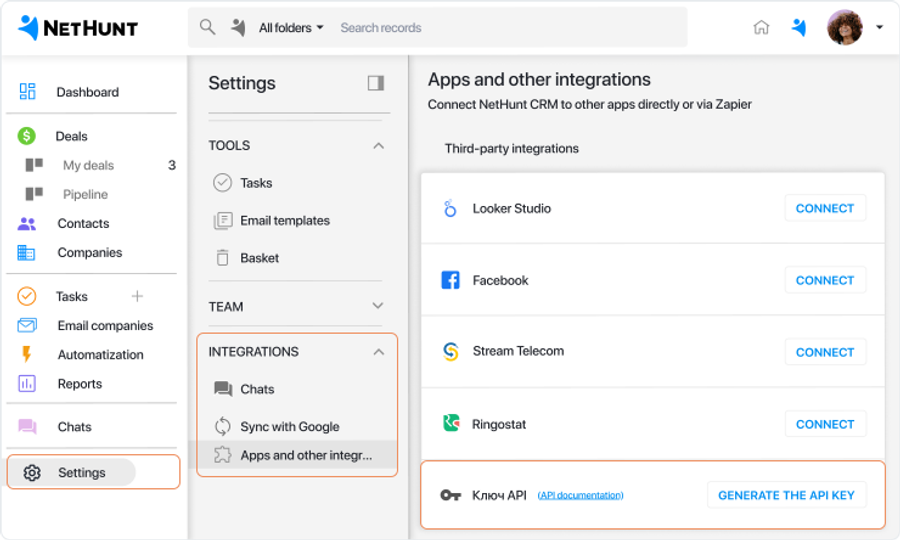
Generate the API key.

Step 2️⃣ — Go to the account settings of Worksection.
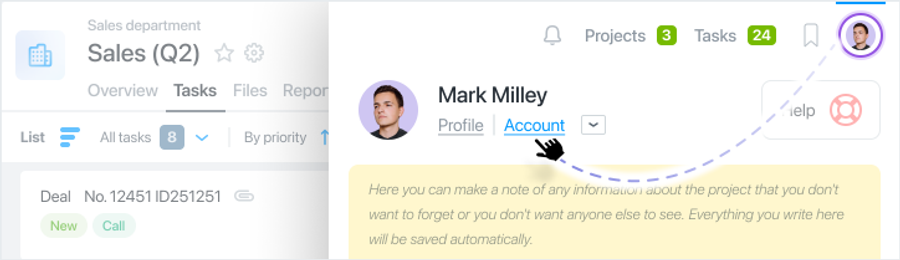
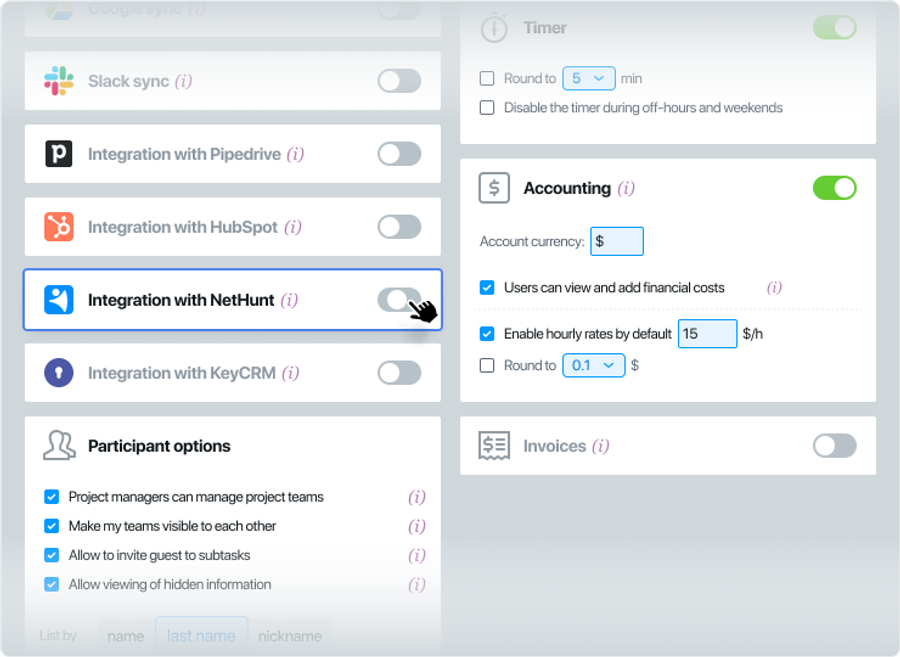
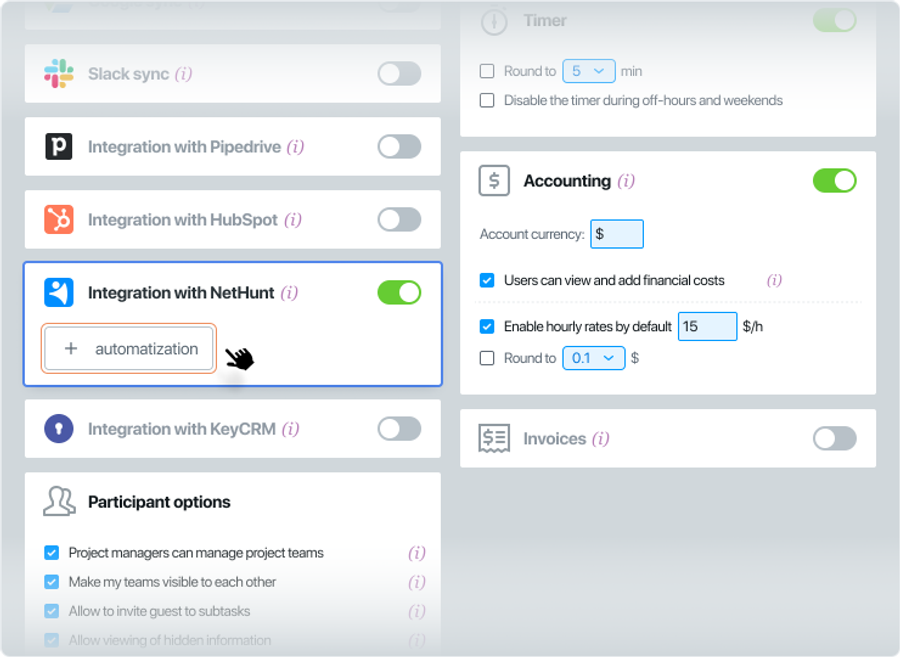
Step 3️⃣ — Activate the integration with NetHunt CRM.
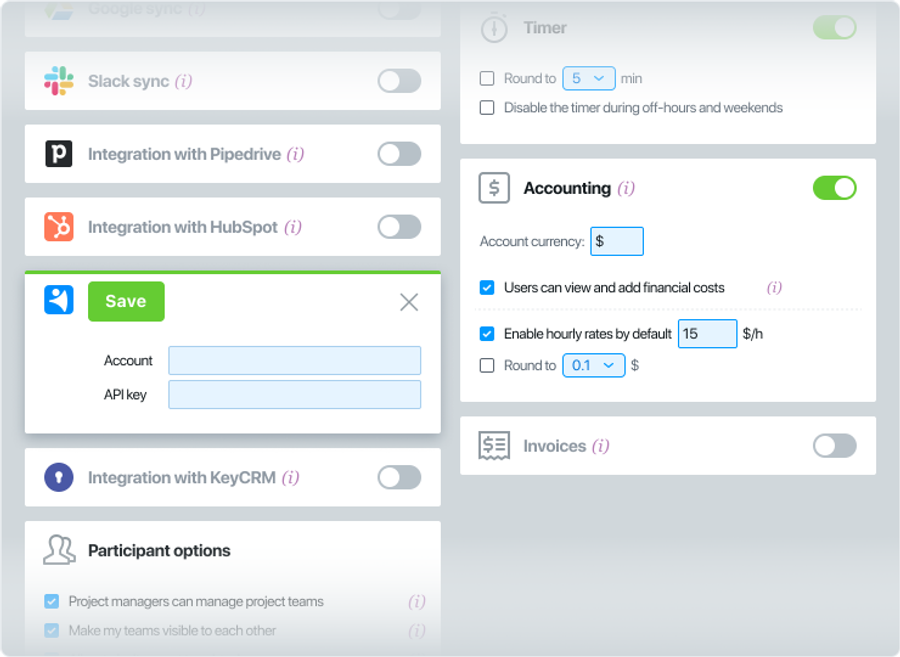
Step 4️⃣ — Paste the Account Email, API key and click "Save".
Step 5️⃣ — Create a new automation by clicking the "+ Automation" button.
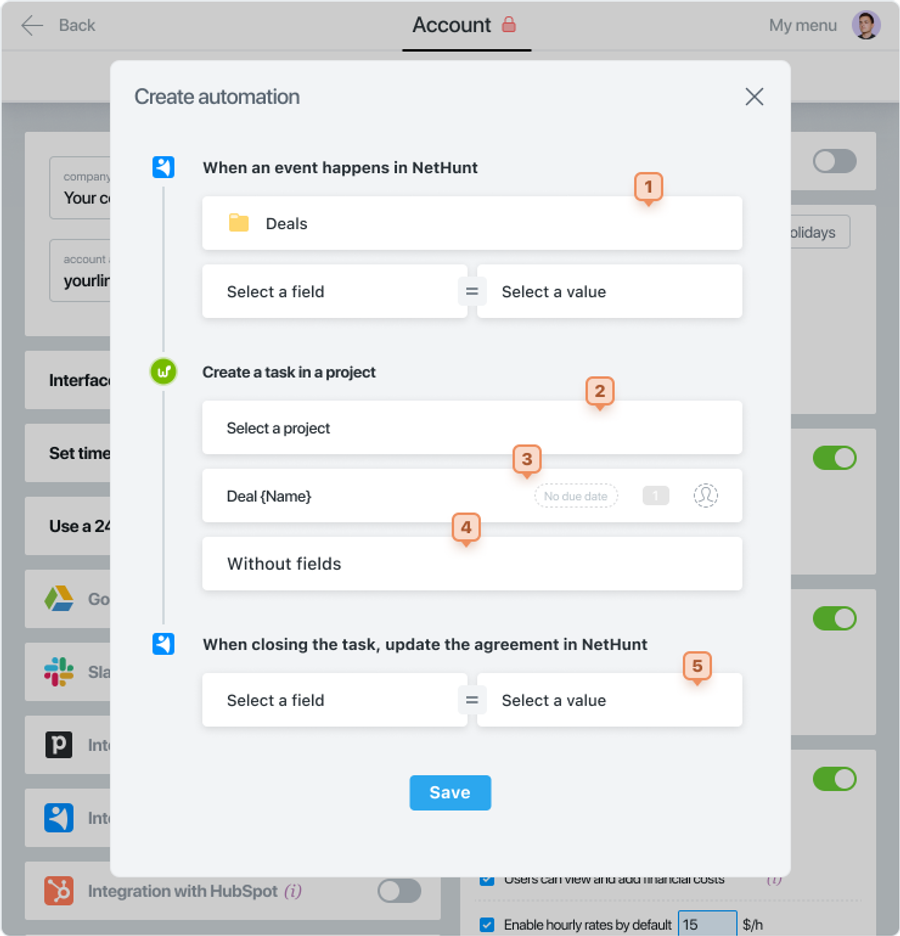
Fill in the following fields:
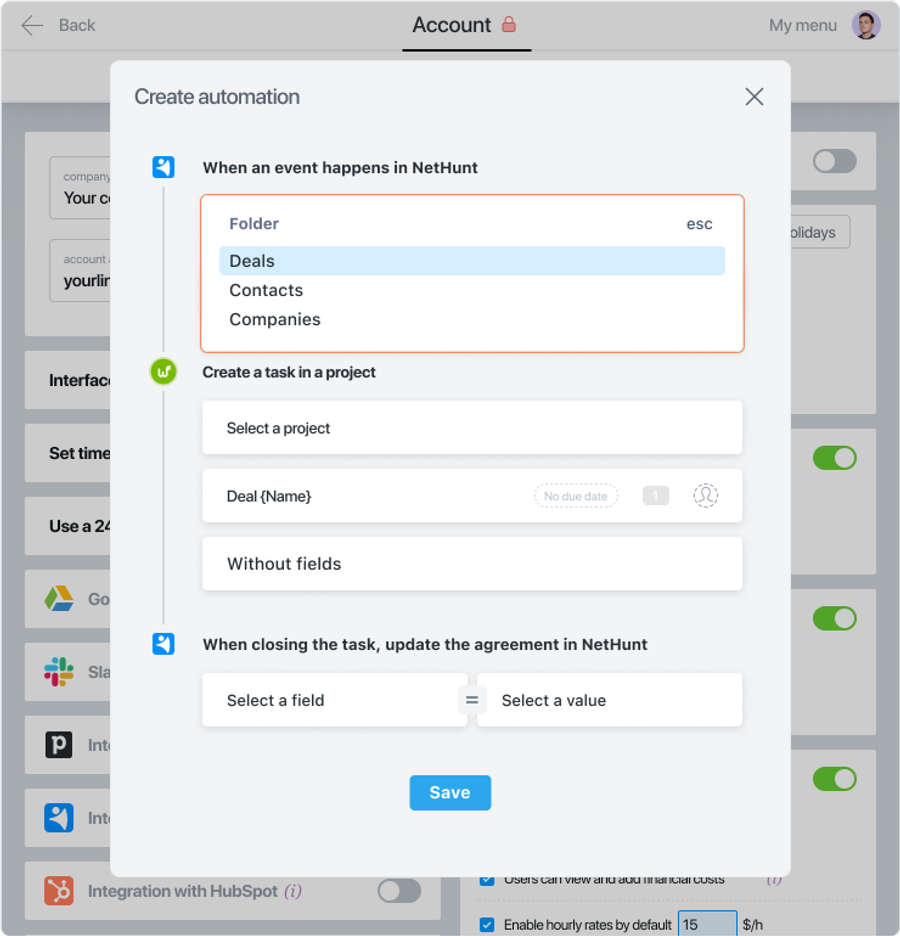
- Configure the event for which the automation is set up. To do this, select the desired folder from the dropdown list.
Choose the relevant field for this folder from the dropdown list.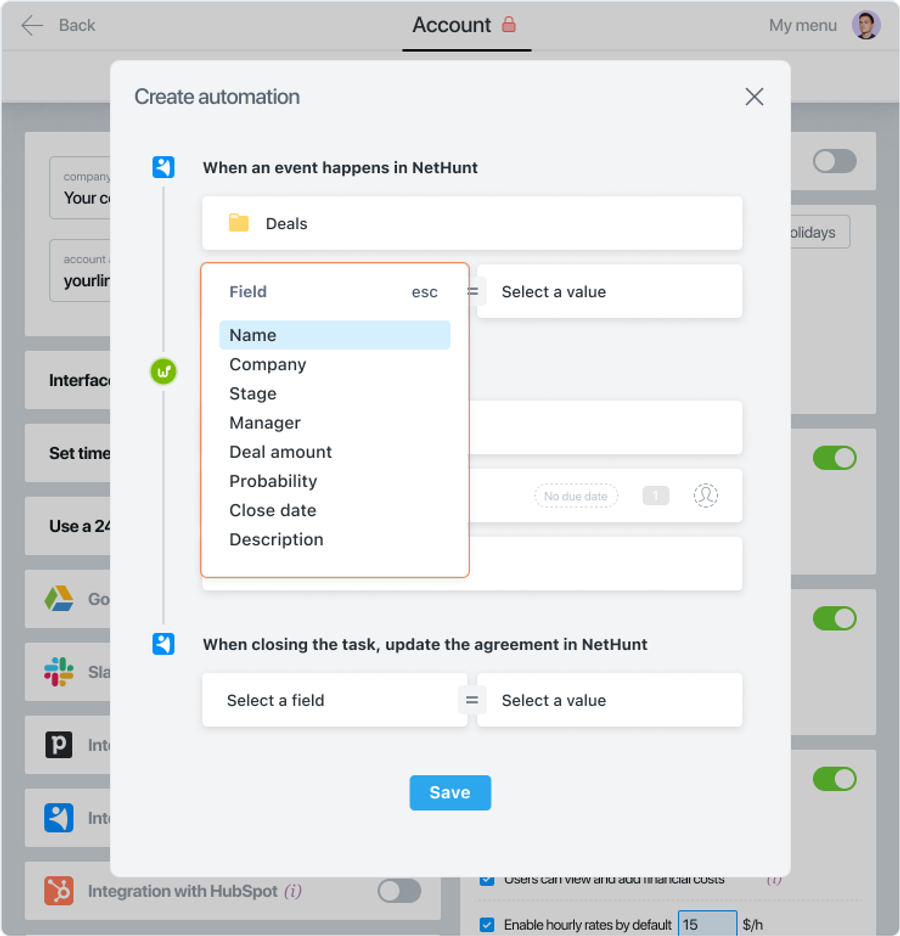
Set the desired value for the selected field.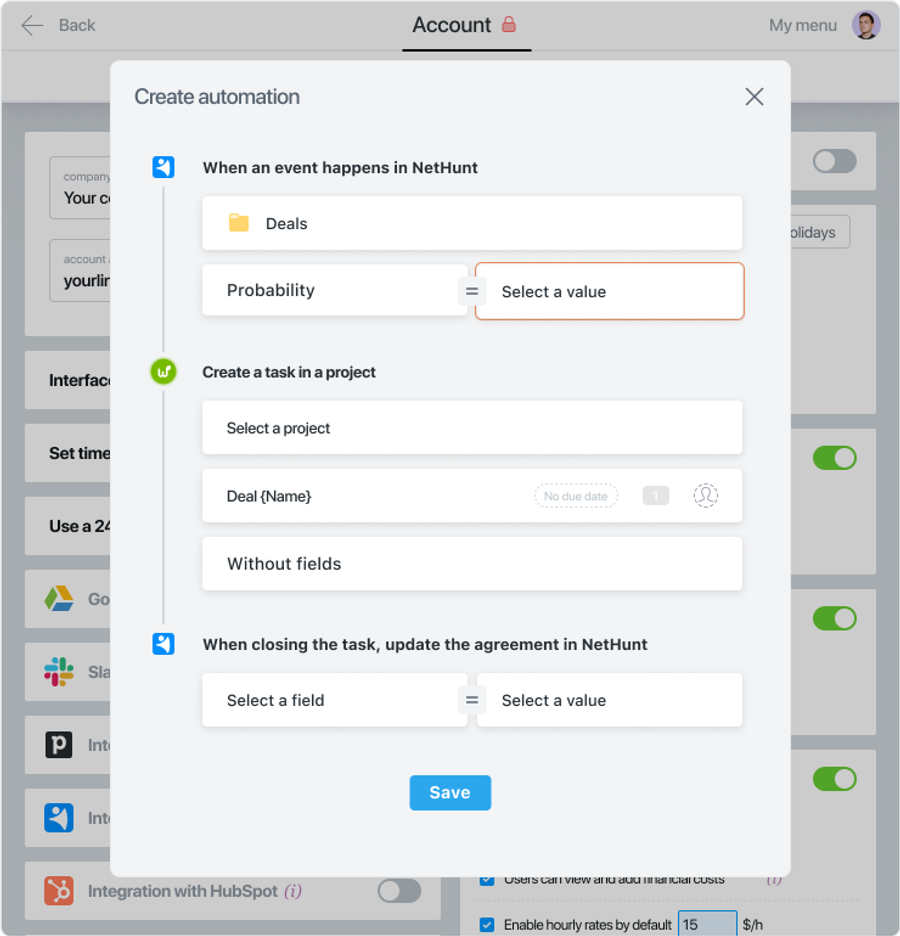
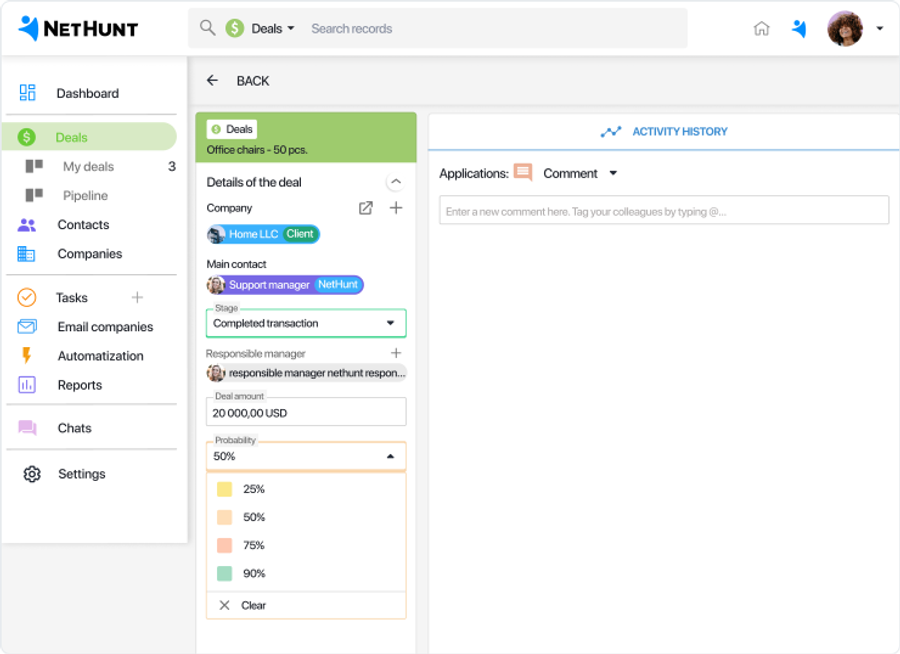
Note: NetHunt does not provide the ability to define possible values for the selected field, but the system will suggest values for this field based on the most frequently used records (deals). - Select the Project in Worksection where the task will be created.
- Specify the Task Name and, if needed, provide the task duration, priority, and assignee.
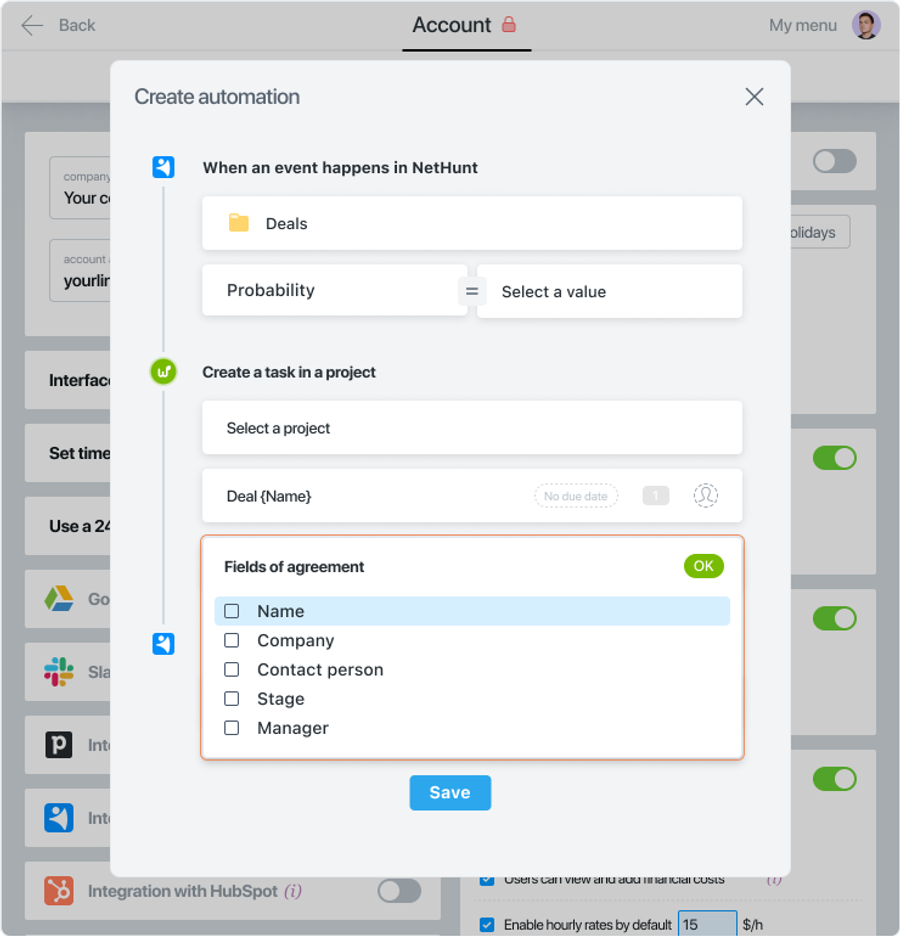
- Additionally, you can select the information to be imported from CRM.
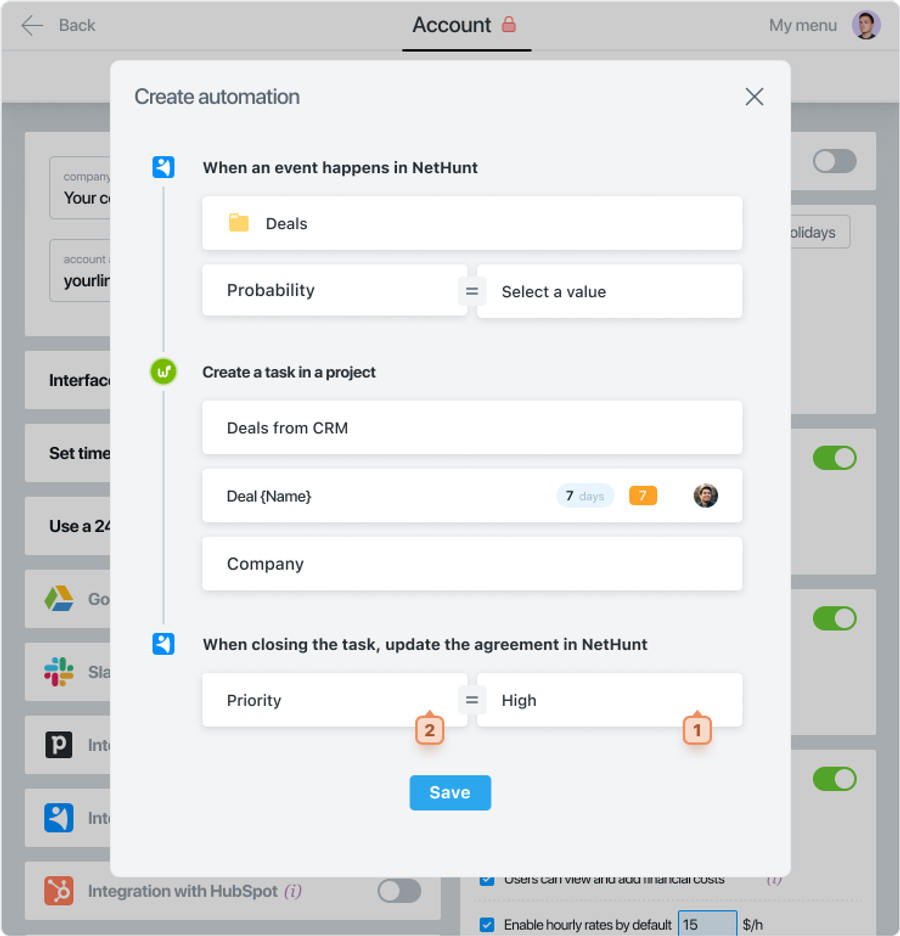
- Specify the value in CRM that will be assigned to the corresponding record when the task in Worksection is closed. To do this, select the field name (e.g., Priority, Stage, etc.) and the value it needs to be set to, similar to the example in Step 1.
Leave your review
Did this article help you?
Glad we could help! What was helpful?
Sorry this didn't help. What went wrong?
Previous
Integration with CRM NetHunt

