Solutions
worksection
beta
help
How to set up notifications?
Notifications help you keep track of what’s happening in projects and tasks. Each member sets them up individually — choosing the delivery channels and the types of events they want to be notified about.
Where can I find notification settings?
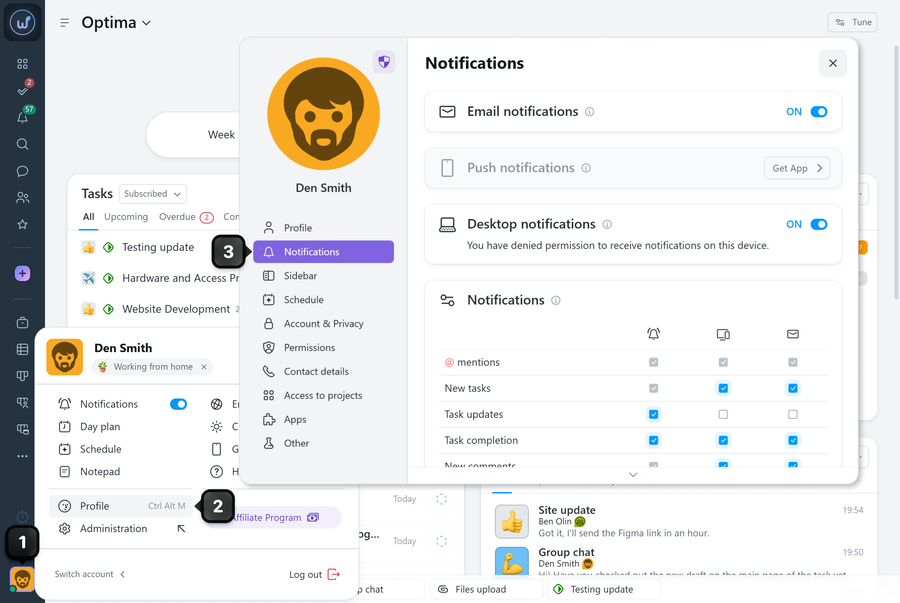
Click your avatar1 in the left sidebar → “Profile”2 → the “Notifications” tab3.
Which notification channels are available?
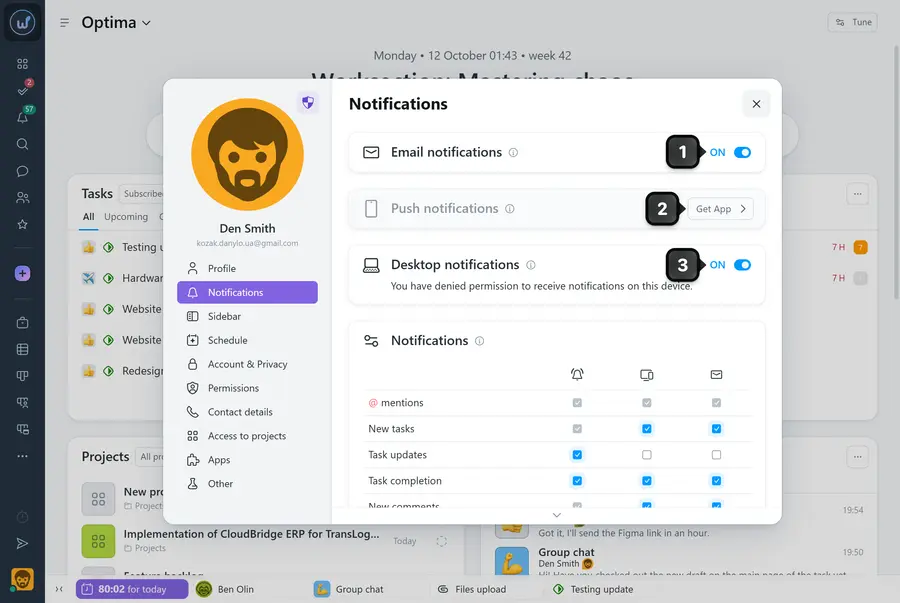
1 Email — notifications sent to your email. Turned on and off with a single toggle.
2 Push — notifications in the mobile app. For them to work, you need to:
- install the Worksection app on your device;
- log in to your account in the app;
- allow notifications in your phone settings.
3 Desktop — notifications in your operating system’s notification center. When you turn them on, the browser asks for permission — you need to confirm it. If notifications were previously blocked in the browser, you need to allow them separately in the browser settings.
Please note! If you have an active account tab open in your browser, notifications arrive only in the bell. Push and desktop notifications are not sent at that moment.
How do I set up notification types?
Further down the tab, there is a table of notification types. For each event type — for example, a new task, a comment, a mention, or a birthday — you can choose separately which channels to receive notifications through.
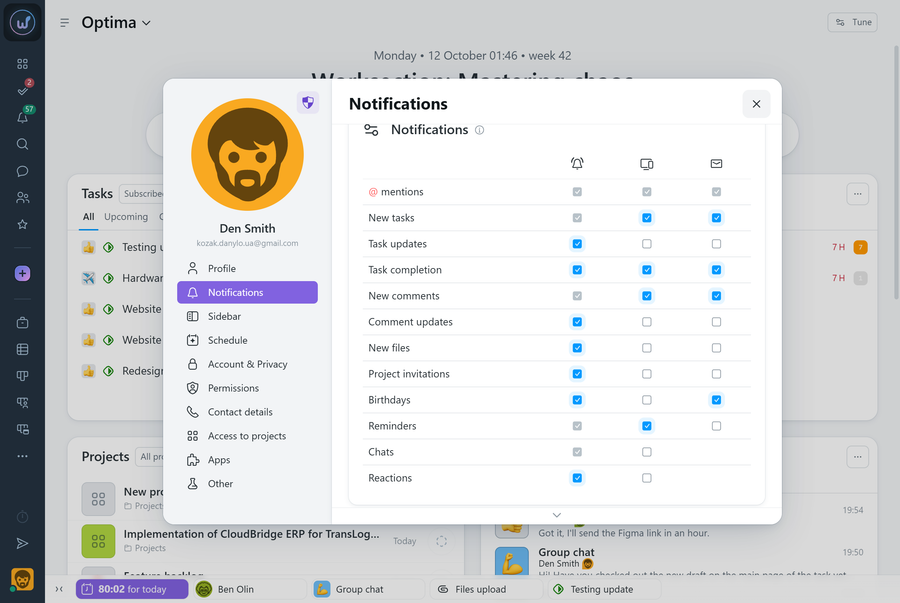
Each checkbox in a column controls a specific channel for a specific event type. Gray checkboxes are system ones and can’t be turned off. The rest can be turned on or off freely. Changes apply immediately.
Additional settings
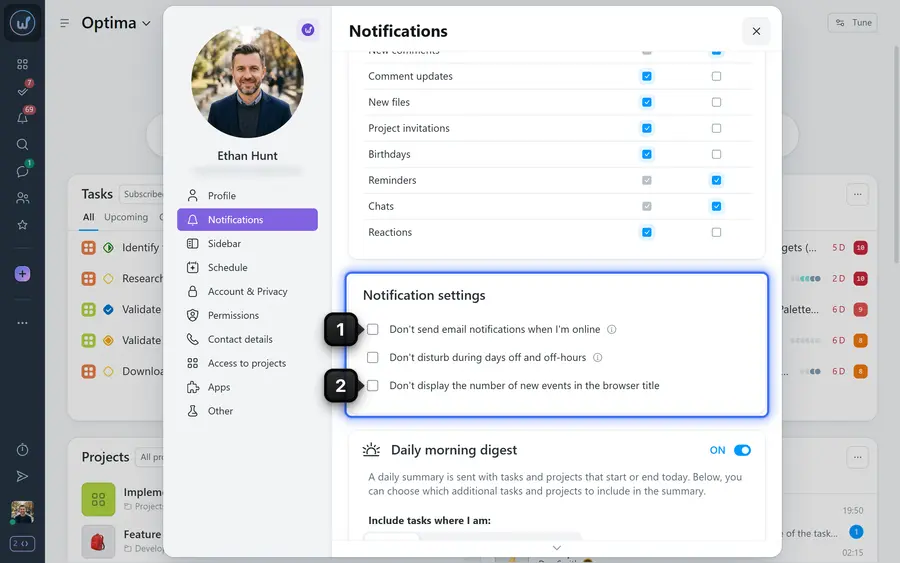
1 Don’t send email notifications when I’m online — if you’re logged in to the system (a tab is open or the app is running), email notifications won’t be sent. This helps reduce the number of emails in your inbox.
2 Don’t display the number of new events in the browser title — removes the counter from the browser tab.
Daily morning digest
The digest is a daily email report on tasks that start or end today. It is sent at the beginning of the working day.
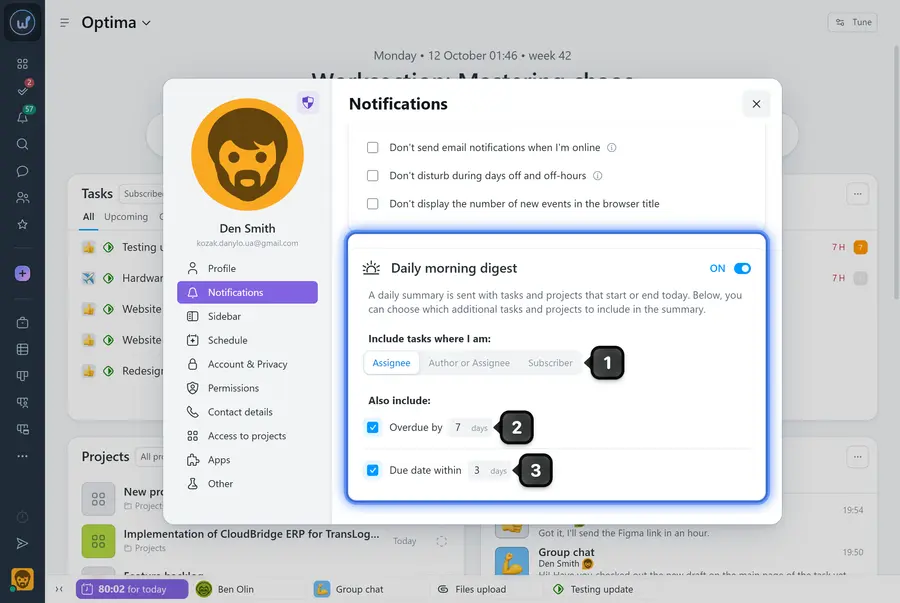
1 My tasks in the digest — choose the role: tasks where you are the assignee, where you are the author or assignee, or where you are a subscriber.
2 Overdue tasks — tasks overdue by up to the specified number of days. You can change the value or turn the option off completely.
3 Tasks with an upcoming due date — tasks whose deadline is within the specified number of days. You can change the value or turn the option off completely.
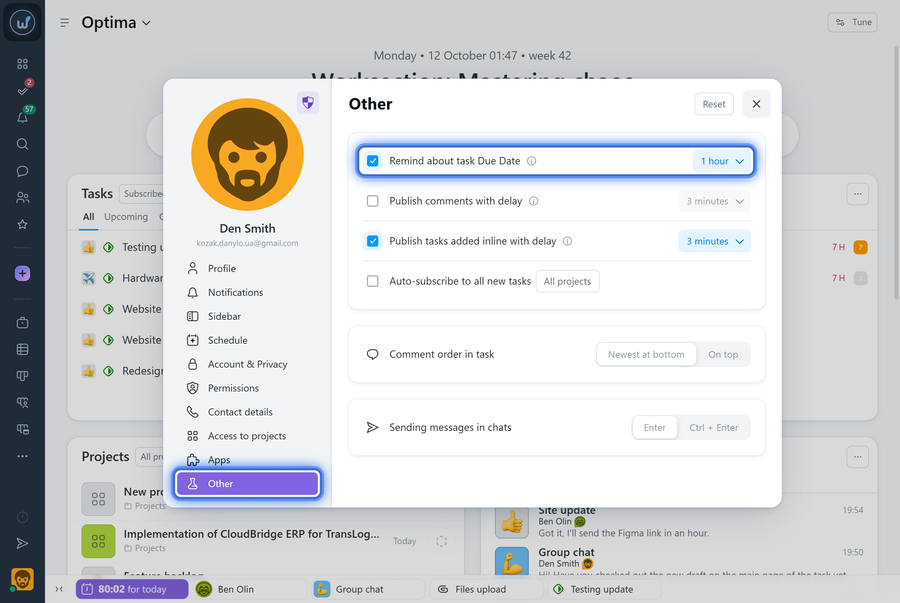
Task due date reminders
An extra reminder about the start or end of a task where you are the assignee. It is set up on the “Other” tab of your profile.
Available options: 5 minutes, 15 minutes, 30 minutes, 1 hour, or 2 hours before the due time.
Leave your review
Did this article help you?
Glad we could help! What was helpful?
Sorry this didn't help. What went wrong?

