Solutions
worksection
beta
help
How do chats work?
Chats in Worksection help you quickly discuss work matters, exchange messages, and keep communication close to your projects and teams.
When should I use chats, and when task comments?
Task comments are for discussions directly related to a specific task. The entire history stays within that task.
Chats are best for quick communication, general discussions, questions that go beyond a specific task, or team coordination.
Where can I find chats?
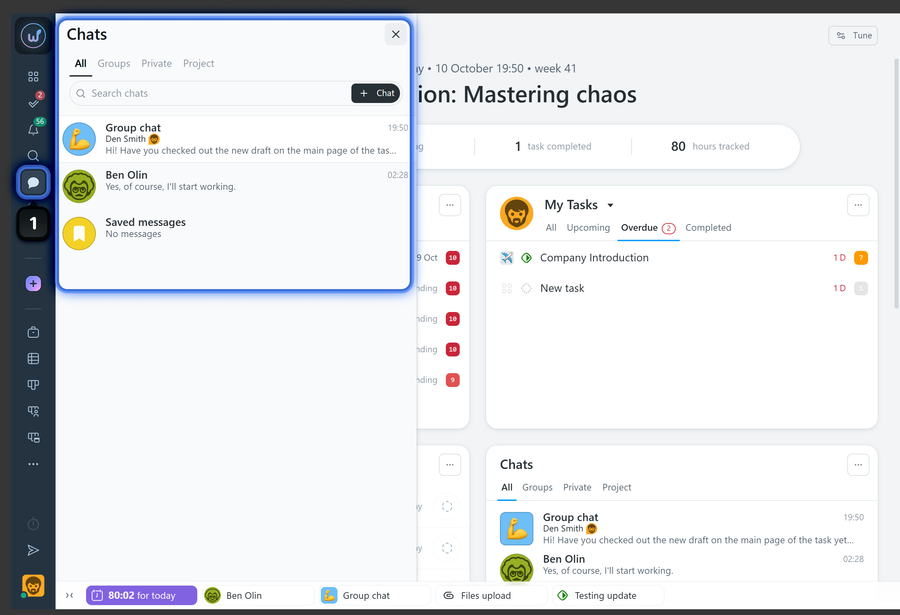
To open chats, click the chat icon1 in the left sidebar. A window with the list of available chats will open.
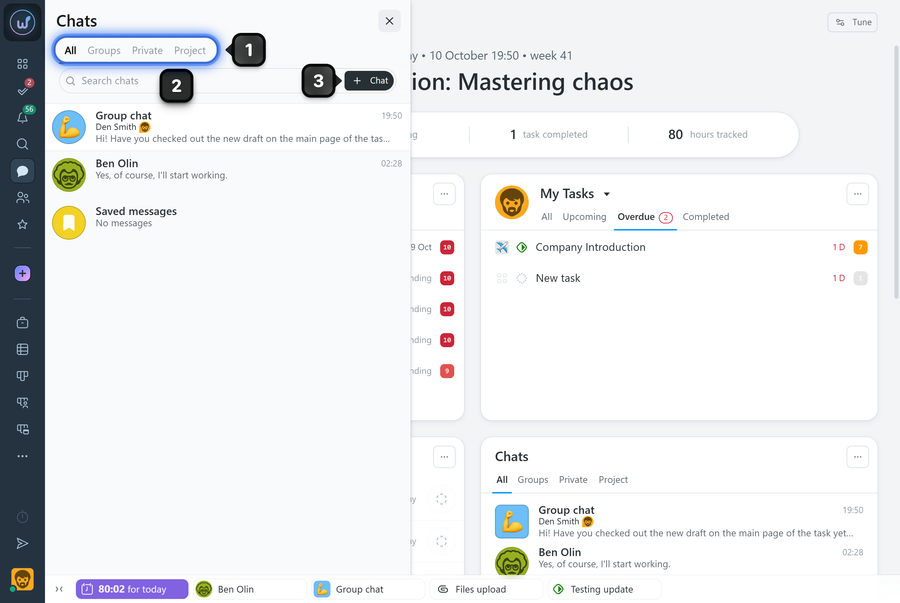
The chats window has the following tabs1: “All”, “Groups”, “Private”, and “Project”.
Below the tabs, there is a search field2 where you can find a chat by its name. Next to it is the “+ Chat” button3 for creating a new chat.
The following chat types are available:
- Group chats — for conversations with several participants;
- Private chats — for one-on-one conversations between two users;
- Project chats — for communication between members of a specific project.
How do I create a chat?
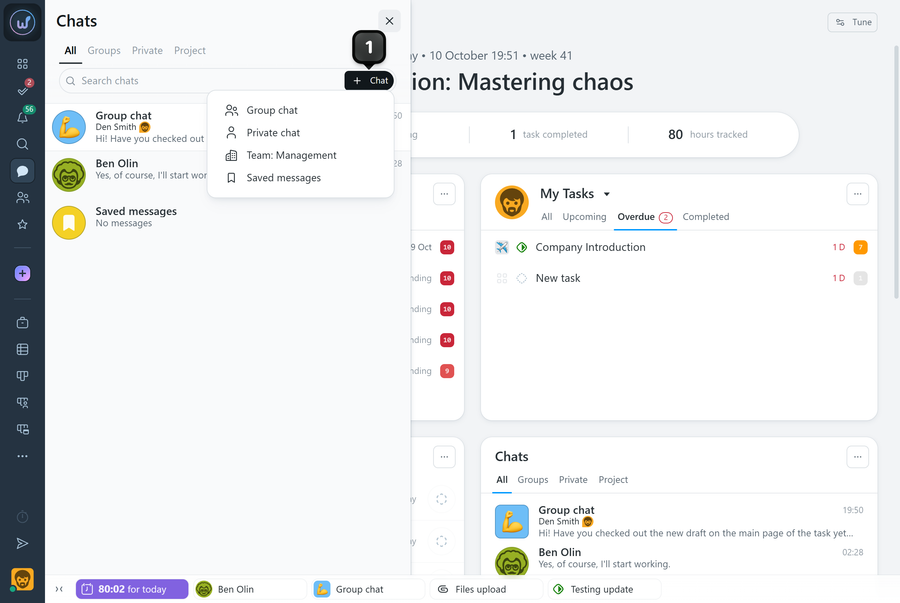
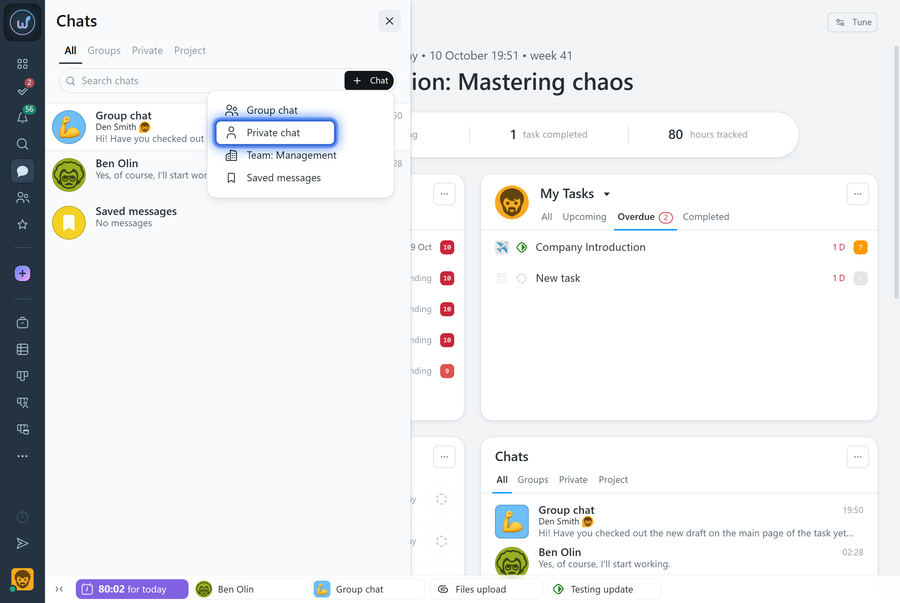
To create a new chat, click the “+ Chat” button1 in the chat list and select the chat type you need:
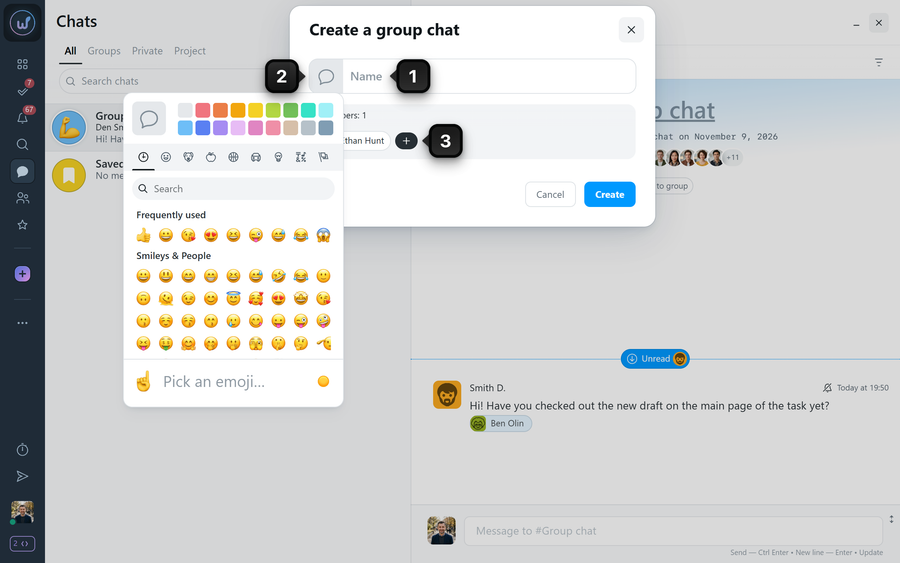
For a group chat, enter a name1, customize the icon2, and select the members3.
To start a private chat, simply select the person you need from the list.
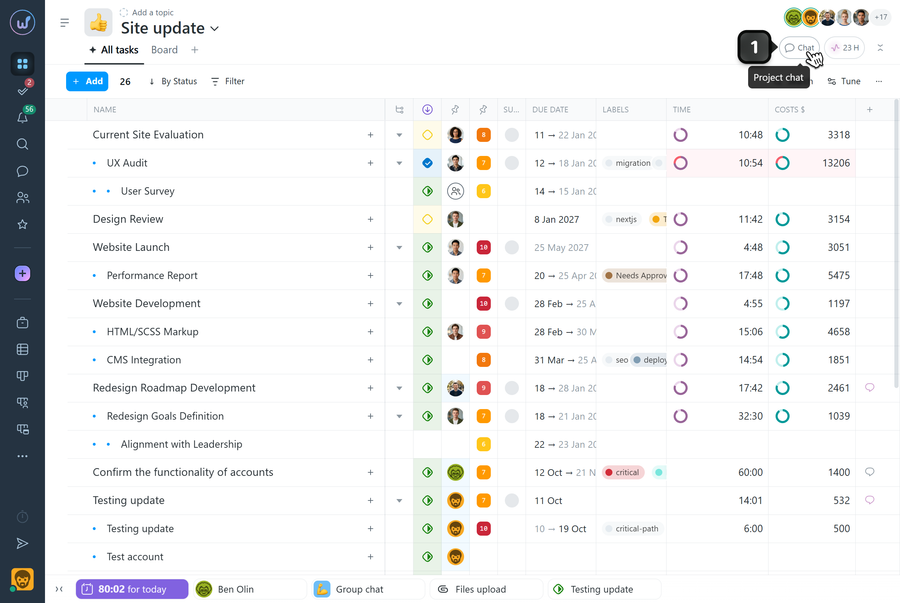
A project chat is created from the project page. To do this, open the project you need and click the chat button1 at the top of the page.
How does the chat window work?
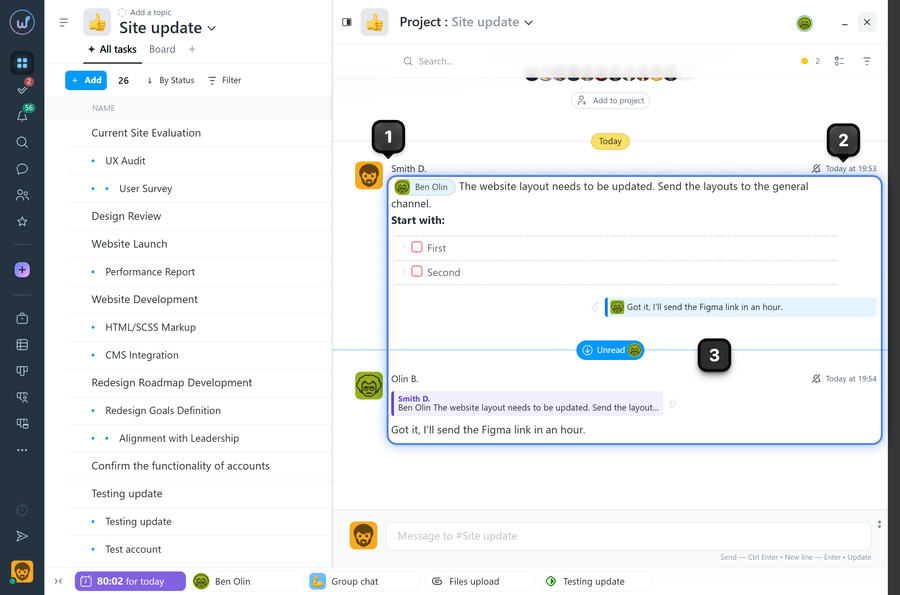
Once you open a chat, you will see the message history and a field for typing a new message.
Each message shows:1 the author,2 the date and time,3 the message content.
The message field supports basic formatting tools. Chats also support emoji, checklists, and adding mentions, tasks, and files to messages.
What can I do with messages?
Hover over a message to bring up the actions menu1, which lets you:
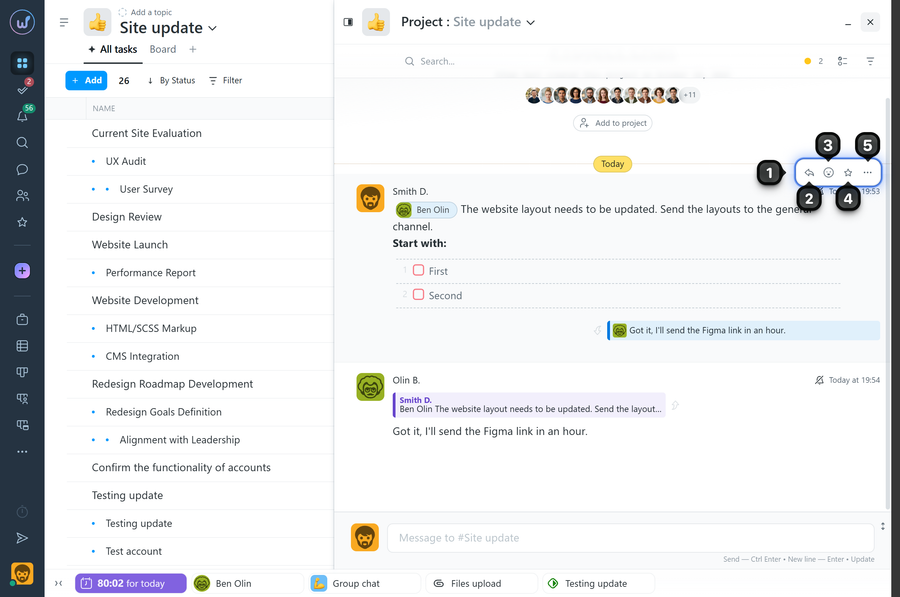
2 reply — quote the message in the chat;
3 add reactions — they have no names, so you can give them your own meaning. For example: eyes — “seen it”, clock — “hurry up”, double check marks — “done, please review”!
4 star a message — add it to favorites so you can quickly filter it in the chat;
5 the “three dots” button — opens a menu with more message actions, where you can:
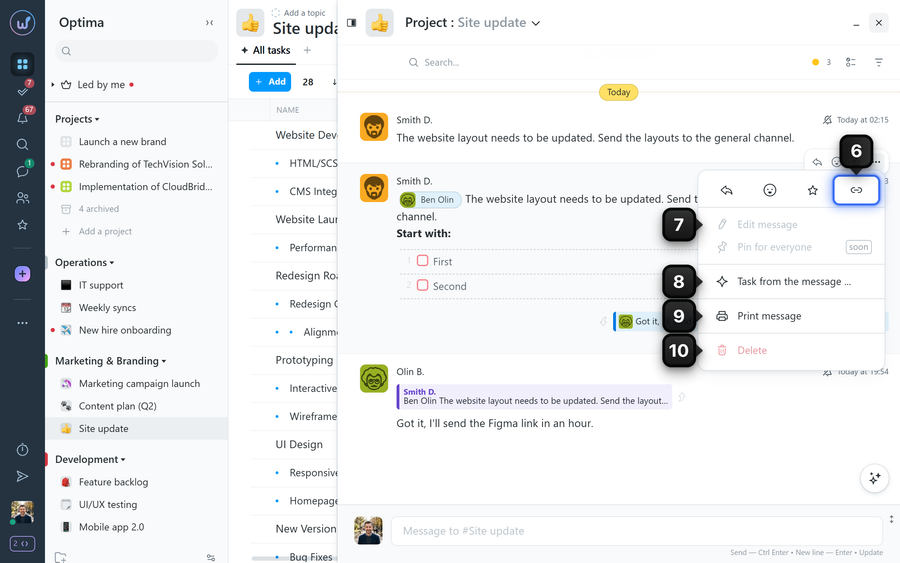
6 copy the link
7 edit your own messages
8 create a task from the message
9 print the message
10 delete your own message
How do I search in a chat?
The chat window has a message search1. It helps you quickly find the information you need in the conversation history.
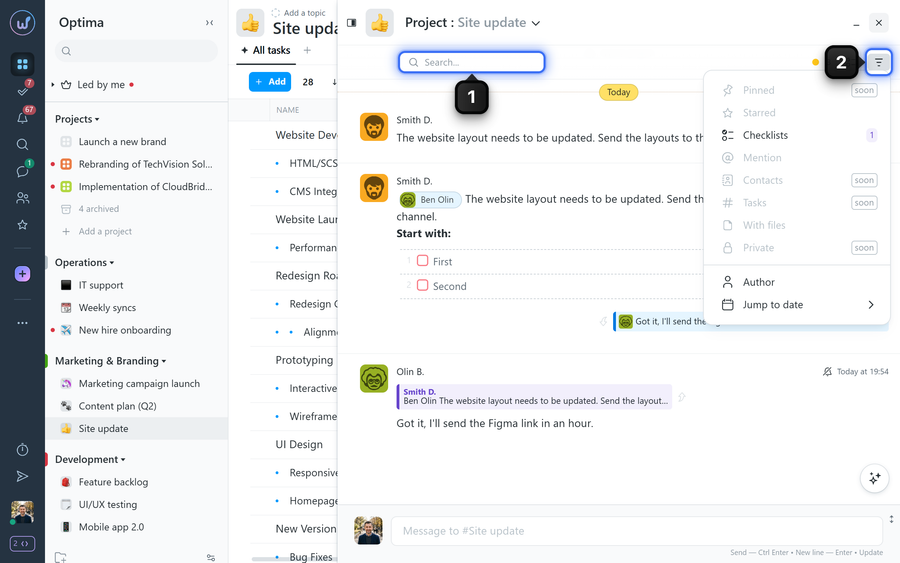
The search offers filters2, including:
- starred messages;
- messages with checklists;
- messages with mentions;
- messages with files;
- messages from a specific author;
- jumping to a specific date.
Please note! You can combine filters with a search term. For example, select the “Checklists” filter and type the word you need in the search field. The chat will then show only the messages with checklists that contain that word.
How do I manage a chat?
To open the actions menu, right-click a chat in the list.
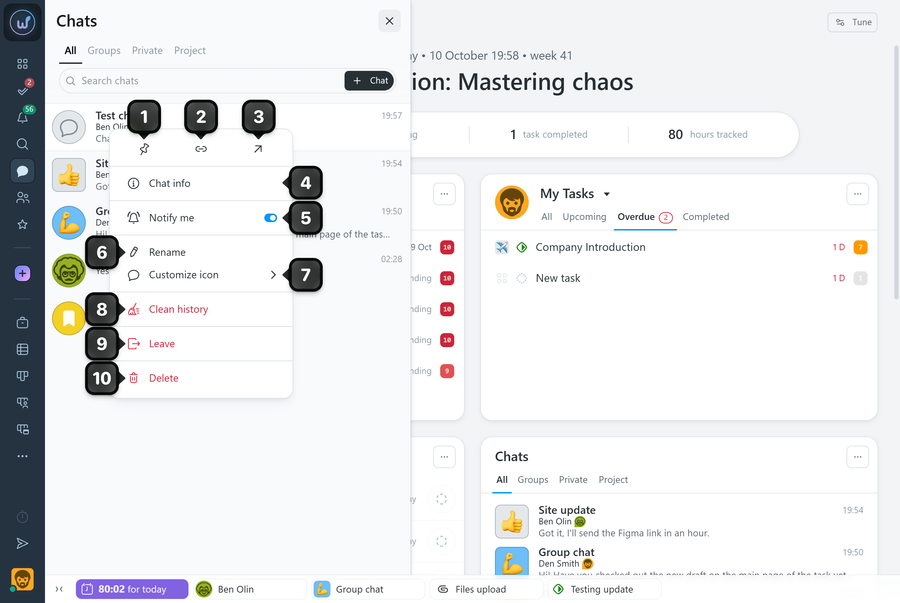
1 pin the chat to the top of the list
2 copy the link
3 open in a new tab
4 chat info
5 notify me — get notifications about new messages in the chat
6 rename — for chats you created
7 customize icon — for chats you created
8 clean history — for private chats and chats you created
9 leave the chat
10 delete the chat — for private chats and chats you created
Note You can delete group and private chats you created. Project chats follow different rules: such a chat is linked to a project, so its availability depends on the state of the project itself.
Leave your review
Did this article help you?
Glad we could help! What was helpful?
Sorry this didn't help. What went wrong?

