Solutions
worksection
beta
help
How to work with task comments?
Comments in Worksection tasks help you discuss task details directly within a specific task. The entire communication history is stored in the task and doesn't get lost among general messages.
Use task comments for discussions directly related to a specific task: clarifying requirements, status, files, decisions, and progress.
Where can I find comments?
Each task has a comments section located below the task description. Open the task and scroll down to the comments section.
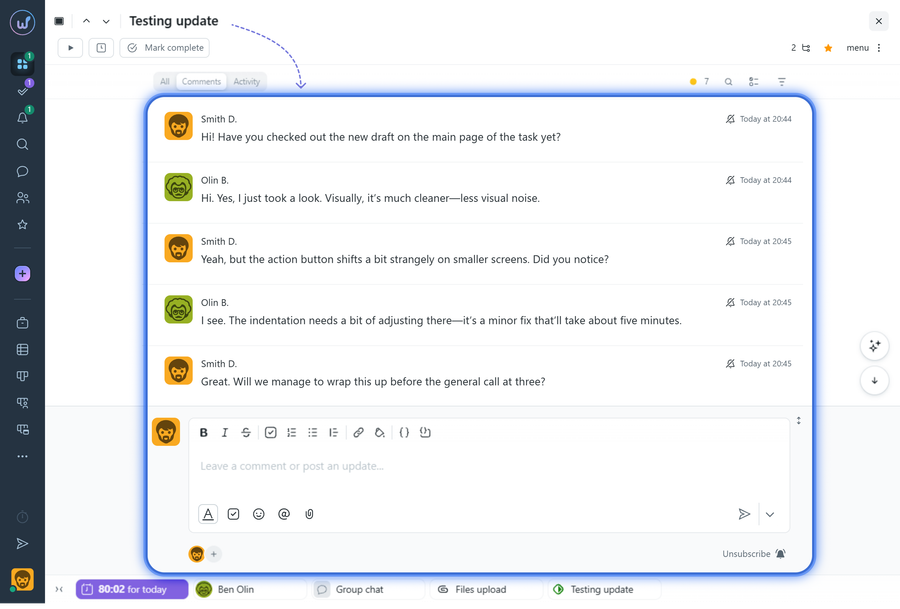
Comment editor features
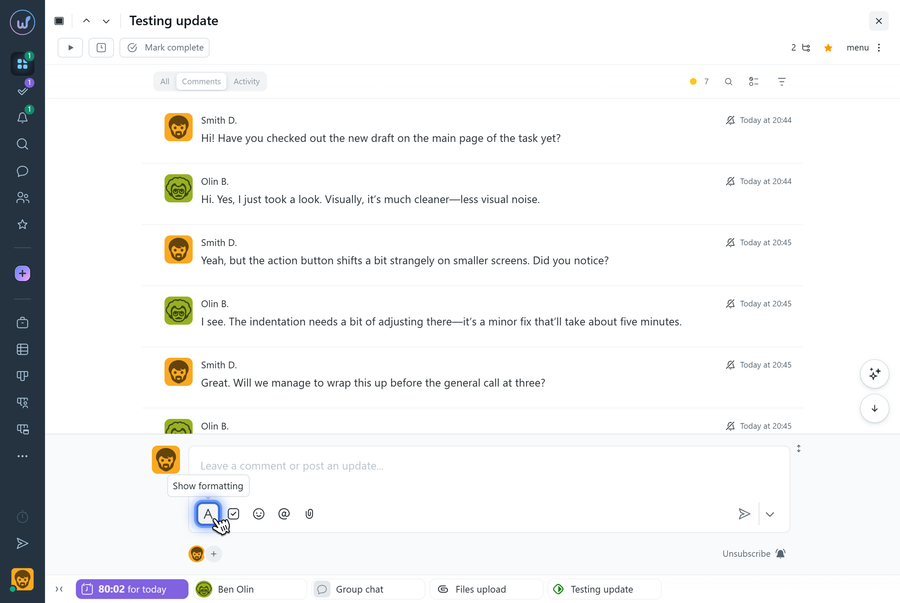
The comment input field includes an editor that helps you format text and add links to important items (task, participant, and contact mentions).
If the editor toolbar is not fully expanded, click the «A» icon to see all the editor features.
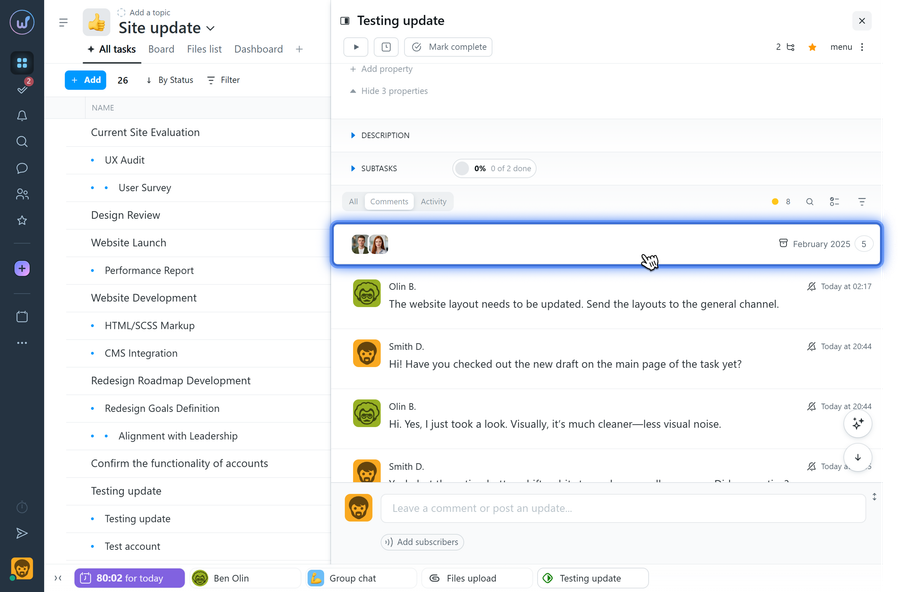
How does the comment feed work?
The feed displays:
- comment author;
- date and time;
- comment text.
If there are many comments, older comments created six months ago or earlier may be automatically collapsed into a group. Click the group to expand it and view all comments.
How do I find a specific comment?
Search1 and filters2 are available at the top of the comments section. They help you quickly find the information you need in the discussion history.
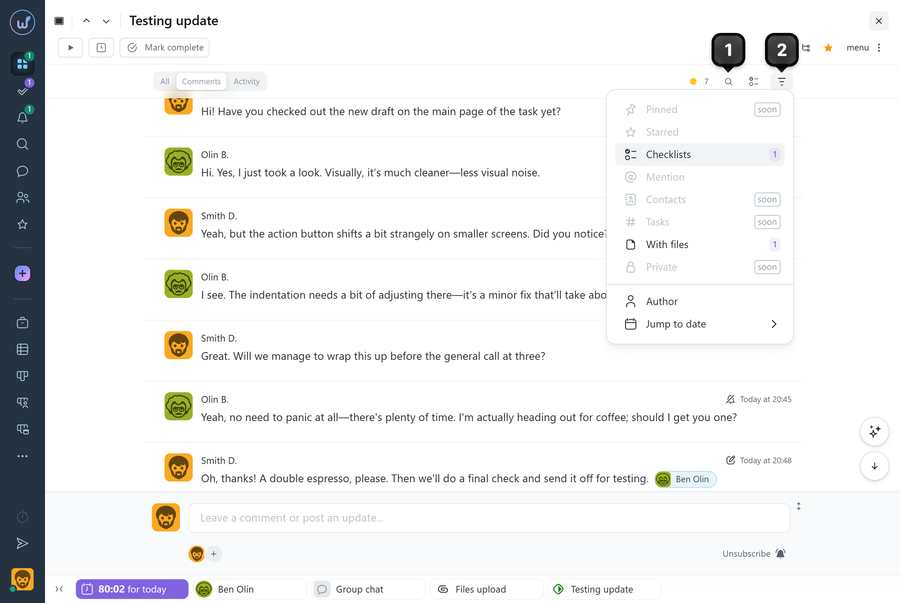
The available filters may include:
- starred comments (favorites);
- comments with checklists;
- comments with mentions;
- comments with files;
- comments by a specific author;
- jump to comments from a specific date.
Please note! You can combine filters with a search keyword. For example, enable the «Checklists» filter and enter a keyword. The results will show comments with checklists that contain that word.
What can I do with a comment?
Hover over a comment to display the quick actions menu1.
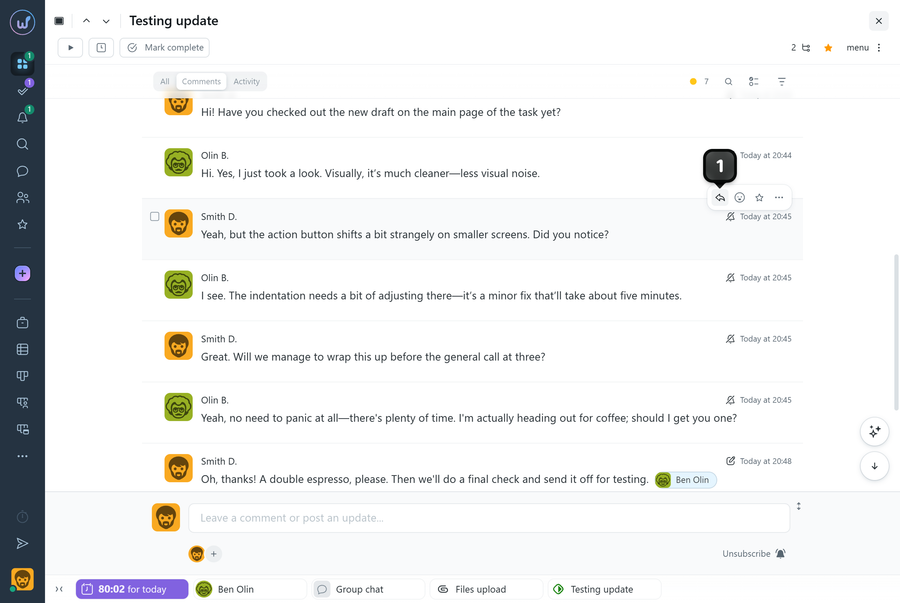
- Reply - quote the comment and write a reply;
- Reactions - add a visual reaction (icons do not have fixed meanings, so your team can agree on their own);
- Star - add the comment to favorites for quick filtering later.
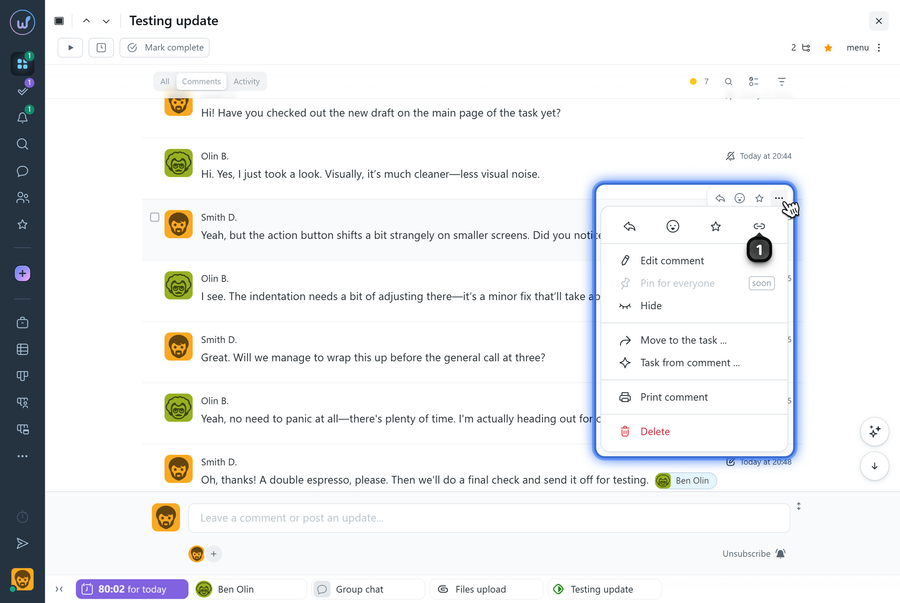
The additional actions menu («three dots») lets you:
- copy a link to the comment1;
- print the comment;
- create a task from the comment - available to anyone who can create tasks;
- edit the comment;
- move the comment to another task;
- delete the comment.
Permissions and restrictions
- Editing, deleting, and moving comments is generally available to their authors, but may be restricted by project settings.
- Administrators (of the account/team/department) with the «Allow editing everything» permission can edit, delete, and move comments posted by participants (of the account/team/department).
Restricting comment visibility
You can post a comment so that it is visible not to all participants, but only to a selected group of people (for example, only assignees or members of your team/department, depending on the settings).
To do this, click the «lock»1 before sending the comment and select the desired group of people.
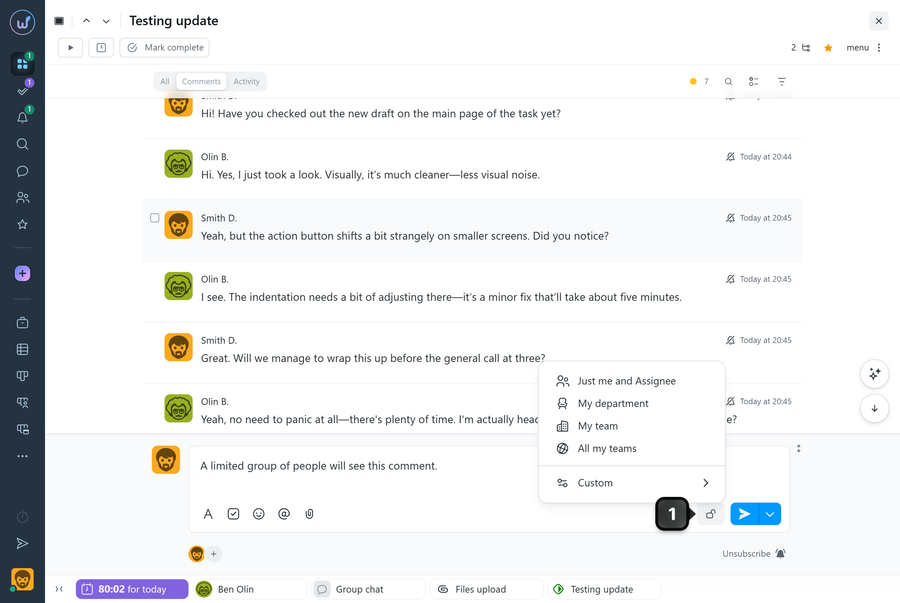
Please note! Administrators with permission to view hidden information can see comments with restricted visibility.
How do comment notifications work?
When you post a comment, task subscribers receive a notification, provided that this notification type is enabled in their personal settings.
To avoid «spamming» task subscribers, you can use additional sending modes. To do this, click the right part of the button1.
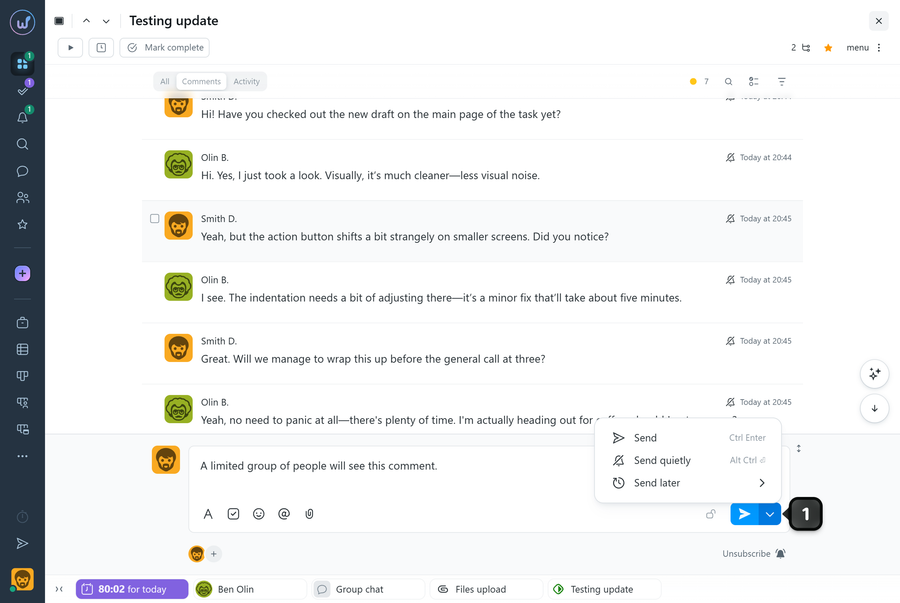
- Send quietly - the comment will be added to the task without notifying subscribers.
- Send later - the comment will be published on the specified date and time.
You can also configure an automatic publishing delay in your user profile (for example, 1/3/5 minutes). This is useful for quickly reviewing and editing a comment after sending it but before publication, so subscribers receive only the final version.
Leave your review
Did this article help you?
Glad we could help! What was helpful?
Sorry this didn't help. What went wrong?

