Solutions
worksection
beta
help
How to Work with Microsoft Teams Meetings?
Who can create meetings?
Any account member starting from the "Guest" role can create meetings, but only if their corporate email belongs to the Microsoft tenant connected in the settings.
How to create a meeting?
Inside a task, click the "Add meeting" button1 and fill in the form2:
date, start time, and duration;
participants — can only be selected from members of the given project; the meeting author is added by default;
meeting purpose.
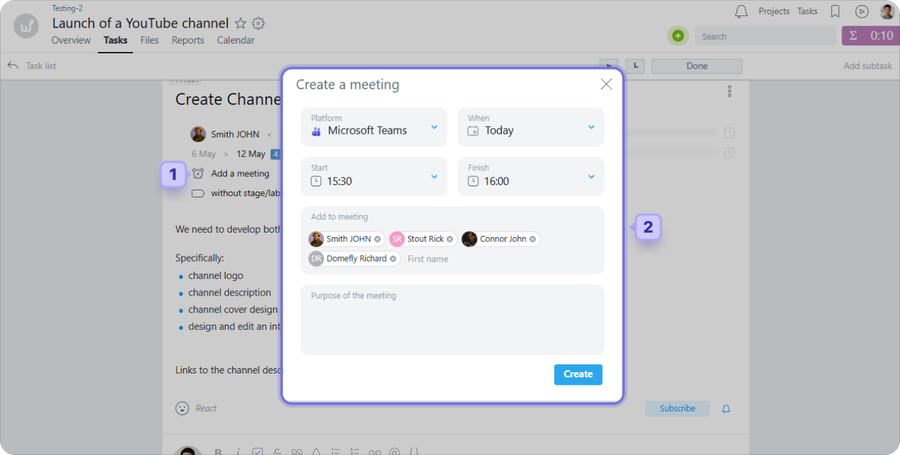
After clicking "Create", the system will prompt you to sign in to your Microsoft account — this is only required the first time you create a meeting.
What is displayed in the task after a meeting is created?
A meeting block appears in the task, showing the date, time, and list of participants.
1 meeting information — the meeting author can click to edit or delete the meeting;
2 go to edit the meeting in Outlook — available to the meeting author only;
3 "Join" — a link to enter the meeting.
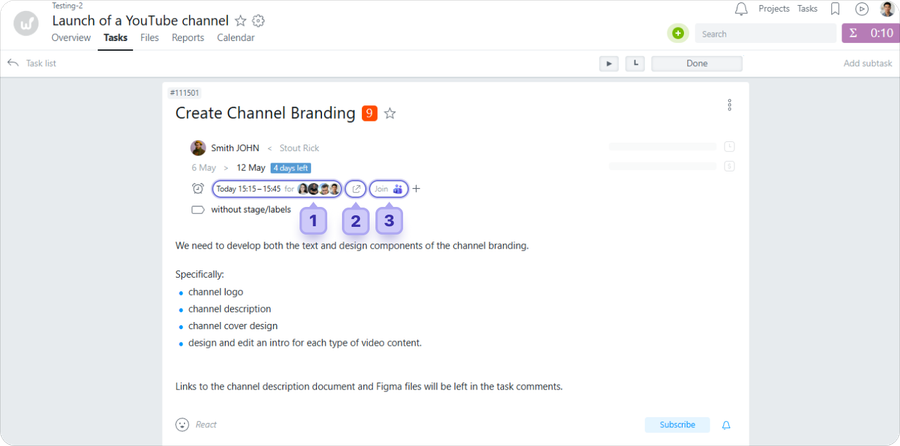
Please note! The number of meetings per task is unlimited.
Who can join a meeting?
The following users can join a meeting via the "Join" link:
a member from your Microsoft tenant — signs in through the Teams form;
any user without a Microsoft account — joins as an anonymous participant.
Anonymous participants must be admitted manually by the meeting organizer in the Teams interface.
Meeting notifications
Participants added to a meeting receive three notifications in Worksection: when the meeting is created, when its details are changed, and when it starts.
Additionally, Microsoft sends emails on its own behalf — if participants have notifications enabled in Outlook.
How does synchronization work?
Synchronization is one-way: changes made to an event in Worksection are passed to Outlook, but not the other way around.
What happens when changes are made in Worksection:
editing a meeting — changes are updated in Outlook as well, and participants receive a notification from Microsoft;
deleting a meeting — the meeting is automatically removed from the Outlook calendar.
What happens when changes are made in Outlook:
changes in Outlook (adding participants, editing the event) are not reflected in Worksection.
How does automatic time logging work?
Permissions Automatic time logging can be enabled by:
Owner
Account Administrator with the "access to account settings" permission
Automatic time logging is available on the Premium plan. The option is enabled in Account > Settings.
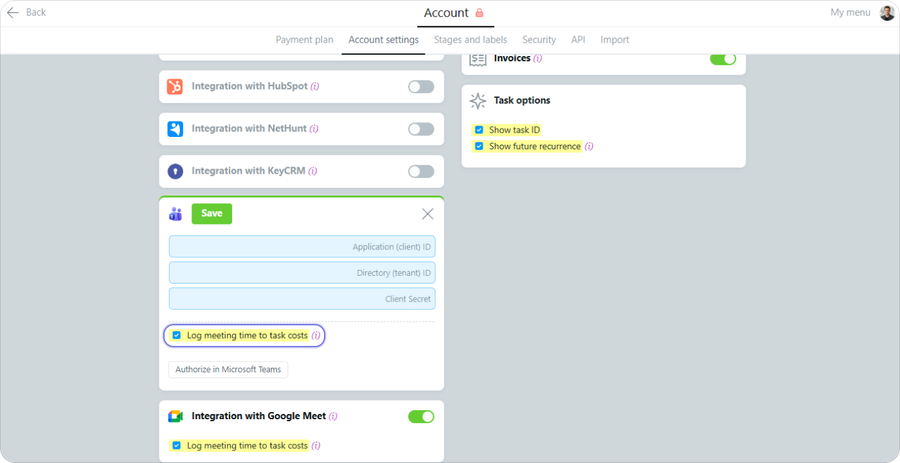
After the meeting ends, the system receives attendance data and logs the time to the task's costs separately for each participant.
Conditions for successful time logging for a participant:
the user is registered in Worksection with a corporate email;
the email belongs to the tenant connected in the account;
the user is a member of the project that contains the task.
Please note! The system starts receiving data approximately one hour after the meeting ends. To ensure no time is missed (including if the meeting ran longer than planned), the check continues for approximately 24 hours.
Leave your review
Did this article help you?
Glad we could help! What was helpful?
Sorry this didn't help. What went wrong?

