Продукт
Рішення
Dear colleagues!
Today we are going to discuss Subtasks, Checklists, and Comments.A complex task is usually divided into subtasks. It is easy to create a Subtask. Open a Task and click on Subtask icon.
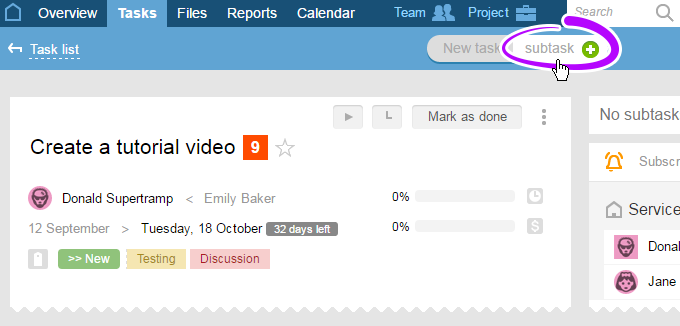
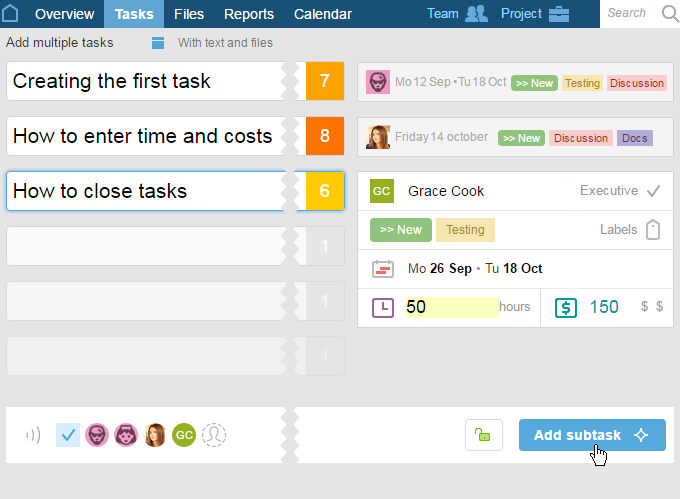
Functions of Subtasks are similar to the ones of Tasks, in other words, we name them1, set priority2, assign an executive3, choose status and labels4, set deadline5, specify estimates6, and write comments. We can describe the subtask7 and attach files to it8 – just the very same way we would do with a Task.

Here we also have subscribers, and the visibility of a Subtask can be limited.

And fill in same fields except for the Subtask description. Do not attach files. Then click Create Subtasks.
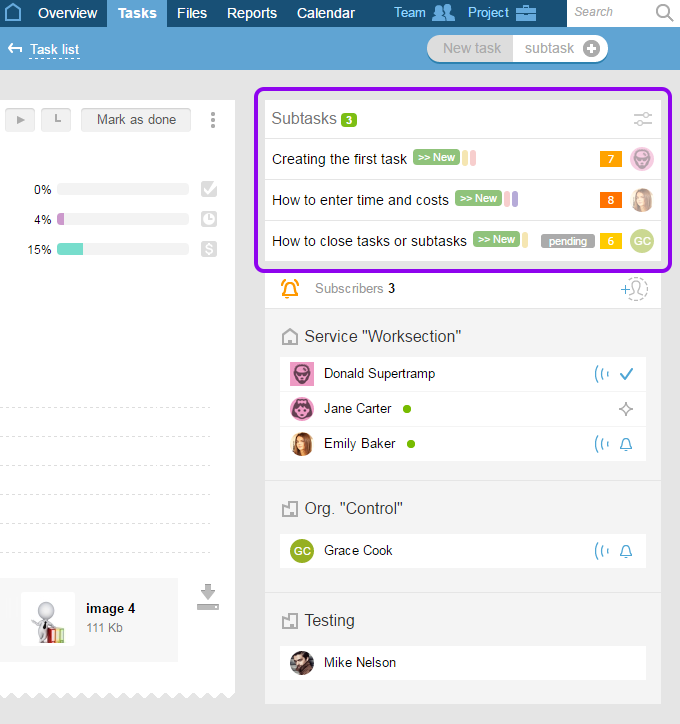
You will be able to see all the Subtasks of the current Task.
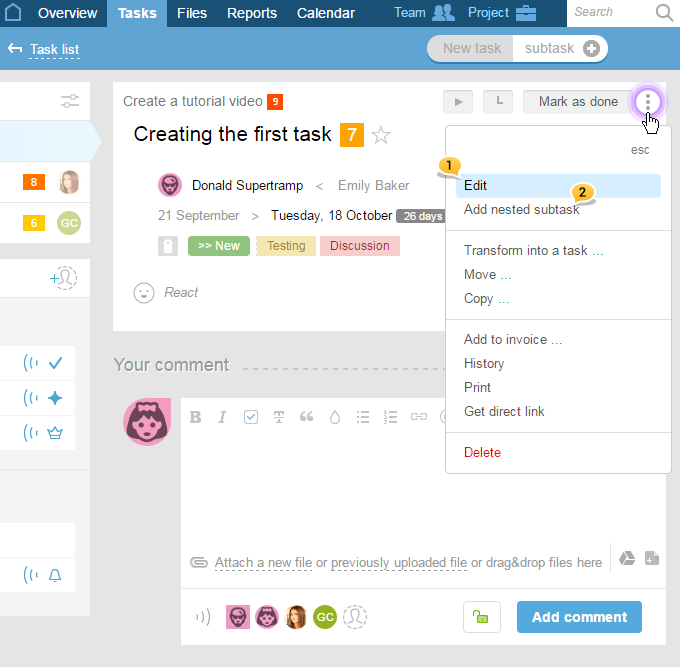
In order to add description and attach files to a Subtask, click on it, select Edit1, fill in all information required and click Update subtask.
There may also be a Subtask of a Subtask2.
And now, let’s talk about Checklists. A checklist is a list of minor tasks that may be crossed out. Checklists are not shown in reports and cannot be assigned to someone.
Let's create a checklist for the current Task. Click "Your comment"1, describe what needs to be done, and create a checklist of things to be done for it.
It should be noted that Checklists may be created in Task or Subtask description as well.
Write down what needs to be done and click "Add comment"2.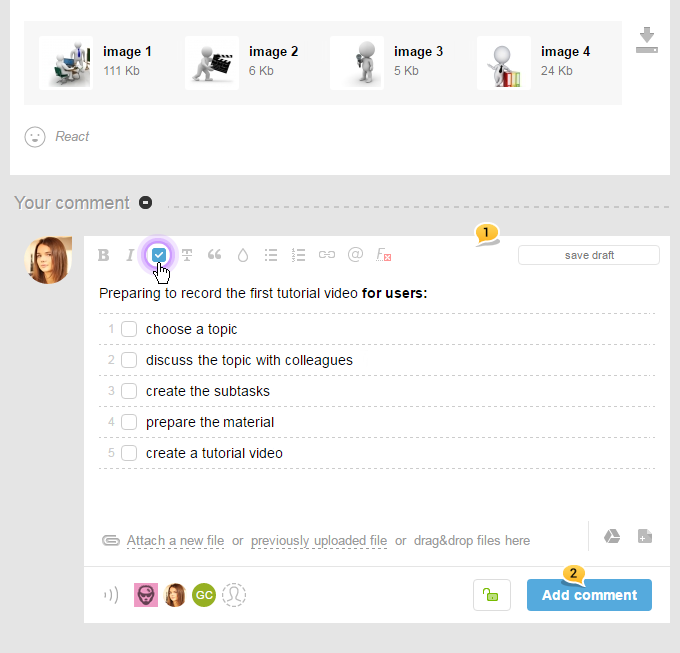
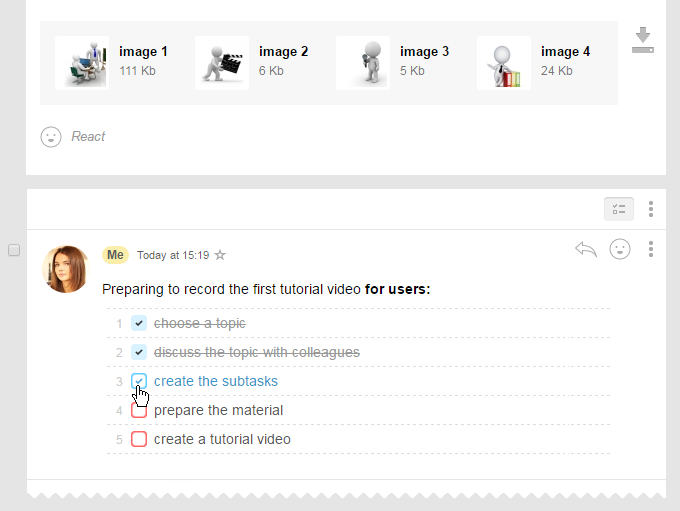
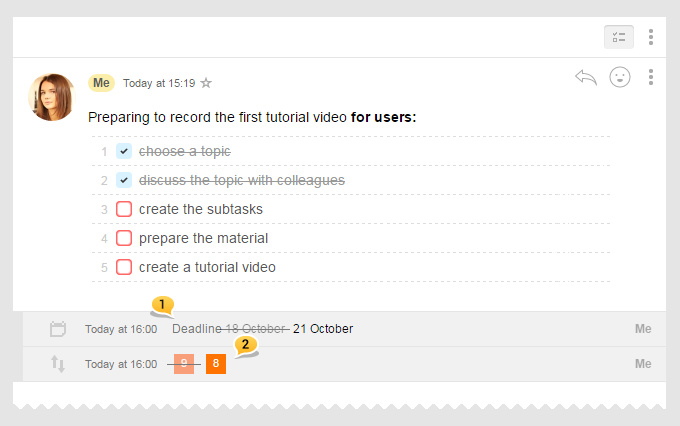
Let’s take a closer look at the Comments Feed. That is where you communicate with your colleagues about a Task or Subtask. Here you also may see the updates such as changed deadline1 or priority2, etc.
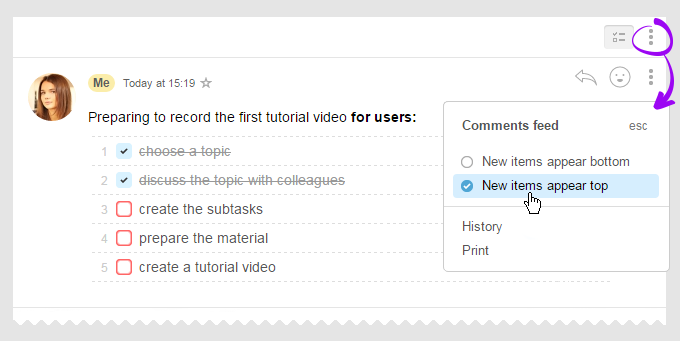
The Feed is customizable.
If you prefer to see the latest comments first, click the Feed menu and select Latest first.
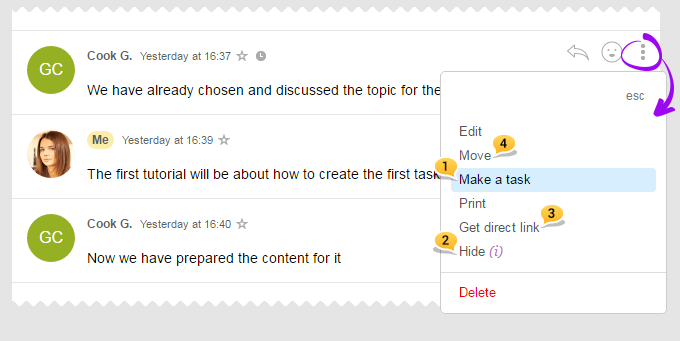
Each Comment has a menu where you may select different actions, such as turning Comment into a Task or Subtask1. You may also hide Comment2, get its link3 or move it to another Task or Subtask4.
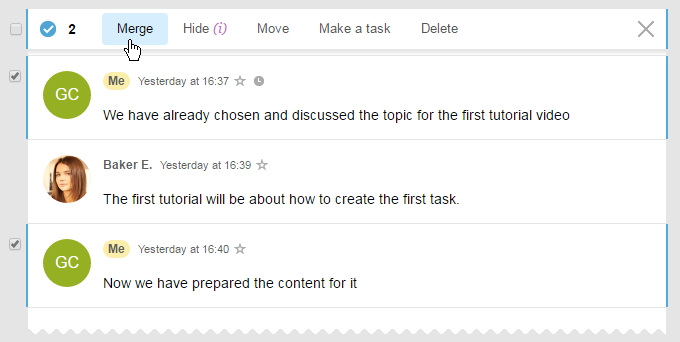
Comments may be merged into one:
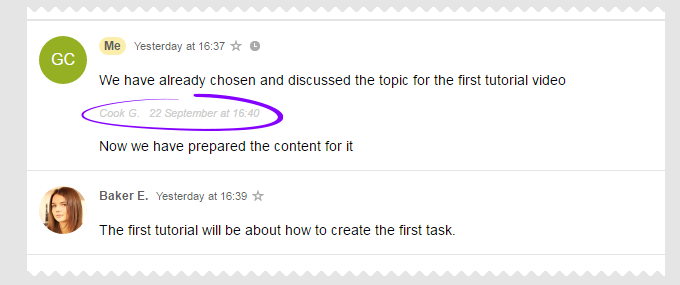
In that case, the author and date of each Comment appear in the text of the comment.
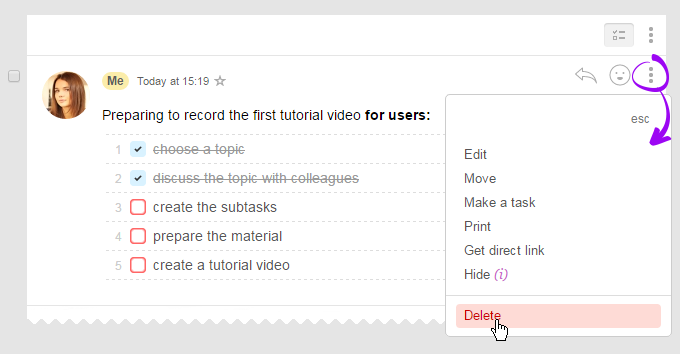
You can delete your comment if necessary.
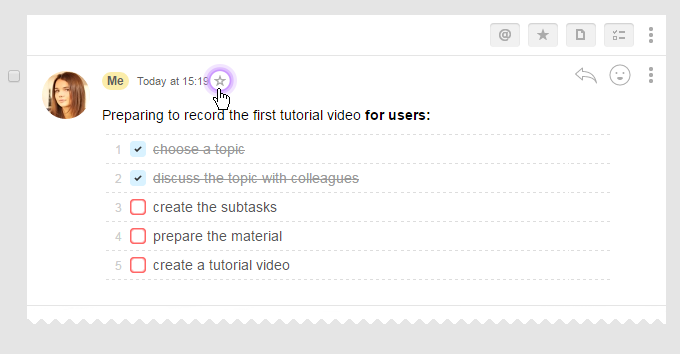
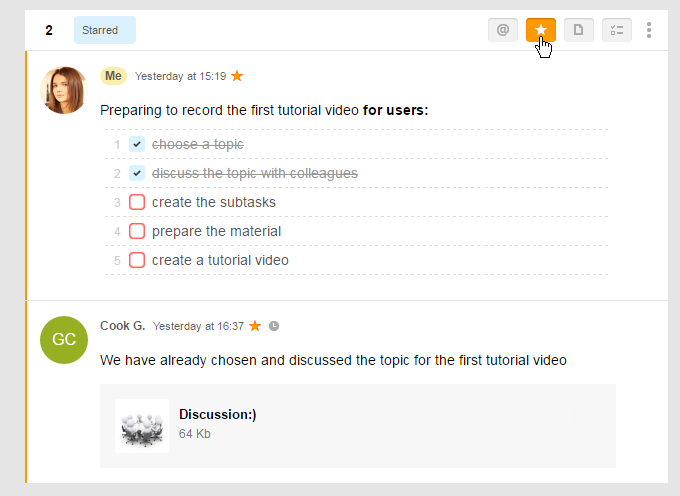
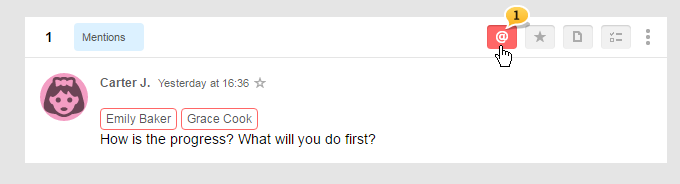
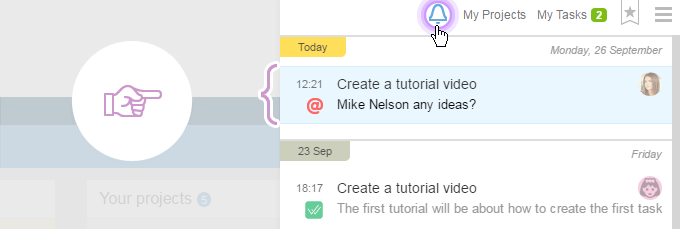
You can use other filters as well. Click1 and see all messages where you have been mentioned:
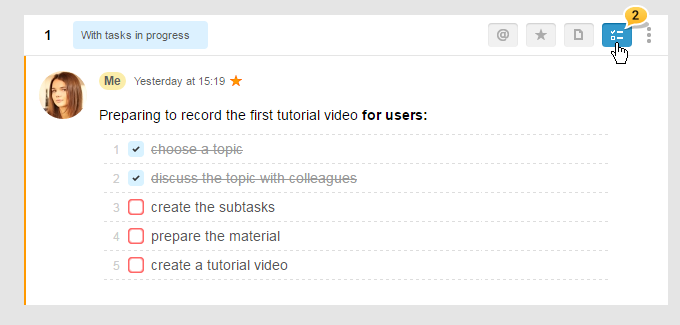
Click this icon2 to see unfinished tasks or mark their completion:
Click this icon3 to see messages with files attached.
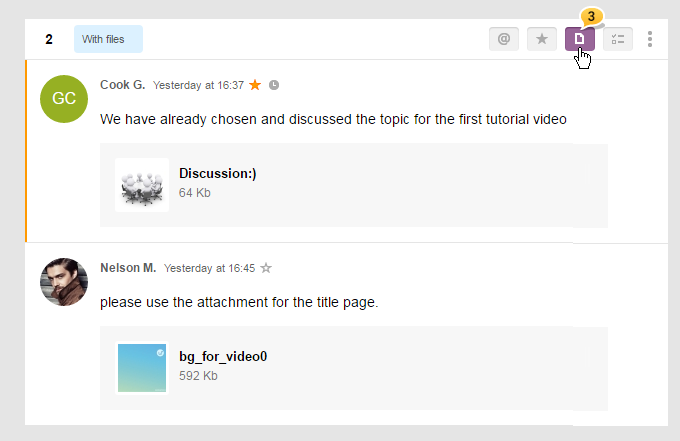
Use quick filter of the Feed to save time when searching for necessary comments.
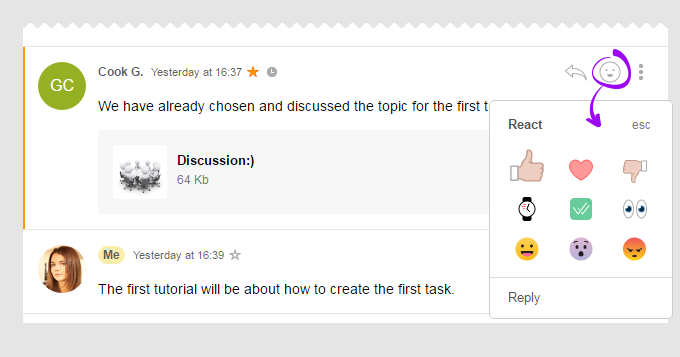
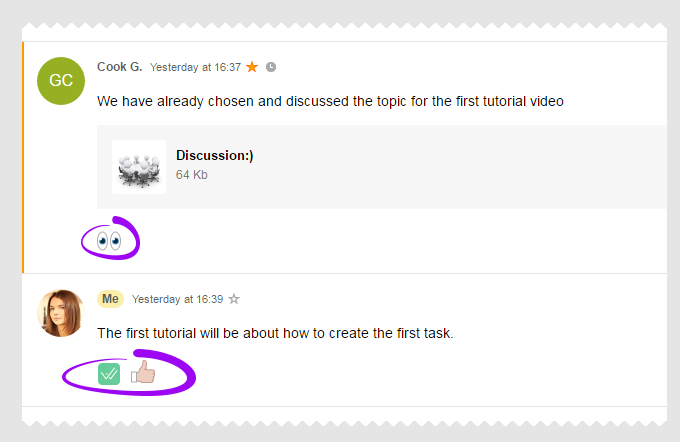
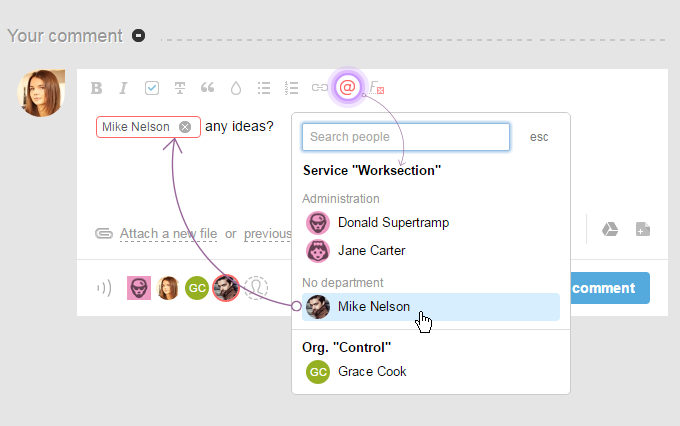
Please consider that when you write a comment to a Task or Subtask, only the constant subscribers of this Task or Subtask are notified. You may see their avatars.
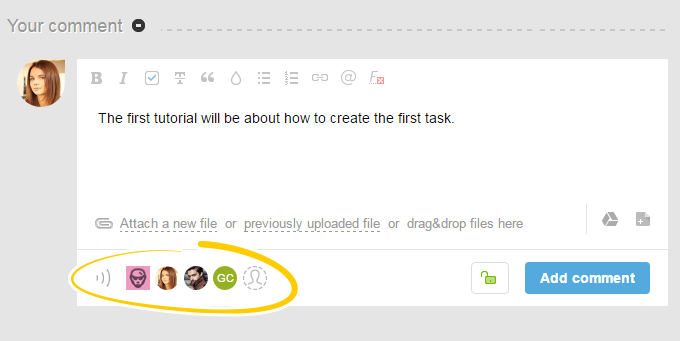
If you prefer not to notify one or more constant subscribers, click the avatar of the one who should not be bothered; the avatar disappears. Only those remained, namely, whose avatars you still see, will be notified of your comment.
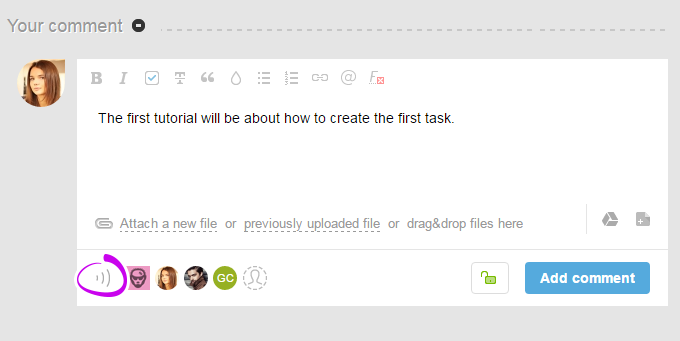
To disable all notifications at once, click the first icon:
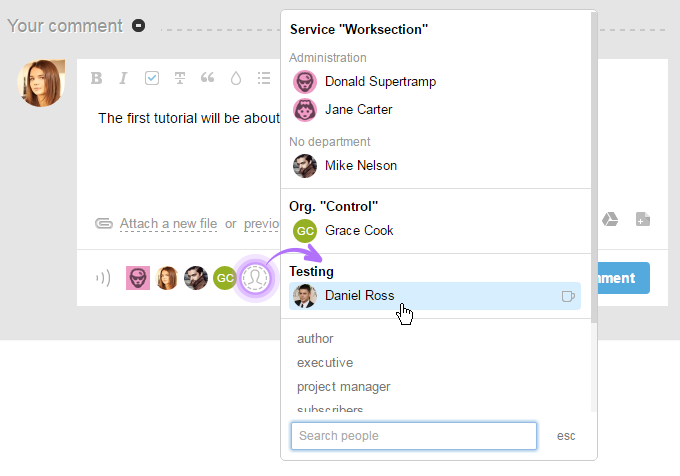
Please be reminded that apart from deleting subscribers, adding of those who are not subscribed for the current Task or Subtask is possible. Click the last icon Also, Notify and chose the person who shall receive the same notification.
Create Subtasks, Checklists, write Comments and use Reactions – this will make your work easier!
Have a productive worktime!
Worksection team

