Решения
worksection
beta
help
Quick access menu
Dear Colleagues!
Today we are going to learn how to quickly see the list of your goals, projects you are participating in, and selected tasks/subtasks and other pages of your account.My tasks
No matter which page of your account is open at the moment, the top right corner shows the “My targets” menu. Here you may see all the tasks and subtasks assigned to you.
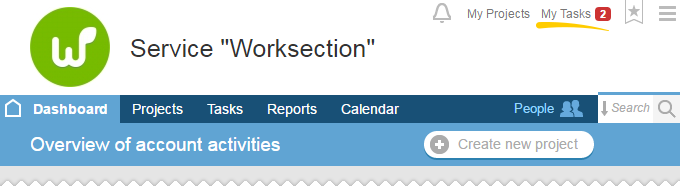
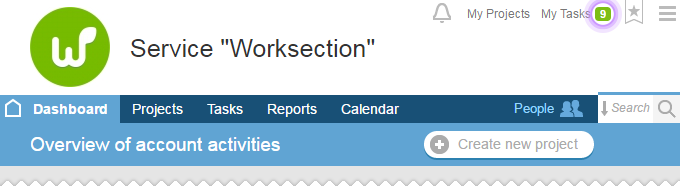
This list contains all your active tasks, and Worksection will notify you of certain updates in your tasks. A green-framed figure near “My targets” shows the number of tasks where you are an executive which need to be viewed:
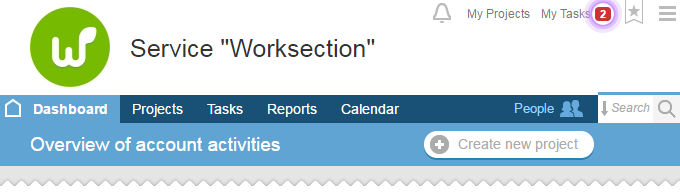
Red frame means that tasks are out of date or, in other words, overdue:
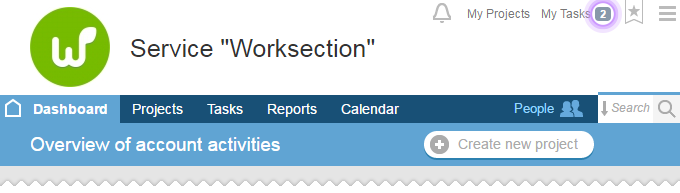
Gray frame means that the deadline is pressing:
Task or subtask automatically disappears from that list after closing.
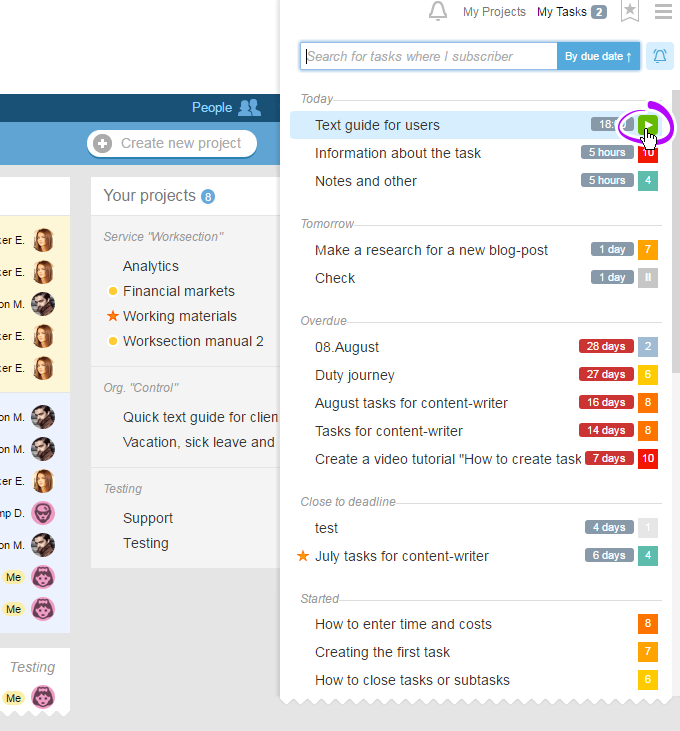
To enable timer directly from “My task” menu, hover a cursor over a task or subtask and, click timer start icon:
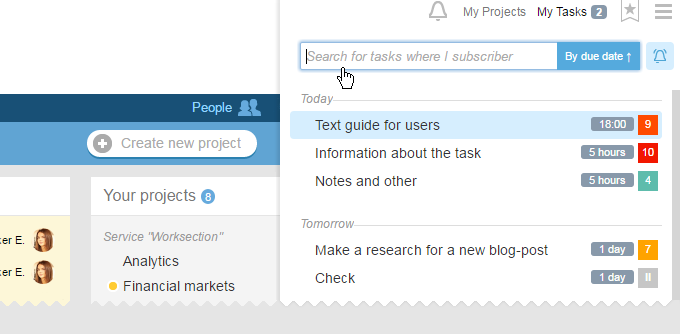
Use search box for quick search, if you have a lot of tasks and subtasks.
Group tasks and subtasks according to your needs.
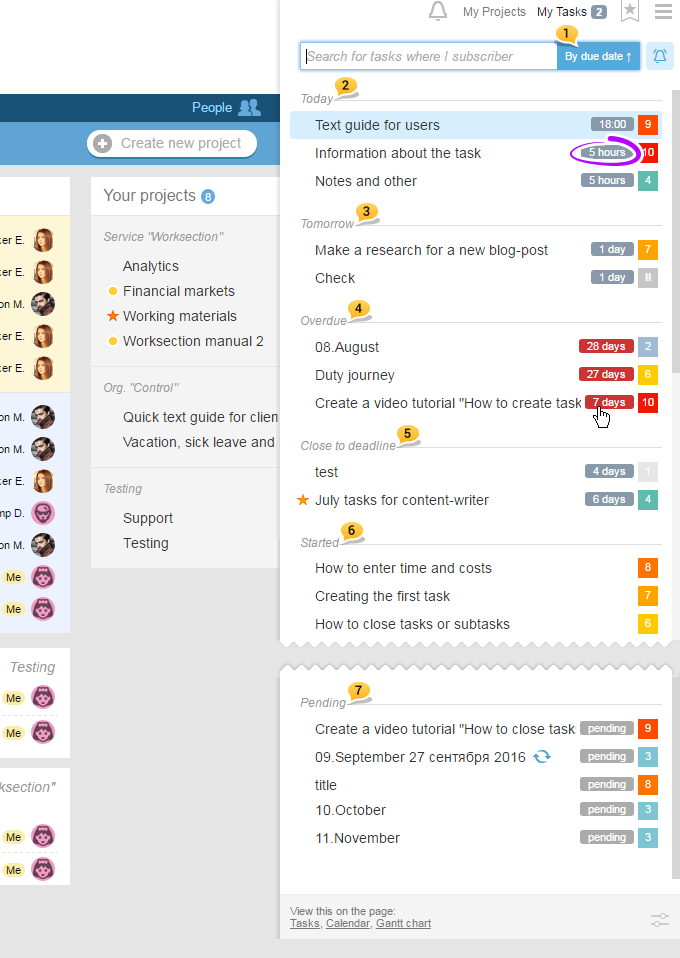
Please note that by default the tasks and subtasks are grouped by due date1, i.e. according to completion date. Field “Today”2 shows tasks that should be completed today and how many hours are left. The same is true for field “Tomorrow”3.
Overdue tasks and subtasks are in “Overdue” field4 with the number of days in red frame.
Check the “Pressing Deadline”5 group to see the list of tasks and subtasks with pressing deadline and the number of days left.
Next, we see the tasks that have already started6, and in the very end there are tasks and subtasks labeled as “Pending”7.
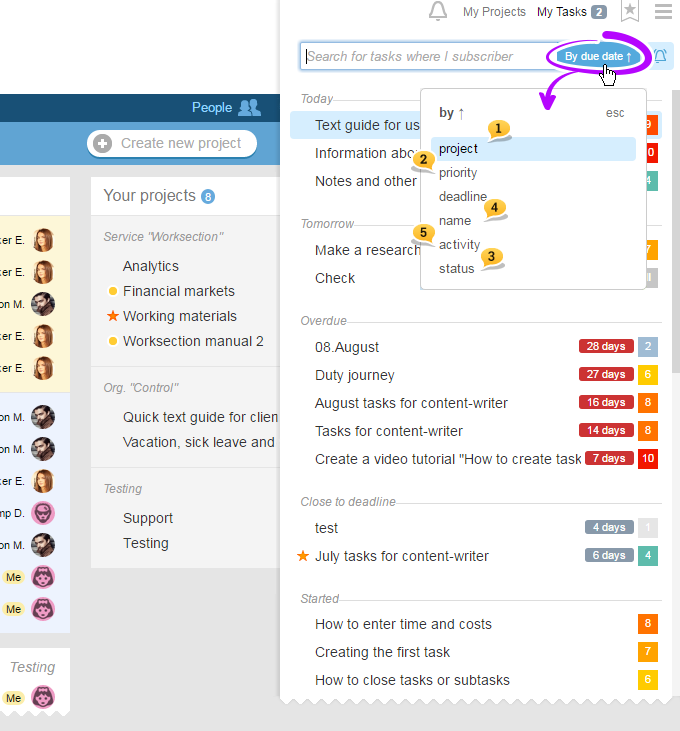
Should you need to group tasks and subtasks according to projects to which they belong, select “By Project”1.
Should you need to sort tasks and subtasks according to importance, select “By Priority”2.
If you filter “By Status”3, all tasks and subtasks are divided according to status which is very useful if you need to find the task with specific status, for example “New”.
The tasks and subtasks can also be filtered according to their name4 and the latest action date5:
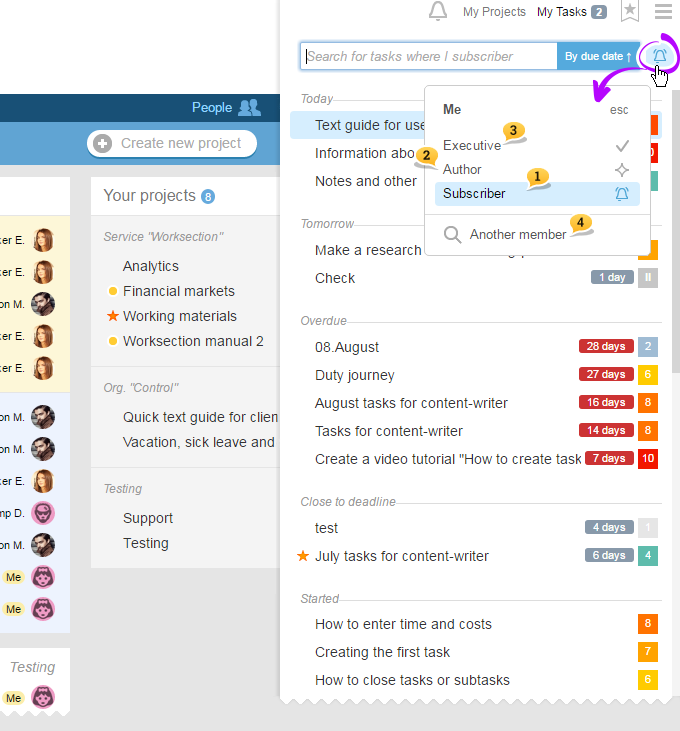
By default, you are viewing the list of tasks and subtasks you are subscribed to1. Click the following icon to see the list of tasks or subtasks where you are the author2 or executive3.
Option “Another member”4 allows you to choose any colleague and to see the tasks and subtasks in which he or she is an executive.
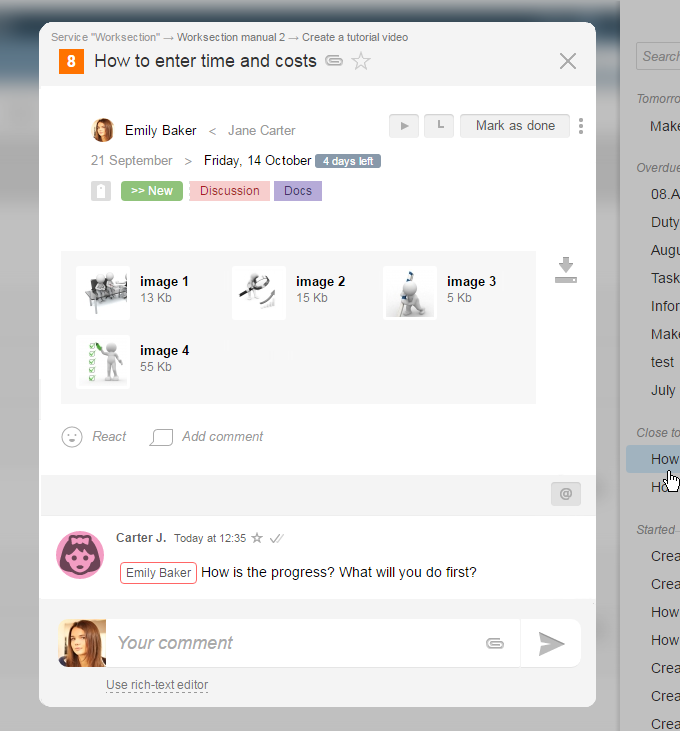
Click the name of any task or subtask to open preview:
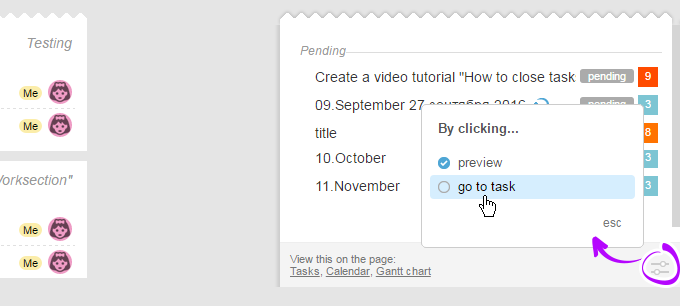
If you wish to get to task or subtask immediately, click the Panel Expand at the bottom of preview window and select Go to task:
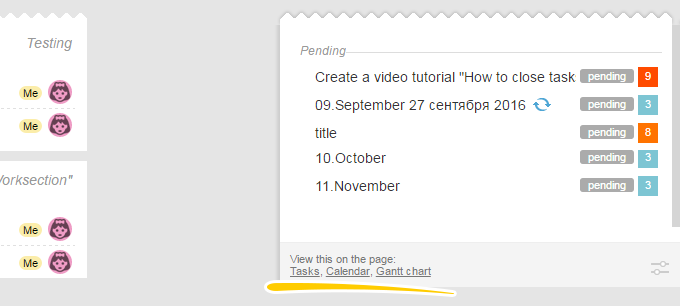
Furthermore, here you have quick access to Tasks, Calendar and Gantt Chart for the same tasks.
My projects
No matter which page of your account is open, use "My projects" menu to get access to all active projects that you are involved in. This menu helps you to switch from one project to another without returning to the main page of your account.
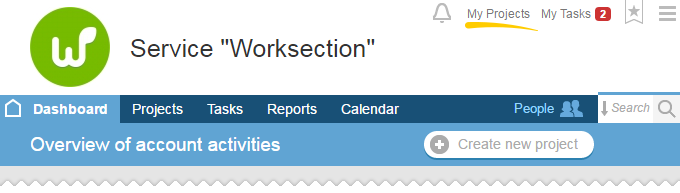
Here1 you can see a list of recent projects you have been working with lately. Such list contains only five projects.
This box shows all active projects2.
However, if you haven’t found the project you were looking for, check the archive by clicking “Archived Projects”3 at the bottom of the page.

My favorites
If you regularly work with the same tasks and subtasks, lists of tasks or reports, add them to bookmarks for quick access. To do so, click asterisk near the task and subtask name:
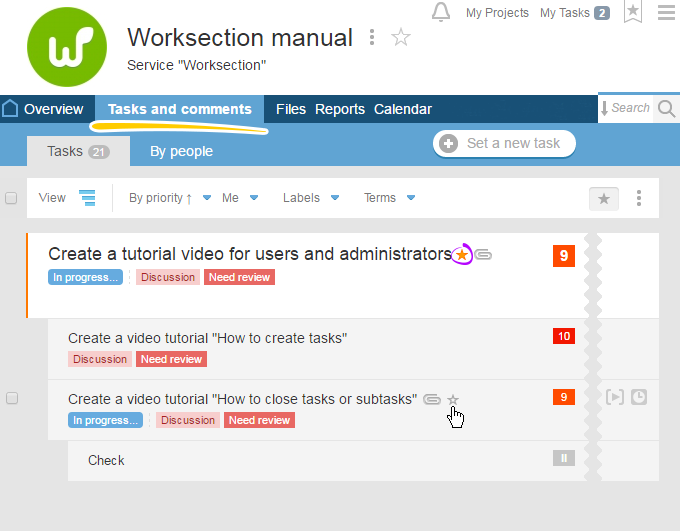
or set parameters:
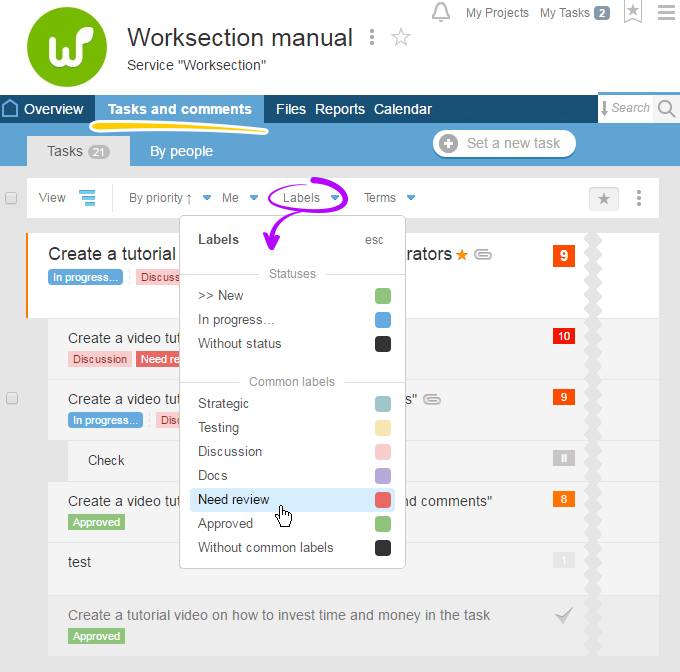
and add the list to bookmarks using three dots menu:
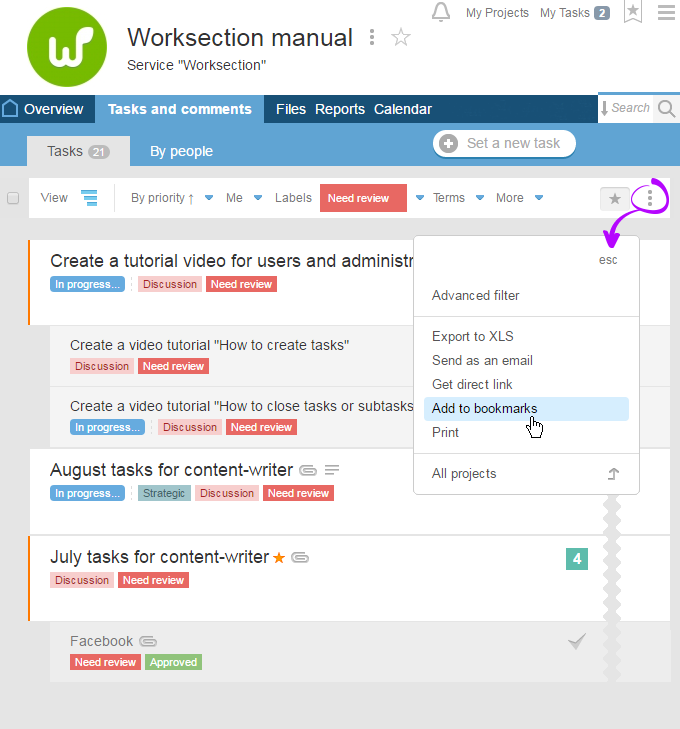
or use quick access clicking asterisk at the bottom.
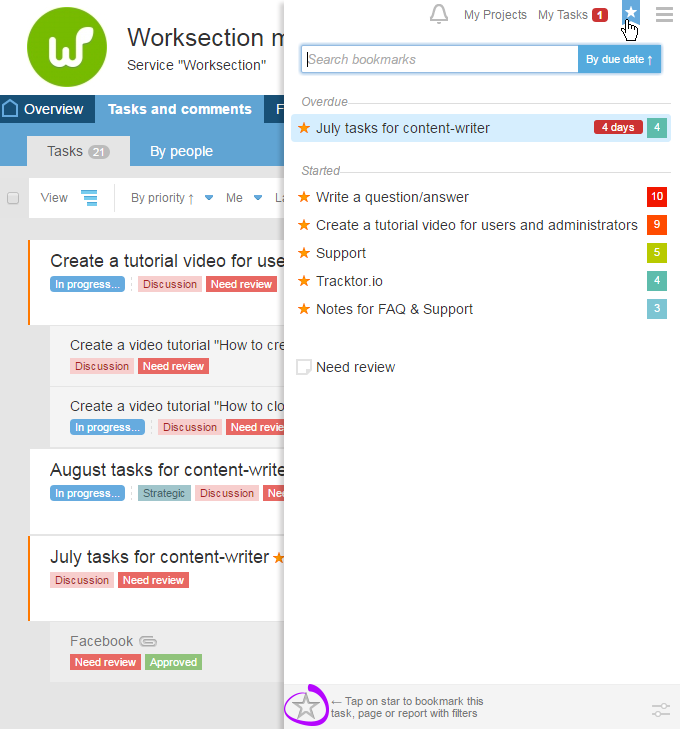
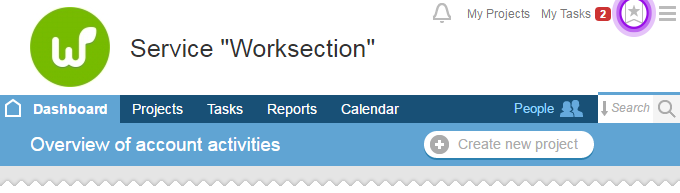
Go to the “Bookmarks” menu to see all bookmarks.
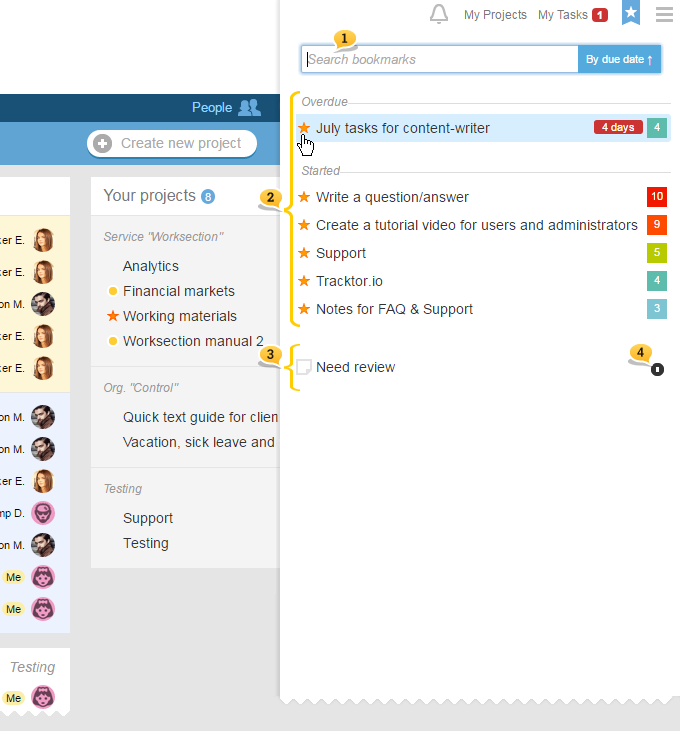
If you have many tasks and subtasks in this list, use search and filters1, identical to those in “My tasks” section.
All tasks and subtasks of the account, marked with asterisk, are shown at the top2. Press asterisk to delete it and remove one of the items from the list.
Following is the list of pages saved from account with applied selections and filters3. Press this icon4 to remove the saved page.
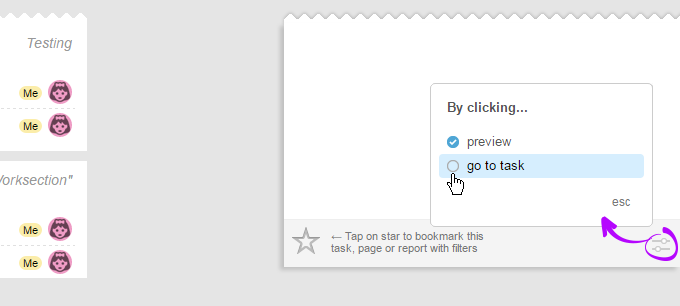
For your convenience, you can expand the panel, namely to see preview or to go directly to a task or subtask:
Use quick access menu to go immediately to the desired task, subtask, or the list of tasks or reports!
Have a productive worktime!
Worksection team
Оставьте ваш отзыв
Помогла ли вам эта статья?
Рады, что смогли помочь! Что было полезным?
Извините, что это не помогло. Что пошло не так?
Предыдущая
Subtasks, checklists and comments
Следующая
Some API method

